
You finish editing a video on your Mac. It looks exactly right. You send it to a colleague on Windows and they tell you it won’t open. Or you receive a WMV file and QuickTime refuses to touch it. The same file behaves differently depending on which operating system is trying to read it.
That’s because two operating systems that developed their own native formats, codecs, and media frameworks largely independently. Understanding why it happens is the fastest path to making sure it stops happening to you.
The Core Reason: Different Native Formats
MOV is a Mac format developed by Apple for use in its QuickTime framework. MOV can be played on Windows systems, but it is natively used on Macs.
Windows has its own equivalent. WMV (Windows Media Video) is a compressed video container developed by Microsoft for the Windows Media Framework. It plays natively on Windows without any additional software. Mac’s QuickTime doesn’t support WMV, and requires third-party software.
That’s the root of most cross-platform video problems.

The Format and Codec Problem (They’re Not the Same Thing)
Format and codec are two different things, and both can cause problems independently.
The format (or container) is the file wrapper, like MOV, MP4, AVI, MKV. It holds the video, audio, and metadata together in a structured way.
The codec is what was used to encode the video data inside that container. Common codecs are H.264, HEVC, ProRes, WMV. The codec determines how the video is compressed and how it needs to be decompressed for playback.
A file can have a compatible container but an incompatible codec. Apple supports a variety of video codecs natively including H.264, HEVC, and ProRes. H.264 is the most widely supported codec across devices and platforms. Windows natively supports H.264 and its own WMV codec well, but HEVC and ProRes cause consistent problems without additional software.
A MOV file encoded with H.264 will generally play fine on both platforms. A MOV file encoded with Apple ProRes will look beautiful on Mac and often fail entirely on Windows.
Format Compatibility: What Works Where
| Format | Mac | Windows | Notes |
| MP4 (H.264) | Native support | Native support | Most universally compatible format available |
| MOV (H.264) | Native — QuickTime | Partial — may need codec | Container is Apple-native; codec determines success |
| MOV (ProRes) | Native support | Rarely supported | Professional Apple codec, limited Windows support |
| HEVC / H.265 | Native support | Requires codec pack or extension | WMV was originally developed as a replacement for the RealVideo codec for Windows streaming — HEVC needs separate installation |
| WMV | Requires third-party player | Native support | Windows-native, not supported by QuickTime |
| AVI | Supported via third-party | Native support | Audio Video Interleave is compatible with Mac, Windows, and Linux but allows variable size and quality trade-offs |
| MKV | Supported via third-party | Native in Windows 10+ | MKV is not compatible with many devices, so users tend to convert to MP4 |
| WebM | Limited native support | Limited native support | Good for web, poor for local playback |
Why the Same File Can Look Different Too
Compatibility isn’t only about whether a file plays. Sometimes it plays on both platforms but looks noticeably different.
Macs and PCs can be set up to use dramatically different color spaces at the OS level and at the display level. Mac displays are calibrated differently from most Windows monitors by default, and the two operating systems handle color profiles differently. A video that was graded on a Mac Retina display may look oversaturated or too dark on a Windows monitor.
Mac offers superior color accuracy with Retina displays that improve color grading results, while Windows display calibration varies significantly depending on the monitor manufacturer and settings. This is why professionals who deliver video to clients across platforms often export in a format with an embedded color profile and test on both systems before final delivery.
The Specific Scenarios Where This Breaks
You Edit on Mac and Send to a Windows User
The most common version of this problem. If you export from Final Cut Pro or an Apple-native workflow, the output might be MOV with ProRes or HEVC. ProRes422 exported on Mac looks beautiful but can look awful on a Windows PC.
The fix is to convert the export to MP4 with H.264 before sending it. This is a lossless-in-practice conversion for delivery purposes.
You Receive a WMV File on Mac
WMV is Windows-native. QuickTime won’t open it. Most Mac video editors won’t import it without conversion. Converting to MP4 resolves this immediately.
You Upload a Mac-Exported File to a Platform
MP4 files are the most commonly used video format, which makes them the best option for sharing across different platforms. MP4 files are compatible with both Windows and Mac operating systems. Uploading MOV or ProRes files often results in failed uploads, re-encoding quality loss, or playback errors. MP4 with H.264 is what virtually every platform expects.
You Open a Windows-Created File in a Mac Editor
AVI files created on Windows, particularly older ones using legacy codecs, frequently cause import errors in Mac editing software. AVI allows flexible size and quality trade-offs but loses quality during compression and uses codecs that macOS doesn’t natively support. Converting to MP4 before importing solves this.
The Universal Fix: Convert to MP4 with H.264

MP4 with H.264 video and AAC audio is the one format that works reliably on Mac, Windows, Android, iOS, smart TVs, social platforms, and editing software across the board.
TotalMedia VideoConverter handles this conversion cleanly, available as both a web app and a desktop application.
Converting MOV to MP4 (Mac to Windows):
- Open TotalMedia VideoConverter and add your MOV file. Drag and drop or click Add File
- In the format panel, select MP4 under the Video tab, or choose the YouTube preset under Web Video for platform-optimised output
- Open Custom Settings if you need specific encoder, resolution, or bitrate control.
- Set your output folder and click Convert. The live progress dashboard shows completion status per file
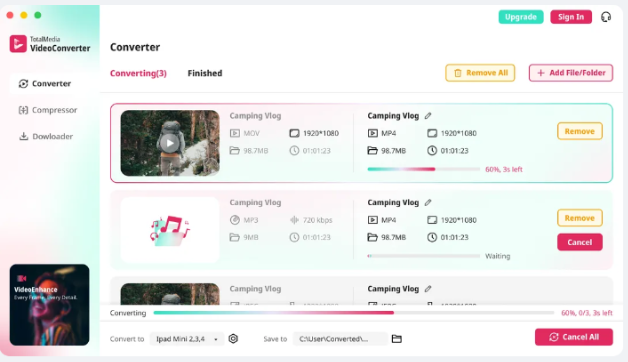
Batch converting a folder of files: Add an entire folder of MOV, WMV, or AVI files at once. Select your target format once and apply it to everything in the queue. Convert All processes every file in one session.
Device-specific output: The Device tab includes presets for Samsung, Sony, Huawei, Google, and others — useful when the target isn’t a PC or Mac but a specific television, console, or mobile device with its own format requirements.
TotalMedia VideoConverter’s online plan is currently available at launch pricing from $2.59 per week or $19.59 per year. The desktop perpetual license is $39.59.
Quick Reference: Which Format to Use When
| Goal | Recommended Format | Why |
| Share between Mac and Windows | MP4 / H.264 | Universal playback on both platforms |
| Upload to YouTube or social media | MP4 / H.264 | Platform-recommended format |
| Professional editing on Mac | MOV / ProRes | Best quality for Mac-native workflows |
| Deliver to a Windows client | MP4 / H.264 | Avoids ProRes and MOV codec issues on Windows |
| Archive for long-term storage | MKV or MOV / H.264 | Flexible container, widely readable |
| Send via email or messaging | MP4 / H.264 | Small file size, universal compatibility |
The Bottom Line
The same file behaves differently on Windows and Mac because the two operating systems were built around different native formats, different codec support, and different color handling. None of this is a bug — it’s the result of two platforms that developed independently and never fully standardised.
The practical solution is consistent: convert to MP4 with H.264 for anything that needs to work everywhere. It plays on both platforms, imports into every major editor, and uploads to every major platform without friction. TotalMedia VideoConverter makes this conversion straightforward whether you’re dealing with a single file or an entire archive.
If you’re also dealing with iPhone-specific compatibility issues — particularly HEVC files that won’t play on Windows — our related guide covers that directly: How to Make iPhone Videos Compatible With Any Device.
Frequently Asked Questions
MOV is a Mac format developed by Apple for use in its QuickTime framework. It can be played on Windows systems but is natively used on Macs. Whether it plays on Windows depends on the codec inside the MOV container. H.264 inside MOV usually works. ProRes or HEVC inside MOV frequently doesn’t without additional codec installation. Converting to MP4 with H.264 resolves this reliably.
For sharing and delivery, yes. MP4 files are compatible with both Windows and Mac operating systems and are the most commonly used video format for sharing across different digital platforms. MOV is excellent for editing on Mac but introduces compatibility risk when files need to work on Windows, Android, or online platforms.
Yes. Converting WMV to MP4 with H.264 produces a file that plays natively on Mac without quality degradation for most content. WMV is a Windows-native format that QuickTime doesn’t support, so conversion is the practical solution rather than installing workaround software.
Macs and PCs can be set up to use dramatically different colour spaces at the OS level and at the display level. This means colours, contrast, and brightness can appear different on the two platforms even from the same file. For delivery to mixed audiences, exporting with an embedded colour profile and testing on both platforms before final delivery is the most reliable approach.
MP4 with H.264 is the safest choice for broad long-term compatibility — it’s supported everywhere and the codec is mature and stable. MKV is also a strong option for archival purposes due to its open-source nature and flexibility, though playback support varies more across devices and platforms than MP4.