
You record a video on your iPhone. It looks great. Then you try to send it to a friend on Android, upload it to a website, or open it on a Windows PC. But something breaks. It won’t play. It uploads wrong. The editor refuses to import it.
This isn’t a bug. It’s a format problem. And it’s one that affects almost every iPhone user at some point.
Why iPhone Videos Don’t Always Play Everywhere
Modern iPhones running recent iOS versions capture video in HEVC format by default, also known as H.265. It’s a codec that compresses video at roughly twice the efficiency of H.264 while maintaining the same visual quality. That’s excellent for saving storage space on your phone, but less excellent for compatibility.
Many devices, media players, and video editing applications still don’t fully support HEVC, which means a video that plays perfectly on your iPhone can fail completely on a Windows PC, an older Android device, a smart TV, or inside editing software.
The container format adds another layer. iPhones record video in MOV format. Apple’s QuickTime container is not universally supported across platforms the way MP4 is. So even if the codec is fine, the container can still cause problems.
The result is a two-part compatibility issue: the codec (HEVC) and the container (MOV) both create friction with non-Apple devices and platforms. Understanding which problem you’re dealing with determines the fastest way to solve it.

The Three Scenarios Where iPhone Video Breaks
Scenario 1: Won’t Play on Windows
A fresh Windows installation typically lacks the codec support needed to play HEVC video smoothly. Open an iPhone video in Windows Media Player or even File Explorer and you’ll either see an error or choppy, broken playback. Windows users can purchase HEVC Video Extensions from the Microsoft Store to enable playback. But this is a workaround, not a solution for sharing files with others.
Scenario 2: Won’t Import Into Editing Software
HEVC compatibility issues are common in video editing software. Adobe Premiere Pro, for example, has known difficulties with HEVC files from iPhones, and many editors either reject the import entirely or play it back with errors. Even when the file opens, colour and detail can look wrong after import. Converting to H.264 first resolves this reliably across virtually every editing application.
Scenario 3: Won’t Upload to Social Media or Platforms
YouTube supports HEVC but recommends H.264 for uploads. Many other platforms — older social media sites, client portals, cloud storage viewers — either don’t support HEVC at all or re-encode it badly on upload, losing quality in the process. MOV files cause similar problems on platforms that expect MP4.
Solution 1: Change Your iPhone Settings Before You Record
The simplest fix is preventative. Go to Settings, tap Camera, tap Formats, then select Most Compatible. This tells your iPhone to record in H.264 with JPEG photos rather than HEVC, making all new videos and photos broadly compatible across devices and platforms.
The trade-off is file size. HEVC offers better compression than H.264, so switching to Most Compatible means your videos will take up more storage space on your iPhone. For users who shoot a high volume of video and rely on iPhone storage, this matters. For users who primarily shoot occasional clips and want them to work everywhere without any extra steps, it’s the cleanest approach.
One important note: this setting only affects new recordings. Existing videos already saved in HEVC remain in that format and will still need to be converted if compatibility is an issue.
Solution 2: Convert Existing Files
For videos already recorded in HEVC or MOV, or for users who want to keep shooting in High Efficiency mode, conversion is the practical answer.
MP4 with H.264 encoding is the most universally compatible video format available. It plays on iOS, Android, Windows, Mac, smart TVs, and virtually every social platform and editing application. Converting iPhone video to MP4/H.264 resolves both the codec and container problem in one step.
Using TotalMedia VideoConverter
TotalMedia VideoConverter handles MOV and HEVC files directly. It doesn’t require pre-conversion or codec installation. This tool accepts the file as your iPhone produced it and outputs MP4 with H.264 video and AAC audio: the format that works everywhere.
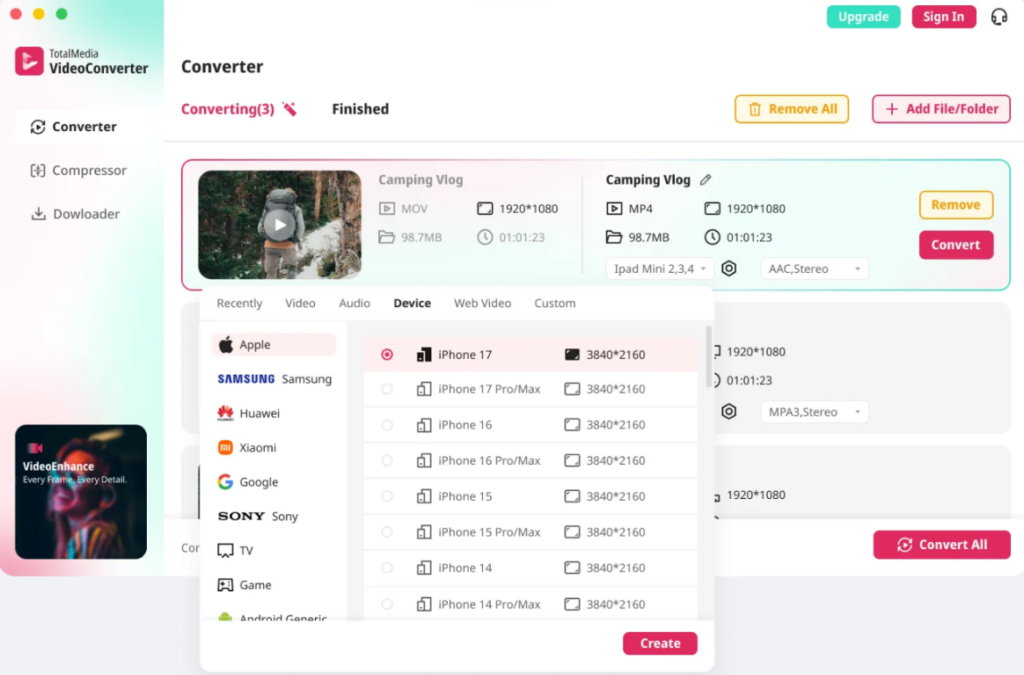
The workflow is straightforward. It’s available as both a web app and a desktop application, so you can convert in a browser without installing anything.
Step 1 — Add your files. Open TotalMedia VideoConverter and drag your iPhone MOV or HEVC files into the workspace. Batch processing means you can add an entire folder and convert everything in one session — useful if you’re dealing with a backlog of incompatible clips.
Step 2 — Select your output format. In the format panel, select MP4 under the Video tab. For YouTube uploads, select the YouTube preset under Web Video. This automatically configures MP4 with H.264 and AAC at the right settings for the platform.
Step 3 — Configure settings if needed. For most conversions, the default settings produce the right result. If you need specific output parameters like a particular resolution, frame rate, or bitrate for a client or platform, the Custom Settings panel gives you full control over encoder, resolution, frame rate, and both video and audio bitrate. Settings can be saved as named presets for reuse.
Step 4 — Set your output location and convert. Choose your destination folder, click Convert or Convert All for batch jobs, and monitor real-time progress in the dashboard. When complete, files appear in the Finished tab with one-click access to the output folder.
For device-specific compatibility, for example, converting an iPhone video to play optimally on a Samsung TV, a gaming console, or a specific Android device, the Device tab includes presets for major brands including Samsung, Huawei, Sony, and Google, as well as TV and console categories.

Solution 3: Use the Right Settings for Specific Platforms
Sometimes the issue isn’t general compatibility — it’s a specific platform with specific requirements. Here’s what works for the most common destinations:
YouTube: MP4, H.264, AAC audio. Uploading at 1080p or 4K triggers better codec handling on YouTube’s side. TotalMedia VideoConverter’s YouTube web preset configures this automatically.
WhatsApp and messaging apps: These platforms compress video on upload regardless of format. Converting to MP4/H.264 first gives the compression algorithm better source material and reduces the quality loss from their re-encoding.
Windows PCs: MP4 with H.264 plays natively in Windows Media Player and File Explorer without any additional codec installation. MOV and HEVC files require workarounds on Windows that MP4 doesn’t.
Android devices: MP4 is supported natively on both iOS and Android as well as the majority of other devices and social media platforms. Converting to MP4 eliminates compatibility issues across virtually all Android hardware.
Video editing software: H.264 in an MP4 container is the safest import format for Adobe Premiere, DaVinci Resolve, Final Cut Pro, and most other editing applications. Converting HEVC to H.264 before import resolves the majority of codec rejection issues.
Which Solution Is Right for You?
| Situation | Best Approach |
| You want all future videos to work everywhere automatically | Change iPhone camera settings to Most Compatible |
| You have existing MOV or HEVC files that need converting | Use TotalMedia VideoConverter — batch convert to MP4 |
| You want to keep shooting in High Efficiency and convert selectively | Convert only the files you need to share or edit |
| You need device-specific output (Samsung TV, console, etc.) | Use TotalMedia VideoConverter’s Device presets |
| You’re uploading to YouTube or Vimeo | Use the Web Video preset for platform-optimised export |
| You need a specific resolution or bitrate for a client | Use Custom Settings in VideoConverter for full control |
The Quick Answer
iPhone videos fail on other devices because HEVC and MOV aren’t universally supported the way MP4 and H.264 are. The fix is either to prevent the problem by changing your camera settings before recording, or to convert existing files to MP4. Both approaches solve the issue completely.
TotalMedia VideoConverter handles the conversion side — in a browser or as a desktop app, with batch processing for larger collections and platform-specific presets for the most common destinations. The online plan starts from $2.59 per week, with a perpetual desktop license available at $39.59 at current launch pricing.
Frequently Asked Questions
iPhones capture video in HEVC format by default, and Windows installations often lack the codec support needed to play HEVC smoothly. The file isn’t corrupted — it just uses a codec that Windows doesn’t natively support. Converting to MP4 with H.264 resolves this without any quality loss.
Done correctly, the quality difference is negligible for most viewing purposes. HEVC creates smaller files than H.264 at equivalent quality, so converting to H.264 increases file size but doesn’t visibly degrade the image when using a good conversion tool with appropriate bitrate settings. TotalMedia VideoConverter’s custom settings let you control the output bitrate to preserve as much quality as needed.
Selecting Most Compatible in your iPhone camera settings switches photos to JPEG format and videos to H.264. Both are high quality formats — the trade-off is larger file sizes compared to HEVC and HEIF, not a reduction in visual quality.
TotalMedia VideoConverter supports batch processing — add an entire folder of MOV or HEVC files, select your output format, and convert everything in one session. The live progress dashboard shows the status of each file individually, and completed files appear in the Finished tab when done.
YouTube re-encodes every uploaded video. If the source file is in an unsupported or sub-optimal format, that re-encoding amplifies existing quality issues. Converting to MP4 with H.264 and a high enough bitrate before uploading — 15 to 20 Mbps for 1080p, 35 to 45 Mbps for 4K — gives YouTube better source material to work from and produces noticeably better results after its processing.