You try to edit a video, but your editor says “cannot play video codec not supported.” That message can feel confusing and annoying. The real reason is simple. Your software does not recognize the video codec inside the file. Codecs act as translators for video and audio data. Without the right one, your file stays locked. You can fix this quickly, even if you have never dealt with codecs before.
What Is a Video Codec?
Codec Basics Explained
A video codec is a tool that makes video files smaller. It also helps open them so you can watch or edit. The word codec comes from “encoder” and “decoder.” When you make a video, the encoder part shrinks the file. This saves space on your computer or phone. When you want to play or change the video, the decoder part opens it. This lets you see or edit what is inside. Codecs help you store and share videos without using too much space.
People sometimes talk about video formats, but these are different from codecs. A video format is the way a file is put together. It holds the video, audio, and things like subtitles. The codec works inside the format to shrink and open the video. For example, an MP4 file can use the H.264 codec.
Here are some common video codecs and formats you might see:
MP4: Good size and quality, works on most devices.
AVI: High quality, used by pros, but files are big.
MKV: Has many features, good for HD, not always supported.
MOV: High quality, used for editing, but not used everywhere.
WMV: Smaller files, but not as clear.
FLV: Used for streaming, not as popular now.
You may also see codecs like H.264, AVC, AVCHD, and MPEG-2. Each one is good for different things.
Why Codecs Matter for Video Editing
The codec you use changes how easy it is to edit your video. It also changes how good your video looks. Some codecs, like ProRes and DNxHD, are made for editing. They keep the video looking nice and help with color. Others, like H.264 and HEVC, are made for sharing. These can lose some quality if you edit them a lot.
Some editing programs work faster with certain codecs. For example, codecs with intra-frame compression, like ProRes, make editing smoother. Some programs use your computer’s hardware to help you see and save videos faster. The table below shows how these features help you edit faster:
Feature | Description |
|---|---|
Uses your computer to make editing faster and smoother. | |
Optimized Engine | Handles big video jobs without slowing down. |
WebCodecs API | Lets web browsers edit video almost right away. |
If your editor cannot open a file, it is often because of the codec inside. Knowing which codec your video uses helps you pick the best settings and avoid problems.
Why You Cannot Play Video Codec Not Supported

If you see a “cannot play video codec not supported” message, your video editor cannot open your file. This can happen for a few reasons. You might not have the right codec. Your editor could be too old. Sometimes, your device has its own problems. Knowing why this happens helps you fix it.
Unsupported or Missing Codecs
A video file needs the correct codec to open and play. If your editor does not have it, you will see an error. Sometimes, the file extension looks fine, but the codec inside is not supported. This is not the same as a wrong video format. For example, your editor might open MP4 files, but not if they use a strange codec. Here are some common reasons:
If a codec is missing or not supported, the video or audio will not play.
If the file extension does not match the way it is made inside, it will not work.
If the video settings are too high, like big resolution or bitrate, your software can get stuck.
If you have these problems, you may need to get the missing codecs or change the file to a codec your editor likes. Sometimes, you need to fix the video file if it is broken and not just a codec problem.
Outdated Editor or Unusual Codecs
Old editors may not work with new or rare codecs. If you try to open a file with a new codec, your software might not know what to do. This gives you a “video codec not supported” message. Updating your editor can help. Sometimes, you need to change the file to a more common codec. Editors can also have trouble with files that use a codec they do not support or with file formats they do not know.
Device-Specific Codec Issues
Some devices, like phones or smart TVs, only work with certain codecs. If you move a video from your computer to your phone, you might see an error. Hard codecs, like 4K 10 bit HEVC, can make videos lag or stutter, especially on old devices. These problems make it hard to watch or edit videos. Using device presets in a converter can help. This makes the video file fit your device. It helps you avoid problems with files that do not work and lets you watch videos smoothly.
If you have lots of files with codec errors, batch processing can fix them all at once. This saves time and keeps your work easy. Remember, knowing the difference between a codec and a format helps you pick the best way to fix your video.
How to Identify Your Video Codec
You need to know which video codec your file uses before you can fix video codec not supported errors. This step helps you find the right solution for your video. If you see a cannot play video codec not supported message, you should check the codec first. You can use tools built into your computer or try free apps. Both ways help you understand what is inside your video file.
Using OS Tools
You can check the video codec on Windows or macOS without extra software. On Windows, right-click your video file. Choose Properties, then go to the Summary tab. You will see details about the codec used in your video. On macOS, right-click your video file and select Get Info. Look for the Summary section. This area shows the codec information. These steps work for many files, but sometimes you may not see all the details. If you still have video codec not supported problems, you may need more information.
Tip: If you cannot find the codec details, try another method. Some files hide this data, or the info may not show for every video.
Using Free Third-Party Apps
Free apps can help you find out which codec your video uses. These tools give you more details than your computer’s built-in options. You can use MediaInfo, VideoInspector, Codec Installer, GSpot, or AVIcodec. These apps scan your video file and show you the codec, format, and other facts. This makes it easier to repair or convert your video if you have a video codec not supported issue. If you have a corrupted video file, these tools can also help you check if you need to repair the corrupted video file before you try to open it. Many people use these apps when they want to fix video codec not supported on android/iphone or other devices.
A table can help you see which tool works for your needs:
Tool Name | Platform | Main Use |
|---|---|---|
MediaInfo | Windows/Mac | Shows codec and file details |
VideoInspector | Windows | Finds missing codecs |
GSpot | Windows | Checks AVI file codecs |
AVIcodec | Windows | Lists video and audio codecs |
Knowing your video codec helps you find the best solution for your issues. You can repair, convert, or change your video file to make it work.
Fix Video Codec Not Supported
You can fix video codec not supported errors with easy steps. Each step helps you solve the cannot play video codec not supported message. You can get your video editing working again. You might need to update your software. You may need to install missing codec packs. You can convert your file or use device presets. If you have lots of files, batch processing saves time. These steps help you repair corrupted video files and deal with missing codecs.
Update Your Video Editor
Check if your video editor is up to date. New versions support more codecs. They fix video codec not supported errors. Old editors may not see new codecs or formats. Updating your editor helps you open files with modern codecs like H.264 or HEVC. If you still see video codec not supported messages after updating, try another solution.
Install Codec Packs or Media Players
Sometimes, you need to download missing video codecs. Codec packs add support for many codecs at once. You can install codec packs or use media players with extra codecs. This helps you open files with unusual codecs or formats. The table below shows which codecs you may need for different file types:
File Format | Required Codec(s) | Notes |
|---|---|---|
MP4 | H.264 or H.265 | Make sure your hardware supports H.265 |
AVI | Depends on encoding | Install the specific codec used |
MOV | H.264 and PNG | Change settings on Apple devices for compatibility |
TREC | N/A | May be corrupt if issues happen |
Camrec | N/A | Not supported in Camtasia 2020 or later |
Note: Installing missing codec packs can fix video codec not supported errors. You should be careful. Some third-party codecs may have malware or security risks. You may see problems if the codec quality is low. Maintenance can get hard as new codecs come out.
Bad codecs can cause problems in video editing.
Some third-party codecs may have malware.
Security issues in these codecs can lead to trouble.
Maintenance gets harder as new codecs appear.
Convert Video to Supported Codec
If your editor cannot play video codec not supported, you can use a converter like TotalMedia Video Converter. Video conversion changes the codec inside your file. This process is called transcoding. It re-encodes the video data and makes it work better. You can use a converter to fix video codec not supported errors. Converting your video helps it play on many devices. The transcoding process changes the video data to fit your editor or device.
Video conversion is about transcoding. It re-encodes data from one codec to another. This makes your video work better.
Converting a video to a supported codec helps it play on many devices.
The transcoding process changes video data to fit the target device.
You can pick custom settings to choose the encoder, like H.264. This helps when the problem is codec incompatibility. Smart Fit picks the encoder for you. You do not need to know codec settings. The Finished Tab lets you find your output files fast.
Use Device Presets for Compatibility
Device presets help you fix video codec not supported on android/iphone and other devices. You can pick a preset for your device, like iPhone, Samsung, TV, or game console. The converter will change the codec and format to match your device. This step solves device-specific codec issues. You do not need to know technical details. You can avoid errors and watch your video smoothly.
Tip: Device presets make it easy to fix video codec not supported errors for any device. You do not need to know codecs or formats.
Batch Processing for Multiple Files
If you have lots of files with video codec not supported errors, Total Media VideoConverter’s batch processing helps. You can convert all your files at once. This saves time and effort. Batch processing lets you fix video codec not supported for folders of files. This is common when switching editing software.
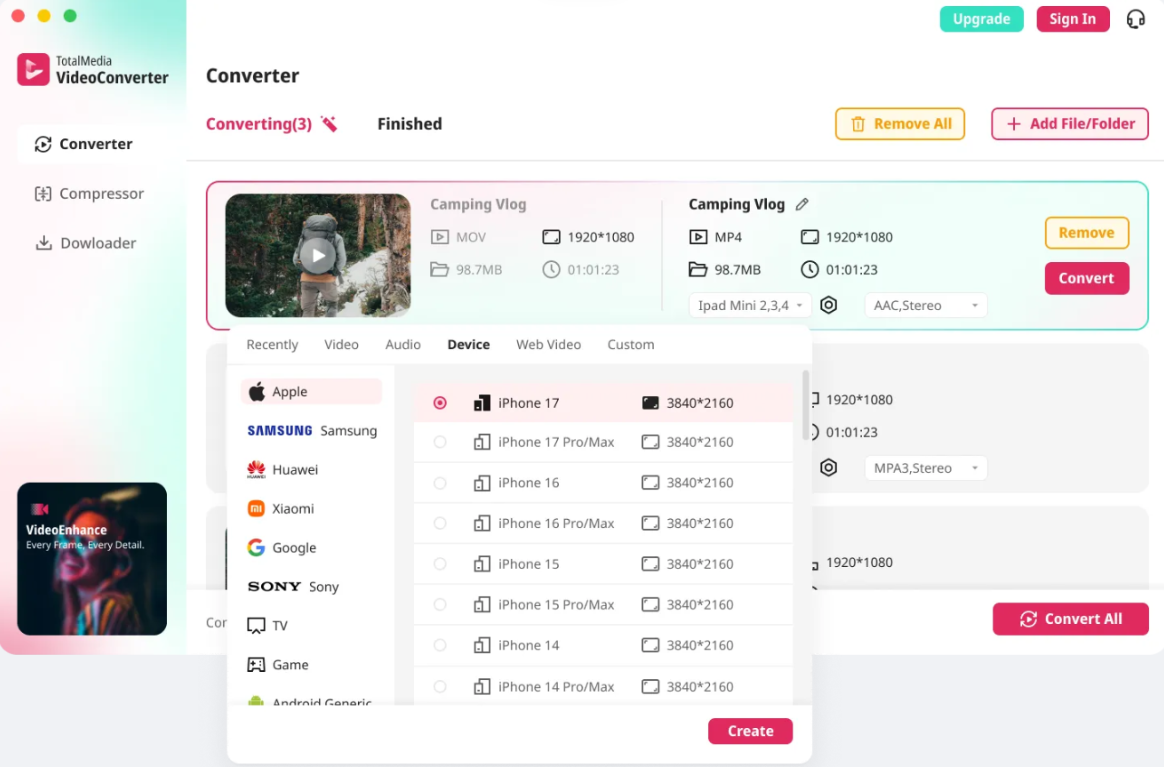
Open your converter app.
Load many files for batch processing.
Set your output format, like MP4, AVI, MKV, or WEBM.
Start batch conversion to fix video codec not supported for all files.
You can use batch processing to repair corrupted video files and handle missing codecs. This step makes your workflow easier and keeps your video editing fast.
You can fix video codec not supported errors by updating your editor, installing missing codec packs, converting your file, using device presets, and batch processing. These steps help you repair corrupted video files, handle missing codecs, and solve cannot play video codec not supported messages. You can use video repair tools if your file is damaged. The solution works for many video codec issues and keeps your editing workflow smooth.
Preventing Video Codec Issues
Recommended Formats and Codecs
You can stop many problems if you pick the right format and codec before you start your video. Some formats and codecs work better with most editors and devices. The table below shows two top choices for easy editing and playback:
Format | Codec | Notes |
|---|---|---|
WebM | AV1 | Open, free to use, works well except on old Safari |
MP4 | Works on all main browsers, has good quality |
H.264 is a great choice for most videos. It works well for streaming, editing, and sharing online. If you want your video to play on almost any device or browser, use H.264 in an MP4 file. This helps you avoid video codec not supported errors and makes your work easier.
Tip: If you pick a format and codec that most editors support, you will spend less time fixing problems and more time making videos.
Best Practices for Recording and Downloading
You can stop many codec problems by following some easy steps when you record or download video. These habits help keep your files simple to edit and share.
Set your frame size to match the biggest version you need. Do not make the video bigger later.
Use the H.264 codec with frame sizes that are multiples of 4, or even better, multiples of 16.
Do not use interlacing. Interlaced video can lose quality when you change or fix it.
Do not use anamorphic video. Some players cannot show it right.
De-interlace your video while recording for better playback.
Record at a steady frame rate. This keeps your video smooth and stops stuttering.
Hold your camera steady. Less shaking means better quality and compression.
Keep background noise low. This helps both video and audio compression.
Use good lighting. Bright scenes look clearer and compress better.
If you follow these steps, your video files will be easy to open and edit. You will also have fewer video codec not supported errors. Good habits at the start save you time fixing problems later.
FAQ
A codec compresses and decompresses video or audio data. A format is the container that holds video, audio, and other information. For example, MP4 is a format, while H.264 is a codec.
Your phone may support more codecs than your editing software. Some editors only support certain codecs. You may need to convert your video to a compatible format for editing.
You can try updating your video editor or installing missing codec packs. Sometimes, this solves the problem. If not, you may need to convert the file to a supported codec.
How do I know which codec my video uses?
You can right-click the file and check its properties on your computer. Free apps like MediaInfo also show codec details. This helps you understand why your editor cannot open the file.