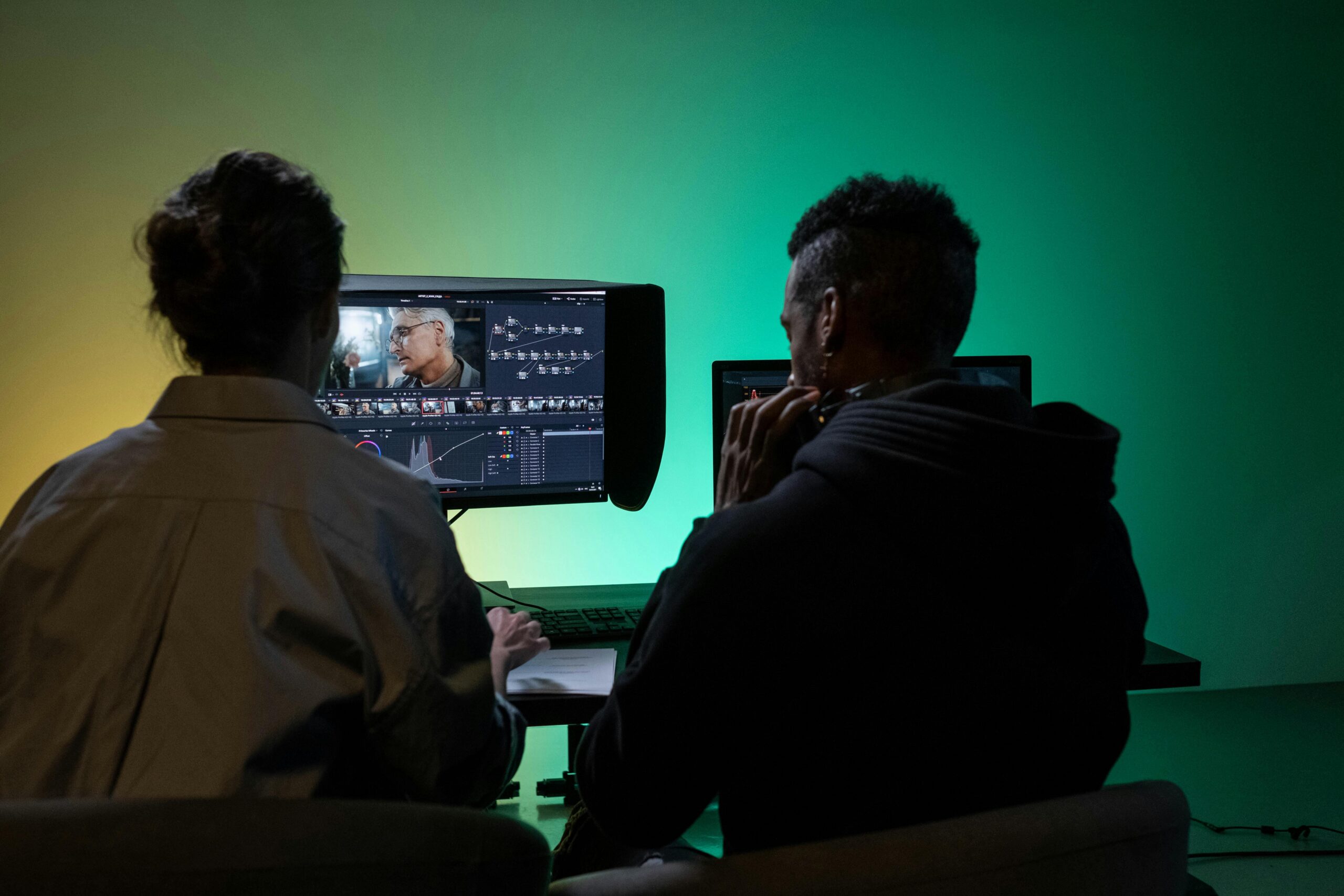
That pretty 4K shot came through on your Sony setup. The GoPro captured something lively during action moments. Then there’s that short clip recorded on your iPhone for social sharing. Everything seems fine until you sit down at your Windows PC or MacBook, you realize the footage doesn’t line up the way it should.
One video gives sharp results, while another looks blurry. Colors don’t match. File sizes explode. You download one tool just to convert formats, another to stabilize motion, and a third to compress files. What started as a simple edit turns into a scattered mess of apps, folders, and half-finished exports.
Every device, phone, action camera, DSLR, screen recorder, handles video differently. Each comes with its own formats, hidden rules, and limitations. What really matters isn’t missing software. It’s the absence of one unified video processing workflow.
And here’s how Total Media can help. Instead of processing videos on different devices separately, Total Media provides a single space where you can manage your entire post-production workflow. It matches each device’s challenges with the right tool, all inside one connected framework.

The Device Dilemma: Why One Tool Rarely Fits All
Each recording device is optimized for a specific purpose. Those design choices create unique problems once footage reaches post-production.
Smartphone Video Formats and Compression Challenges
Smartphones like iPhone, Samsung, or Huawei let you record video using HEVC or H.265, which saves space – yet making those look good takes effort. Still, when you send files out, they tend to occupy too much room without warning.
Action and 360 Cameras: Stabilization and Motion Artifacts
Action & 360 Cameras (GoPro, DJI, Insta360) work well when things move fast. Their setup relies on strong smoothing, fast recording speeds, plus unique file types – such as .insv. You might see tiny tremors left in shots, along with unstable motion after processing. That blur? It’s part of how they capture tough moments.
DSLR and Mirrorless Cameras: Quality vs. Storage
Cameras from Canon, Sony, Nikon, and Panasonic deliver sharp, detailed video in formats like .MTS, .MOV, and .MP4. The downside? Large file sizes and visible noise in low-light scenes, where sensors struggle without additional processing.
Screen Recordings and Legacy Media Issues
Screen and game recordings on Windows or Mac often produce massive files with uneven frame rates, throwing off timing during editing. Older camcorder footage converted to .M2TS or .MOD formats frequently appears soft, noisy, and washed out. Family DVDs built from .VOB files bring similar issues—fading sharpness, compression artifacts, and inconsistent brightness.
The takeaway is simple: no single tool can handle all of this equally well.
The Fragmented Approach: Multiple Single-Use Tools
Some creators build their own methods using whatever software happens to be available.
You might use a free converter for iPhone videos, an open-source stabilizer for GoPro footage, and a separate program just to compress files for YouTube. Each tool does one thing—but none of them truly work together.
Strengths of Single-Purpose Video Tools
- Free or low-cost options for specific tasks
- Specialized features for niche problems
Downsides of a Fragmented Video Workflow
- Inconsistent color, sharpness, or motion between tools
- Unsupported formats slipping through (for example, certain Canon files)
- Constant exporting, re-importing, and file management
- Steep learning curves and duplicated effort
This approach may work if you repeat the same simple task every time. For advanced video creators, it quickly becomes inefficient.
The TotalMedia Solution: A Unified Suite for Your Device Ecosystem
Total Media approaches video processing as a connected system, not a collection of isolated apps. Instead of forcing one solution onto every file, it offers specialized tools—Convert, Enhance, Compress—designed to work together under a shared logic.
Guided Workflows Based on Device Detection
When you import a file, the system identifies its source and suggests an appropriate workflow. A Sony .MTS file might automatically point toward enhancement. These adjustments happen quietly, reducing guesswork.
Native Format Support Across Old and New Media
From modern iPhone HEVC footage to legacy .MOD camcorder recordings and archived .VOB files, TotalMedia is built to handle native formats without awkward workarounds.
Specialized Tools for Specialized Video Tasks
- Action cameras: AI-driven stabilization smooths aggressive motion while preserving detail
- DSLR footage: Low-light denoise models reduce grain without flattening texture
- Smartphone video: Smart compression balances quality and size for messaging and social platforms
- Legacy media: AI upscaling restores resolution, color, and clarity while removing artifacts
Smooth Workflow Across Platforms
You can stabilize an Insta360 clip, enhance an old DVD recording, then compress the final result for YouTube without breaking consistency. Shared assets and settings ensure predictable outcomes across every step.
How to Choose & Use the Right Total Media Tool for Your Device
Start by identifying what you captured and what you want to achieve.
Is the footage shaky? Too large? Noisy? Blurry? Your goal determines the tool—not the other way around.
Using Device-Optimized Profiles
- Import your files. The system detects their origin automatically.
- Select a preset such as “Smooth Action Footage” or “Enhance DSLR Video.” These profiles already balance bitrate, codec, and AI models for the device involved.
Moving Seamlessly Between Tools
Once stabilization is complete, you can send the file directly to the Compressor for social media or convert it for a specific platform. Each tool hands off cleanly to the next, avoiding interruptions.
Comparison: Scattered Tools vs. A Unified Suite
| Scenario & Device | The Fragmented Approach | The TotalMedia Suite Approach |
| Shaky GoPro clip | Free stabilizer causes too much crop loss plus reduced image detail. Edit. For YouTube, turn to a distinct converter instead. | One tool (Enhance): Adjust AI stabilization made for action cameras. Export happens next. You can also shrink files using the Compressor app if needed. |
| Noisy Sony Low-Light Video | Find a separate denoiser add-on – pricey, tricky to set up. Use it. Fingers crossed its shading syncs with your main app’s tone settings. | Enhance this by using the Low-Light Denoise model. It works fast – just a few minutes to process. |
| iPhone Video Too Large to Email | A sudden thought – try a web-based audio compressor, even though it risks exposure and may lower sound quality. | Start with a single app – Compressor. Pick the “Share by Email” option. Your file comes out just right, no waiting needed. |
| Upscaling Old Family VOBs | Pick a real upscaler next, followed by one tool just for color tweaks. Do these steps one after another through separate processes. | One tool (Enhance): Click into the “Restore Old Video” workflow. Out comes clean deinterlaced footage, softly cleaned, then sharpened by AI – all at once. |
| Overall Workflow | Broken pieces, unclear patterns, dragging behind. | One clear system, working together well, without waste. |
Conclusion: Optimize Your Workflow, Not Just Your Files
With so many recording devices in play, the real challenge isn’t editing video—it’s managing diversity. Once you recognize where your footage comes from, shaping it into something consistent becomes far easier.
By linking your phone, DSLR, action camera, and archived media through a single platform, post-production stops feeling like a scavenger hunt. Each device gets the attention it deserves, and every tool works toward the same goal.
Stop wrestling with mismatched apps. Step in where they matter most, turning disorder into rhythm, friction into speed.
Try out the TotalMedia collection right now – shaping video flows that fit any gadget you have.
FAQ
A unified video workflow is a system where videos from different devices—phones, cameras, screen recordings, and legacy media—are processed using connected tools that maintain consistent quality, format, and performance.
Each device uses different codecs, frame rates, color profiles, and compression methods. Without device-specific processing, these differences become visible during editing or playback.
In most cases, no. A single generic tool rarely handles stabilization, enhancement, compression, and legacy formats equally well. A suite with specialized tools delivers better results.
Yes. TotalMedia supports legacy formats and uses AI-based enhancement to restore resolution, color, and clarity.
No. Guided workflows and device-optimized presets reduce manual setup and make the process accessible even for non-technical users.