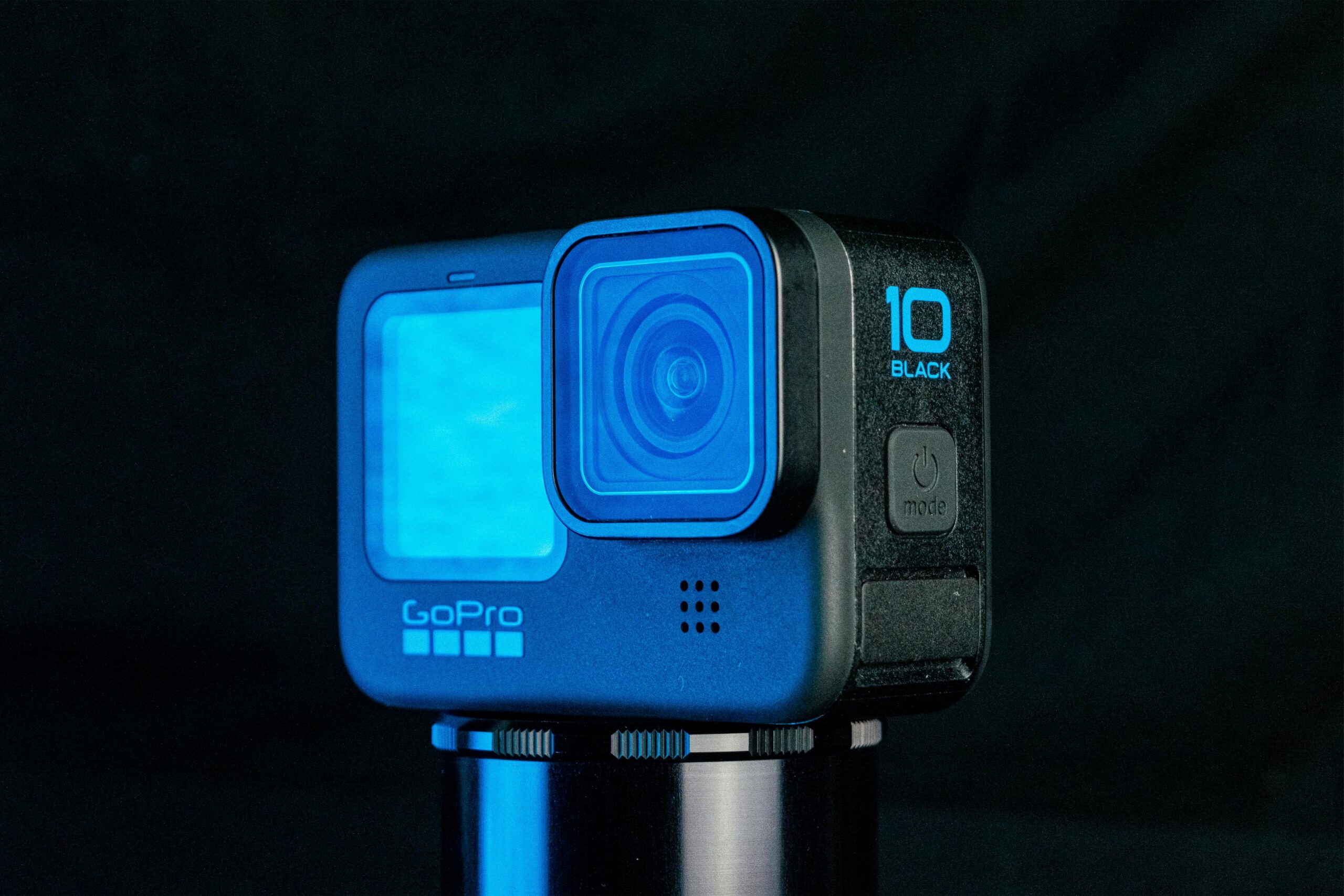
If you shoot with a GoPro long enough, you’ve probably had this moment: the footage looks great on the camera, but once it hits your timeline, everything slows down. Playback stutters. Scrubbing lags. Imports take longer than they should—or fail outright.
It’s not because your machine is underpowered. Even solid editing setups can struggle with native GoPro files, especially when you’re dealing with high frame rates or HEVC. What works fine for playback isn’t always friendly to editing.
Most professional videographers run into this sooner or later. The fix usually isn’t a new computer, it’s getting the footage into a format your NLE can actually work with. Once you do that, the timeline behaves, edits stay responsive, and you can focus on the cut instead of fighting the media.
This article breaks down why GoPro footage causes issues in post and the most reliable ways to convert it into files that edit smoothly, without sacrificing image quality.
Why GoPro Footage Can Be a Challenge for Editors
GoPro is a technological marvel, capturing incredibly detailed and smooth action. However, these very features create hurdles for editing:
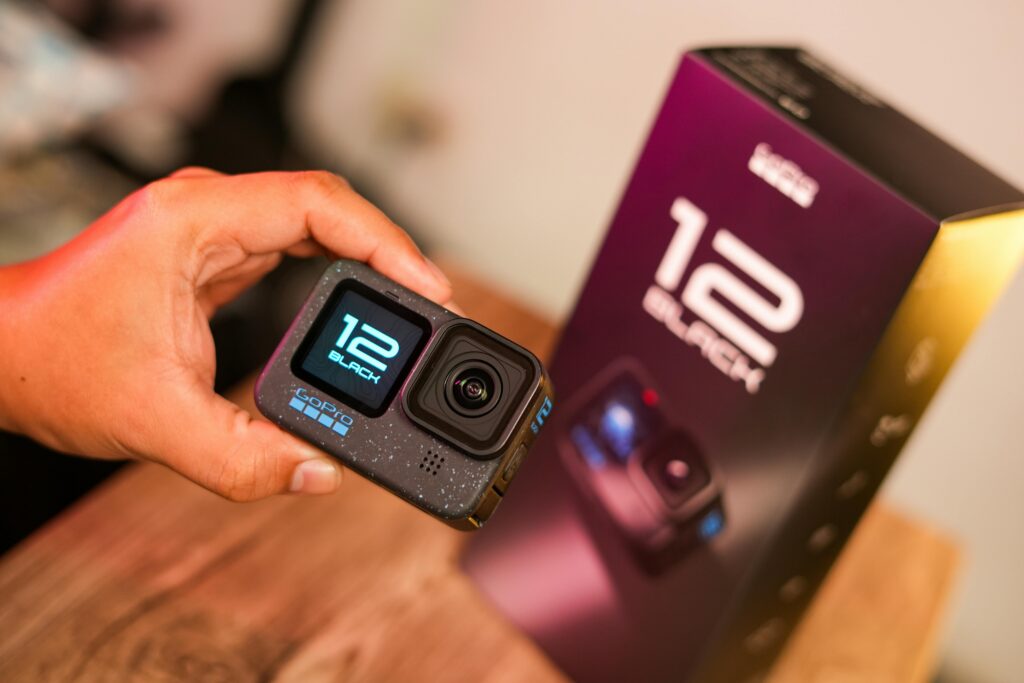
- High Efficiency Video Coding (HEVC/H.265): Modern GoPros like the HERO 12 Black default to this advanced codec for stunning 4K or 5.3K quality at smaller file sizes. However, HEVC is computationally intensive to decode and edit, requiring significant processing power.
- High Frame Rates (FPS): Smooth slow-motion (120fps, 240fps) means your editing software has to process a huge number of individual frames per second, stressing your system.
- Specialized .MP4 Container: While the file extension is common, the video and audio streams inside are encoded in a way optimized for playback, not necessarily for the constant scrubbing and rendering of editing.
Converting this footage to an editing-friendly codec is like unpacking a tightly packed, complex suitcase and reorganizing it for easy access. It dramatically reduces the strain on your computer.
Method 1: Use GoPro’s Own Software (A Reasonable First Step)
GoPro offers its own free toolsl, GoPro Player on Mac and Quik on desktop or mobile, which can handle basic conversions if you’re just trying to get footage into a usable state.
How it usually goes:
- Import your footage into the GoPro app.
- Select a clip and look for an “Export” or “Re-encode” option.
- Choose a resolution and format.
Where this works well:
- It’s free and built specifically for GoPro footage.
- On supported systems, it can use your GPU, which helps with speed.
- Fine for short clips you’re pushing out to social media.
Where it starts to fall short:
- You don’t get much control over things like bitrate or encoding behavior.
- Batch processing is limited, so longer sessions turn into a lot of waiting.
- The software itself can feel constrained if you’re used to professional tools.
Best for:
Quick fixes and short clips when you just need something usable without worrying too much about optimization.
Method 2: Use a Dedicated Video Converter (The Professional Route)
If you regularly work with GoPro footage, or you’re tired of fighting laggy timelines—a dedicated video converter is usually the cleanest solution. Tools like TotalMedia Video Converter are built specifically to take demanding camera footage and turn it into files your editing software actually likes.
The main advantage here is control. You decide how the file is encoded, how heavy it is, and how well it will perform in your NLE, whether that’s Premiere Pro, Final Cut Pro, or DaVinci Resolve.
Why This Approach Works Well for GoPro Footage
- Understands native GoPro files: From HERO 5 through HERO 12 Black, including HEVC modes.
- Editing-ready presets: Profiles like “Premiere Pro Optimized” or “Final Cut Pro Ready” save time and guesswork.
- Strong batch performance: You can drop in entire folders and let it process everything at once, using GPU acceleration where available.
- Manual control when you need it: Codec, bitrate, audio, everything can be adjusted to match your project.
Converting GoPro Footage with TotalMedia VideoConverter
Step 1: Import your footage
Copy the files from your SD card to your computer. Open TotalMedia VideoConverter and drag the folder in. It will recognize the clips immediately.
Step 2: Pick an editing-friendly setup
- If you want speed, choose a preset that matches your editing software.
- If you want more control, customize the settings. A solid baseline looks like this:
- Format: MP4 (widely supported)
- Video codec: H.264, easier on your system than HEVC and much smoother on the timeline
- Bitrate: VBR around 20–30 Mbps for 4K footage
- Frame rate: Match your project timeline (don’t convert high-FPS footage unless you’re changing playback speed)
You don’t need to overthink this. These settings work well in most cases.
Step 3: Convert and move on
Choose an output folder and start the conversion. Once it’s done, bring the files into your editor. Playback, scrubbing, and previews should feel noticeably smoother.
Method 3: Using Your Editing Software’s Built-In Tools (The Integrated Option)
Most professional editors include tools for handling difficult media during import.
- In Adobe Premiere Pro: You can enable Ingest to create optimized copies or generate proxy files automatically.
- In Final Cut Pro: You can create Optimized Media or Proxy Media on import.
Why some editors prefer this:
- Everything stays inside one application.
- Proxies remain linked to the original files for final export.
Where it can be frustrating:
- Conversions happen inside the editing app itself, which can be slow and resource-heavy.
- You’re limited to the formats and codecs that software supports.
- It uses extra disk space since you’re keeping originals and proxies.
Best for:
Editors who are fully committed to one NLE and already rely on proxy workflows for larger projects.
Comparison: Choosing Your Conversion Path
| Feature | GoPro Official App | TotalMedia Video Converter | Editing Software’s Tool |
| Speed & Efficiency | Moderate | Very Fast | Slow |
| Batch Processing | Limited | Excellent | Good |
| Output Control | Basic | Full Control | Limited |
| Cross-Platform Compatibility | Good | Excellent | Locked-In |
| Ease of Use | Simple | Straightforward | Complex |
| Best For | Quick social clips | Professional, reliable editing prep | Dedicated proxy workflows |
Conclusion: Unlock Your Footage’s Potential
If GoPro footage is slowing down your workflow, converting it properly before you start editing is often the cleanest fix. A dedicated tool like TotalMedia Video Converter lets you prep files once, in bulk, and move into Premiere Pro, Final Cut, or Resolve with media that actually plays back the way it should. Instead of troubleshooting dropped frames and laggy timelines, you start editing immediately, which is usually the point.
FAQ
Batch converting your clips using a dedicated video converter is usually the fastest option. You can process entire folders at once, let the system use GPU acceleration, and start editing once everything is ready—without waiting for your editor to generate proxies.
In many cases, yes. Optimizing footage often provides a bigger performance boost than new hardware, especially if you’re already using a reasonably modern system. Good media prep solves more problems than raw power.
Is GoPro’s own software good enough for professional editing?
GoPro’s software works fine for quick exports or short clips, but it’s limited if you need batch processing, fine control over encoding, or consistent results across longer projects. Many professional videographers use it only as a quick fix, not a full workflow solution.
Playback apps are designed to decode compressed video efficiently. Editing software has to decode, scrub, and render frames constantly, which is far more demanding. That’s why footage that looks fine in a player can struggle on the timeline.