Many creators have problems with too many tools, keeping track of files, and working with others. Learning non-linear editing can make your video editing more organized and efficient.
Key Takeaways
Set up your projects with easy-to-understand folders. This will save time and help people find files fast.
Give your files names that make sense. Good names stop confusion and help you find the right file quickly.
Use keyboard shortcuts to edit faster. Knowing shortcuts can save you a lot of time.
Make and share presets and templates. These tools help keep things the same and make your work go faster.
Use cloud collaboration features. Working together at the same time helps everyone be more creative and get more done in video production.
Project Organization in Non Linear Editing
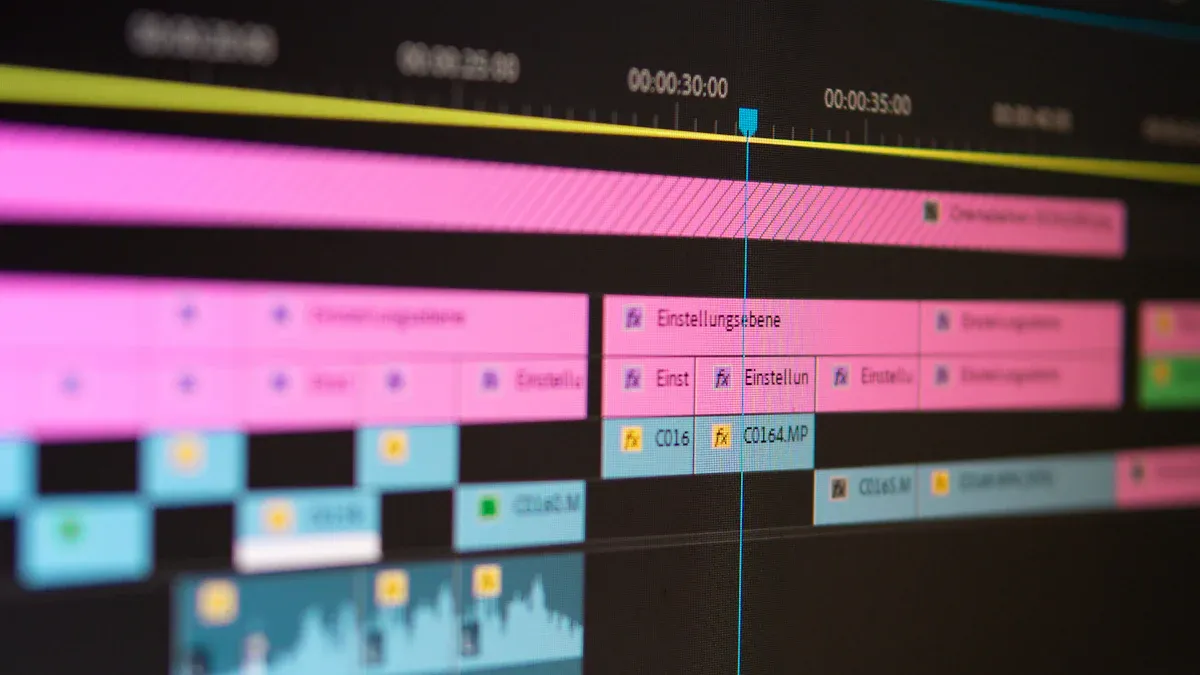
Getting organized is the first step to a smooth video production workflow. If you set up your folders, file names, and media the right way, you will save time and avoid headaches later. Let’s break down how you can keep your non-linear editing projects neat and easy to manage.
Folder Structure
You want your files to live in the same place every time you start a new project. This makes your workflow predictable and helps everyone on your team find what they need. Here’s a simple way to set up your folders:
Make a main folder for your project. For example, use the client’s name and the date, like
smith-wedding-2024-06-01.Inside that folder, create subfolders for each stage of production:
Raw Footage
Edits
Audio
Graphics
Project Files
This setup works for any video, from a wedding to a YouTube series. You always know where to look for each type of file. You avoid the chaos of random folders and missing files.
Tip: Keeping the same folder structure for every project shows you know your process. It also makes it easy to hand off work to someone else. They will see the same layout every time.
Here’s what a good folder structure does for your editing:
You always find files in the same spot.
Folders stay organized, not mixed up alphabetically.
Your projects look professional.
Team members can jump in and know where everything is.
Naming Conventions
Clear file names make your video production workflow much easier. If you use simple, logical names, you will not waste time guessing what a file contains. Here are some rules you can follow:
Use lowercase letters or camelCase for your filenames.
Make sure names make sense to everyone on your team.
Keep names short and skip confusing acronyms.
Describe what’s in the file and what it’s for.
Use hyphens instead of spaces to separate words.
Avoid special characters that might confuse your editing software.
Never start or end filenames with spaces or special marks.
Try to keep names under 31 characters.
Remember that some systems care about uppercase and lowercase letters.
For example, instead of naming a file final edit.mov, try wedding-highlights-v1.mov. This way, you know exactly what the file is and which version it is.
Note: Good naming habits help you avoid mistakes, like using the wrong version of a video or losing track of your best content.
Media Management
Managing your media files is a big part of a streamlined workflow. You want to keep your files safe, avoid duplicates, and make sure you can always go back if something goes wrong. Here’s how professional editors handle this process:
Step | Description |
|---|---|
1 | Save your project often. Each save acts as a checkpoint, so you can return to that point if needed. |
2 | Sync your project to the cloud. This backs up your work and protects it from computer problems. |
3 | Use auto-backups. These let you roll back to earlier versions if you make a mistake or lose a file. |
If you follow these steps, you will not lose your work. You can also share your project with others or move it to another computer without worry.
Pro Tip: Back up your files before you start a big edit. You will thank yourself if something goes wrong.
When you organize your folders, use smart naming, and manage your media, you set yourself up for success. Your non linear editing projects will run smoother, your workflow will feel easier, and your video content will look more professional. Every step you take to organize your process helps you focus on what matters—making great videos.
Workflow Speed with Keyboard Shortcuts
Do you ever feel like editing takes forever? You can speed up your workflow with keyboard shortcuts. These little tricks help you move through your timeline faster and make your video production workflow much smoother. Let’s look at how you can use shortcuts to save time and make your editing feel less like a chore.
Essential Shortcuts
You don’t need to memorize every shortcut, but knowing the basics can change your editing game. When you use shortcuts, you keep your hands on the keyboard and your eyes on the timeline. This means you spend less time searching for buttons and more time making great video content.
Remapping your keyboard in programs like Final Cut Pro lets you reach your favorite commands faster. You don’t have to grab the mouse for every little thing.
Doing tasks straight from the keyboard cuts down on repetitive actions. If you mark IN and OUT points hundreds of times, shortcuts save you hours.
Simple commands, like cutting or copying, become second nature. You move through your video production workflow without stopping to hunt for tools.
Tip: Try learning how to leverage the timeline with shortcuts. You’ll notice your editing gets faster with every project.
Customizing Shortcuts
Every editor works a little differently. You might like certain keys for your most-used actions. Most editing software lets you change shortcuts to fit your style. Customizing shortcuts means you can set up your workflow to match the way you think.
Pick keys that feel natural for your hands.
Put your most-used commands close together.
Change shortcuts for actions you use all the time, like splitting clips or zooming in on the timeline.
When you set up your shortcuts, you make your editing process personal. You’ll notice you finish your video projects faster and with less stress. Custom shortcuts help you stay in the flow, especially during busy production days.
Shortcut Cheat Sheets
It’s hard to remember every shortcut, especially when you’re learning new software. That’s where cheat sheets come in handy. You can print one out or keep it on your phone. A cheat sheet puts the most important shortcuts right in front of you, so you don’t waste time searching.
Here’s a quick table of common shortcuts you’ll use in almost every editing session:
Action | Shortcut Key |
|---|---|
Play/Pause | Space |
Cut | Ctrl + X |
Copy | Ctrl + C |
Paste | Ctrl + V |
Undo | Ctrl + Z |
Redo | Ctrl + Y |
Having a cheat sheet helps you build muscle memory. Soon, you’ll fly through your video production workflow. You’ll spend less time on simple tasks and more time making your content shine.
Note: Keep your cheat sheet close. It’s a simple tool, but it can make a big difference in your editing speed.
Keyboard shortcuts are a secret weapon for any editor. They help you move quickly, stay organized, and focus on the creative side of video production. Try adding a few shortcuts to your workflow today. You’ll see how much smoother your editing becomes, and your videos will look even better.
Presets and Templates in Non-Linear Editing
Presets and templates help make editing much easier. They give you more control and accuracy in your video production workflow. If you want your videos to look great, you should learn how to use these tools. Let’s see how you can make, use, and share presets and templates for faster video editing.
Creating Presets
Presets help you save time. You can set up your favorite color grades, transitions, or audio effects once. Then you can use them again whenever you want. Most editing software lets you make presets with a few clicks. If you are new, start by changing settings for one clip. When you like how it looks, save those settings as a preset. Now you can use the same style on other clips. This helps your videos look the same and more professional.
Tip: Try making presets for things you do often, like adding subtitles or changing brightness. You will work faster and not have to repeat the same steps.
Using Templates
Templates help you start your projects quickly. You can use templates for intros, outros, or even whole video layouts. Many tutorials show how to use templates to make your videos look better. When you open a template, just put your footage in the right place. You do not have to build everything yourself. Templates help both new editors and experts stay organized and make their videos look good.
Here is a table that shows how templates help:
Template Type | Use Case | Benefit |
|---|---|---|
Intro | Start your video | Professional look |
Outro | End your video | Consistent style |
Layout | Full project | Saves time |
Sharing Presets
Sharing presets with your team keeps your video production workflow smooth. You can update a preset by using it, changing the settings, then right-clicking and picking “Update with Current Settings.” Put your presets in folders by theme or output. Use clear names so everyone knows what each preset does. Delete old presets and back up your collection so you do not lose your custom settings.
If you want to share presets, export them as .xmp files. Put them in a shared folder or cloud storage so your team can get them easily. Always check if the presets work with everyone’s software before sharing. This helps your team make videos that look the same and are high-quality and engaging.
Note: Sharing presets is a great way to help your team work faster. Everyone can keep your videos looking professional.
Advanced Features in Non-Linear Editor
You want your video editing to feel easy and strong. Advanced features in a non-linear editor give you more ways to control your videos. Let’s check out three tools that can change how you edit and help your videos stand out.
Multicam Editing
Multicam editing lets you use clips from many cameras at once. You can switch camera angles while your video plays. This makes editing faster and helps you make exciting videos, like for live shows or interviews.
Here’s how multicam editing helps your workflow:
Feature | Benefit |
|---|---|
You change angles as the video plays, which saves time. | |
Seamless Switching | You move between camera shots quickly, so editing is easier. |
Multi-Angle Shoots | You can handle live sports or shows without trouble. |
You get more choices and can show your story in new ways. Your video editing becomes much simpler.
Proxy Workflow
Editing high-quality video can slow down your computer. Proxy workflow fixes this. You use smaller, lower-quality copies called proxies to edit faster. Your video plays smoothly, even on a slow computer.
You do not have to deal with slow or choppy video.
You finish your editing jobs faster.
You keep your work simple and less stressful.
When you are done, your editor uses the best quality files to export. You get great results without slowing down your editing.
Adjustment Layers
Adjustment layers let you change many clips at the same time. You can add color, effects, or fixes to a whole part of your video. This saves time and keeps your editing neat.
You make changes to lots of clips at once.
You keep your videos looking the same.
You can try new effects and undo them if needed.
Professional editors use tools like flexible editing, multi-track editing, real-time editing, and color grading to make great videos. These features give you more control and help your videos look their best.
Optimize Playback and Rendering Workflow
Getting smooth playback and fast exports can make your video production workflow feel much easier. If you want your editing to run without hiccups, you need to set up your hardware and software the right way. Let’s look at some tricks to help you get the best out of your workflow.
Hardware Settings
Your computer’s hardware plays a big role in how well your editing software works. If you want your video to play smoothly and render quickly, check these things:
Use a strong GPU. This helps your computer handle effects and speeds up rendering.
Make sure you have enough RAM. More memory means you can work with high-resolution footage, like 4K or 8K, without slowdowns.
Choose fast storage. SSDs let you pull up files quickly, so your video production workflow stays fast.
If you enable GPU acceleration in your editing software, you’ll notice exports finish faster and your timeline feels smoother.
Software Preferences
You can tweak your editing software to get better speed and quality. Here are some settings you should try:
Turn on proxy editing. This lets you work with smaller versions of your video, so playback is smoother.
Lower the preview resolution. Your computer won’t have to work as hard, and you’ll still see your edits clearly.
Activate GPU acceleration in your software settings.
Close any apps you don’t need. This frees up memory for your video production workflow.
Pre-render tough parts of your timeline before you export.
Use hardware-based encoders, like NVENC or Quick Sync, for faster rendering.
Make sure you have enough disk space and RAM for your project.
These changes help your editing feel faster and keep your content looking sharp.
Background Rendering
Background rendering is a feature that saves you time. Your editing software can process effects and transitions while you keep working. You don’t have to stop and wait for each change to finish.
Turn on background rendering in your software settings.
Keep an eye on your system’s performance. If things slow down, pause background rendering until you finish your main edits.
With background rendering, you can focus on your creative work and let your computer handle the heavy lifting in the background.
When you set up your hardware and software the right way, your workflow becomes smoother. You spend less time waiting and more time making great video content. These tips help you get the most out of your production and keep your editing stress-free.
Collaboration in Editing with a Non-Linear Editor
Working with others can make your video projects better and faster. When you use a non-linear editor, you can share your work, keep track of changes, and even edit together in real time. Let’s see how you can make your video production workflow smooth and easy for your whole team.
Project Sharing
You do not have to edit alone. Many editing programs let you share your project with others. You can send files, invite people to join, or use special tools to work together. Here’s a quick look at how some popular software helps with collaboration:
Software | Collaboration Features |
|---|---|
Adobe Premiere Pro | |
DaVinci Resolve Studio | Real-time collaboration for editing and color grading |
When you share your project, your team can help with different parts of the video. Someone can fix the audio while another person adds graphics. This makes your video production workflow faster and more fun.
Tip: Always keep your files organized before sharing. This helps everyone find what they need.
Version Control
You want to keep your work safe. Version control lets you save different steps of your editing. If you make a mistake, you can go back to an older version. This is very helpful when many people work on the same video. You do not have to worry about losing your best edits or someone overwriting your content.
Some editing tools have built-in version control. You can also use cloud storage or backup folders to keep copies of your project. This keeps your video production workflow safe and stress-free.
Cloud Workflow
Cloud workflow makes editing with a non-linear editor even easier. You and your team can work from anywhere. Here are some ways cloud workflow helps:
Real-time tools let your team edit together, even if you are far apart.
Frame-accurate review systems help you leave comments on exact spots in the video.
Version control keeps your work safe from mistakes.
Virtual editing rooms let your team work together as if you are in the same place.
Cloud workflow gives you more freedom and makes your production process smooth. You can finish your video faster and make sure everyone’s ideas are part of the final content.
Note: Try cloud workflow if your team works from different places. It can change the way you make videos.
Troubleshooting and Maintenance for Non-Linear Editing
Workflow Bottlenecks
Sometimes, editing gets slow and annoying. Your computer might lag when you add effects. Too many clips can make your timeline messy. To fix this, split your project into smaller parts. Work on one section at a time. Remove clips you do not need to clean up your timeline. If your software is slow, close other apps to free memory. A smooth workflow helps you finish faster and feel less stressed.
Backups
Losing your work is very upsetting. You should keep your video safe from accidents. Here are smart ways to back up your projects:
Use good hard drives, cloud storage, and LTO tapes for safety.
Turn on auto backup and version control in your software.
Save files on different media so you do not lose everything.
Follow the 3-2-1 rule: keep three copies, use two media types, and store one offsite.
Make backups often to protect your video from mistakes or hardware problems.
Tip: Using different storage keeps your workflow safe and helps you worry less.
System Optimization
Your computer must run well for smooth editing. Delete old files and empty your trash to keep it clean. Update your software and drivers often. Check for viruses that can slow you down. Remove plugins you do not use. A healthy computer means your workflow is fast and your video looks good. When you care for your computer, you spend more time making videos and less time fixing problems.
You now know some great non linear editing tricks. These tricks can help you work faster and make your videos better. Here are some expert tips:
Edit many tracks and layers at the same time. This gives your video better sound and pictures.
Use non-sequential timelines to make your audience feel surprised.
Move your footage around easily and keep your best edits safe.
A lot of editors say learning by doing and sharing ideas helped them get quicker and set new goals. Why not try a new trick today? Share your own editing tips in the comments to help others get better!
FAQ
Non-linear editing lets you jump around your timeline and make changes without messing up your whole project. You can move clips, add effects, and undo mistakes easily. This gives you more freedom and control over your video.
You should save your work often. Turn on auto-save in your editing software. Back up your files to an external drive or cloud storage. This way, you keep your project safe from crashes or mistakes.
Yes, you can! Use proxy files to make editing smoother. Lower your preview resolution. Close other programs while you edit. These tricks help your computer run faster, even if it is not brand new.