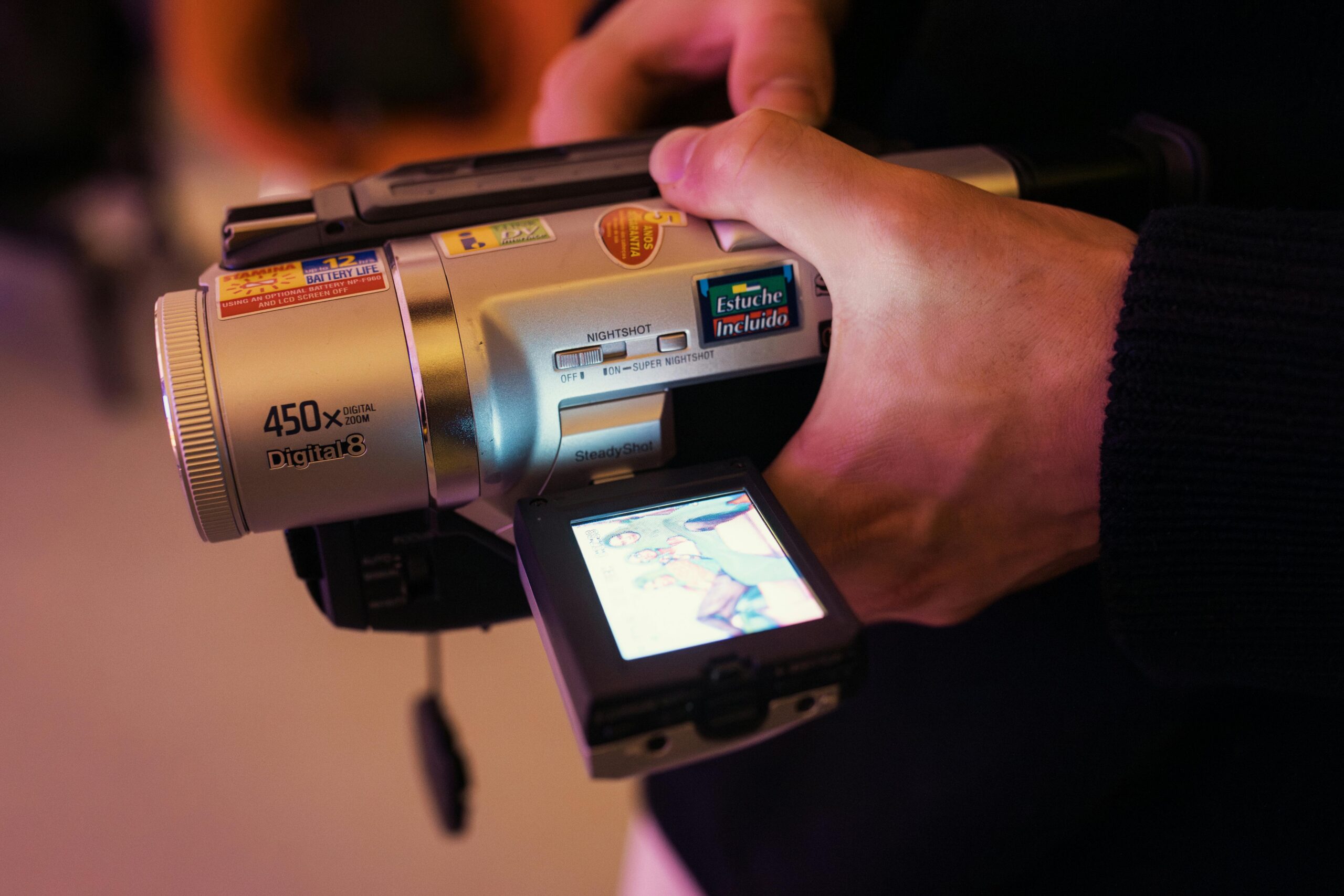
Many personal video archives still contain files created by camcorders, early editing software, or now-defunct online platforms. While these formats once worked flawlessly, many are now obsolete or poorly supported, putting valuable footage at risk of becoming unplayable.
This glossary helps you identify outdated video formats, understand why they are risky, and know what to convert them to for long-term preservation. It is written for home archivists, filmmakers, educators, and anyone managing a growing digital media library.
Why Old Video Formats Are a Preservation Risk
Obsolete video files are vulnerable for several reasons:
- Modern operating systems no longer include native support for many legacy codecs
- Playback often depends on discontinued software or fragile folder structures
- Older compression methods are inefficient, creating massive files with lower quality
- Metadata, subtitles, or audio tracks may be lost over time
For long-term access, format migration is essential. The goal is not to “improve” the content, but to safely transfer it into modern, widely supported formats.
Category 1: Proprietary Camcorder & Camera Video Formats
These formats were created for specific consumer cameras and are among the most common problem files in personal archives.
.MOD / .TOD
Typical source:
JVC and Panasonic consumer camcorders (mid-2000s)
What they are:
MPEG-2 video streams stored in a non-standard container. Although technically similar to .MPG, the altered file header causes compatibility issues.
Why they’re risky:
Many modern players fail to recognize them correctly. Simple renaming is unreliable.
Conversion priority: High
Convert properly to MP4 for stable playback and long-term accessibility.

.MTS / .M2TS (AVCHD)
Typical source:
Sony, Panasonic, Canon AVCHD camcorders
What they are:
High-definition video stored in an MPEG-2 Transport Stream, often tied to a strict AVCHD folder structure.
Why they’re risky:
The files depend on fragile directory layouts and can break when moved or renamed.
Conversion priority: High
Extract and convert the core video into a single MP4 file to simplify storage and playback.
.DV / DV-AVI
Typical source:
MiniDV and Digital8 tape camcorders
What they are:
Standard-definition video using the DV codec, usually stored in large AVI files.
Why they’re risky:
Extremely large file sizes (around 13 GB per hour) and interlacing make them inefficient and outdated.
Conversion priority: Critical
Modern conversion can reduce file size by up to 80% while preserving visual quality and deinterlacing for today’s screens.
Category 2: Early Editing & Online Delivery Formats
These formats were common in early digital video workflows and web distribution but are now largely unsupported.
WMV (.wmv)
Typical source:
Windows Media Player recordings and early online videos
What it is:
Microsoft’s proprietary video format with aging compression technology.
Why it’s risky:
Limited support outside Windows environments and poor efficiency compared to modern codecs.
Conversion priority: Medium–High
Converting to MP4 improves compatibility and often reduces file size without quality loss.
RealVideo (.rm, .rmvb)
Typical source:
Early internet streaming video (late 1990s–early 2000s)
What it is:
Highly compressed formats designed for dial-up connections.
Why it’s risky:
Software support is nearly extinct, and files are often unplayable on modern systems.
Conversion priority: Critical
Must be converted to a modern format simply to remain viewable.
FLV (.flv)
Typical source:
Flash-based web video (early YouTube and embedded sites)
What it is:
A container format associated with Adobe Flash.
Why it’s risky:
Flash Player is deprecated and poses security risks. Native playback support is gone.
Conversion priority: High
Extract and convert the video and audio streams to MP4 for safe playback.
Containers vs. Codecs: A Key Preservation Concept
Understanding this distinction explains why old video files fail over time.
- Container (MP4, AVI, MOV):The file wrapper that holds video, audio, subtitles, and metadata.
- Codec (H.264, MPEG-2, DV): The method used to compress and decode the media inside the container.
The problem:
Legacy files often combine obsolete codecs with fragile containers, making them difficult or impossible to decode today.
The preservation standard:
For most personal archives, the safest modern target is:
- MP4 container
- H.264 video codec
- AAC audio codec
This combination offers near-universal support and long-term stability.
Immediate Action Checklist: How to Preserve Old Video Files

If you discover outdated formats in your archive, follow this order:
- Identify:Use this glossary to list all obsolete file types.
- Back up:Create an
Originals_Backupfolder and copy all legacy files there. Never convert your only copy. - Convert: Use a reliable tool such as TotalMedia Video Converter with a universal archival preset to batch convert files to MP4 (H.264/AAC).
- Verify:Spot-check playback, audio sync, and overall quality.
- Organize
Store converted files in your main library and keep the original backups archived offline as digital negatives.
Final Thoughts: Future-Proofing Your Video Library
Video preservation is not about chasing the newest technology—it’s about choosing formats that will still work years from now. By identifying outdated video formats and converting them thoughtfully, you protect irreplaceable footage from software obsolescence, hardware loss, and platform shutdowns.
A small investment in format migration today ensures your videos remain accessible, organized, and watchable for the long term.
FAQ
For most personal archives, the safest and most future-proof option is MP4 using the H.264 video codec and AAC audio. This combination is widely supported across operating systems, media players, smart TVs, and mobile devices. It offers an excellent balance of quality, file size, and long-term compatibility, making it ideal for video preservation.
Quality loss depends on how the conversion is done. When converting outdated formats like DV, MTS, or WMV to modern codecs using high-quality or archival presets, visual differences are usually minimal or unnoticeable. In many cases, conversion actually improves usability by deinterlacing footage and reducing excessive file sizes without harming clarity.
No. Original files should always be kept as a backup or digital negative, even after successful conversion. Store them separately on an external drive or offline archive. Converted files are optimized for everyday viewing and accessibility, while originals serve as your preservation master if future conversion standards change.