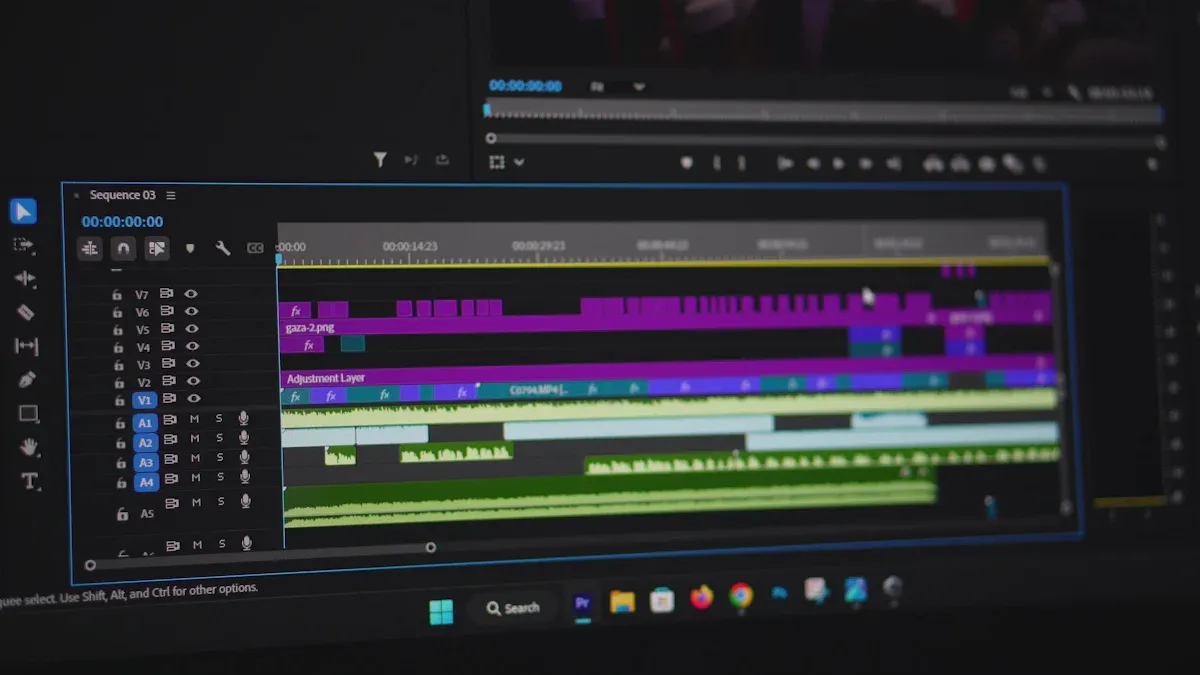
Comparing DaVinci Resolve and Adobe Premiere
Explore key differences between two leading video editing tools — and where a dedicated AI enhancement tool fits in.
DaVinci Resolve and Adobe Premiere Pro are two of the most widely used video editing applications available. Resolve leads in color grading and all-in-one production workflows. Premiere leads in ecosystem integration and team collaboration. Both are capable editors, but neither is purpose-built for AI-powered footage enhancement or restoration. If upscaling older video, reducing noise, or smoothing motion is part of your workflow, that’s a gap neither editor addresses natively, and where a dedicated tool like TotalMedia Video Enhance becomes relevant. More on that throughout this guide.
Software | |
|---|---|
Adobe Premiere Pro | 35% |
25% | |
DaVinci Resolve | 15% |
Resolve vs Premiere: Quick Comparison
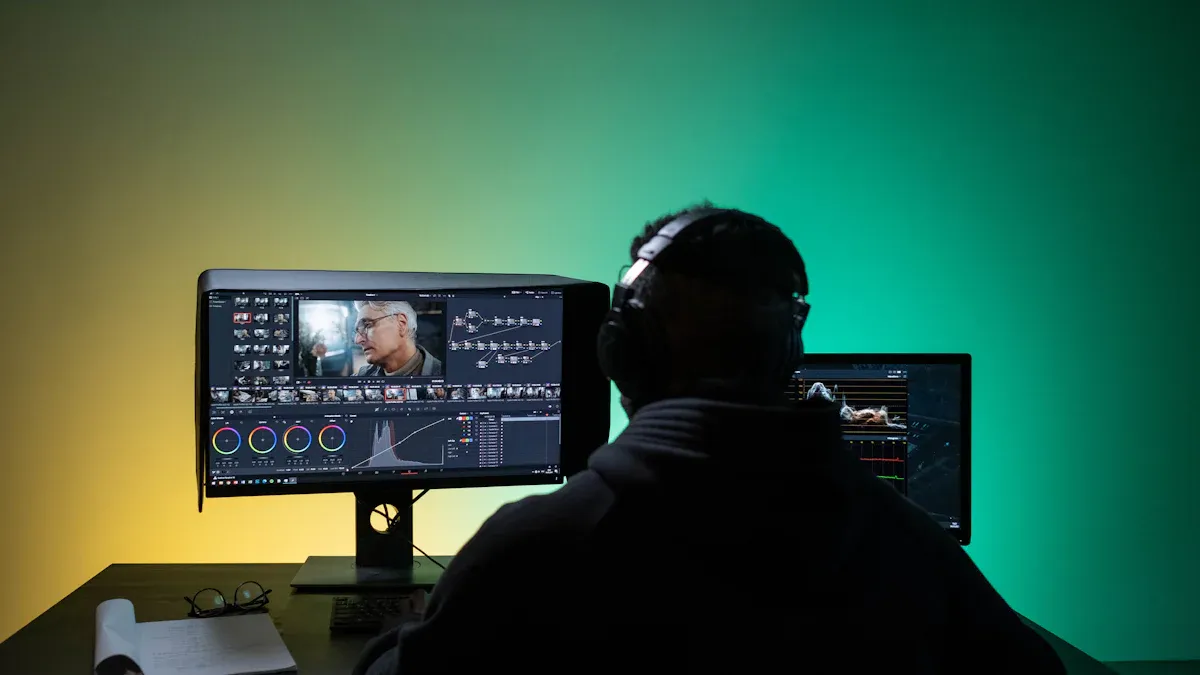
Key Differences Table
Feature | DaVinci Resolve | |
|---|---|---|
Price | Subscription: $22.99/month or $263.88/year | |
Editing Capabilities | Advanced color grading and effects | Good color correction, less depth |
User Suitability | Beginners and professionals | Mainly professionals |
Platform Support | Mac, Windows, Linux | Mac, Windows |
Collaboration | Blackmagic Cloud for remote teamwork | Adobe Creative Cloud integration |
Audio Tools | Fairlight audio suite included | Essential Sound panel |
Motion Graphics | Fusion built-in | After Effects integration |
DaVinci Resolve’s integrated toolset, color, audio, and effects under one roof, is used across major film productions. Adobe Premiere’s strength is its deep Creative Cloud integration, making it a natural fit for teams already working across Adobe applications.
At-a-Glance Recommendation
Choose DaVinci Resolve if you want professional color grading, a one-time purchase, and a fully integrated editing, audio, and effects workflow.
Choose Adobe Premiere Pro if you work within the Adobe ecosystem, collaborate with a team via Creative Cloud, and value continuous software updates.
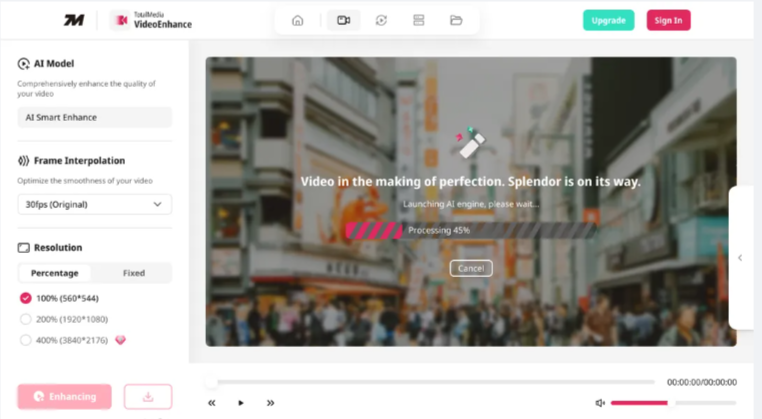
Consider TotalMedia Video Enhance if your footage needs AI-powered improvement before the edit begins, such as upscaling resolution, removing noise, or smoothing motion. It’s a dedicated pre-processing tool that works alongside either editor, available as both a web app and desktop application.
Price and Value for Video Editing
Resolve Pricing Overview
DaVinci Resolve is free with a comprehensive feature set covering editing, color grading, and audio mixing. The Studio upgrade is a one-time payment of $295, unlocking higher resolutions, faster frame rates, noise reduction, and the Neural Engine.
Feature | DaVinci Resolve (Free) | DaVinci Resolve Studio |
|---|---|---|
Resolution | Up to 4K UHD | Up to 32K |
Frame Rate (FPS) | Up to 60fps | Up to 120fps |
GPU Rendering | Yes, single GPU | Yes, multiple GPUs |
HDR Support | Basic support | Full support |
Noise Reduction | No | Yes |
Stereoscopic 3D Tools | No | Yes |
Fairlight Audio | Basic tools | Advanced tools |
Neural Engine Features | No | Yes |
Remote Grading | No | Yes |
Premiere Pricing Overview
Adobe Premiere Pro runs on a subscription model at $22.99/month or $263.88/year, with a seven-day free trial. Students qualify for discounted rates. Team plans include additional cloud storage and admin controls.
Subscription Plan | Monthly Price | Annual Price (Prepaid) | Free Trial |
|---|---|---|---|
Premiere Pro | $22.99 | $263.88 | Yes (7 days) |
Creative Cloud All Apps | $54.99 | $659.88 | Yes (7 days) |
Premiere Pro Teams | $37.99 | – | – |
Tip: If you are a student, check if you qualify for a discount. A valid school email or ID is required.
Value for Beginners and Pros
DaVinci Resolve offers strong long-term value: the free version covers most use cases, and Studio is a one-time cost. Premiere’s subscription ensures access to the latest features and Creative Cloud tools. For cost efficiency over time, Resolve has the edge. For teams invested in the Adobe ecosystem, Premiere justifies the recurring cost.
If your primary need is enhancing existing footage rather than editing from scratch, TotalMedia Video Enhance offers a separate value proposition: a free tier for standard use and a Pro upgrade that unlocks output up to 8K, all without a complex editing environment to learn.
Ease of Use and Workflow
Learning Curve for Beginners
DaVinci Resolve organizes its workspace into dedicated pages. One each for editing, color, audio, and effects, keeping each discipline focused and uncluttered. The free version gives beginners access to professional tools immediately. Adobe Premiere’s layout feels familiar to anyone already using Adobe software, and its drag-and-drop workflow, templates, and presets allow fast results from day one. Both programs have extensive learning resources. Resolve offers more depth for free; Premiere offers a faster onramp.
Editing Workflow for Pros
DaVinci Resolve is stable under heavy workloads and handles large files and complex color sessions consistently. AI tools like IntelliScript accelerate editing tasks. Adobe Premiere integrates tightly with Creative Cloud, making it straightforward to move projects between Premiere, After Effects, and Audition. Both support team collaboration and project sharing. Resolve suits workflows where stability and all-in-one capability matter most; Premiere suits creative teams working across multiple Adobe tools.
Tip: Try both before committing. Workflow preferences vary significantly between editors.
User Interface and Experience
Resolve Interface
DaVinci Resolve divides its workspace into purpose-built pages: Cut, Edit, Fusion, Color, Fairlight, and Deliver. Each page is designed for a specific production stage, keeping the workspace clean and task-focused. Node-based color grading offers precise control but carries a learning curve for first-time users.
Premiere Interface
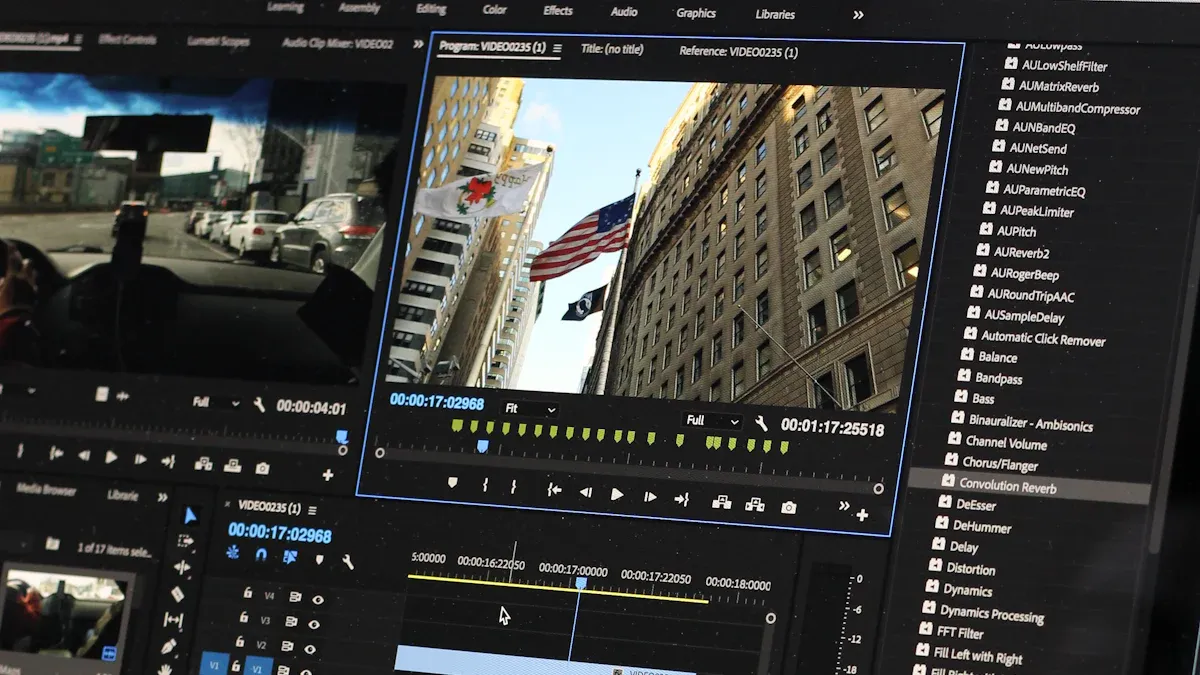
Adobe Premiere uses a panel-based layout: timeline, effects, audio, graphics, which feels immediately familiar to users of other Adobe software. The Essential Graphics Panel simplifies title creation. The overall design prioritizes fast access to common editing tasks.
Customization Options
Software | |
|---|---|
DaVinci Resolve | Cut Page, Edit Page, Fusion Page, Color Page, Fairlight Page, Deliver Page |
Premiere Pro | Timeline, Effects Panel, Essential Graphics Panel, Essential Sound Panel, Lumetri Color Panel, Export Settings |
Both tools support customization to fit individual editing workflow and styles.
Platform and Performance
OS Compatibility
Software | Supported Operating Systems |
|---|---|
DaVinci Resolve | macOS (13+), Windows (10/11), Linux |
Adobe Premiere Pro | macOS (12+), Windows (10/11) |
For Linux users, DaVinci Resolve is the better choice. If you use Mac or Windows, you can use either program.
Hardware Needs
Component | Minimum Requirement | Recommended Requirement |
|---|---|---|
Processor (CPU) | AMD Ryzen 9000 or Intel Core Ultra 200 | AMD Threadripper 9000 |
RAM | 8GB (Premiere), 16GB (Resolve) | 32GB+ for 4K (both) |
GPU | 2GB (Premiere), 4GB (Resolve) | 8GB+ for 4K (Resolve), 6GB+ for 4K (Premiere) |
Storage | 1TB NVMe SSD | 2TB+ NVMe SSD, RAID for speed |
Tip: Hardware is often the limiting factor for 4K editing and heavy effects work. Check your specs before choosing software.
Speed and Stability
DaVinci Resolve performs consistently with large files and complex color sessions. Adobe Premiere delivers reliable speed for most projects, with AI-assisted features that reduce manual effort on common tasks. Both handle professional workloads well on adequately spec’d hardware.
Key Editing Features
Editing Tools
Feature | DaVinci Resolve | Adobe Premiere Pro |
|---|---|---|
Color Grading | Superior tools, industry standard | Basic options |
Audio Editing | Fairlight suite included | Works with Adobe Audition |
User Interface | Advanced, for experienced users | Simple, for beginners |
Performance | Fast rendering, handles big files | May slow down with large projects |
Integration | Limited with other software | Works well with Creative Cloud |
Color Grading
DaVinci Resolve’s node-based color grading system is the industry standard for professional color work. Adobe Premiere uses the Lumetri Color panel, which is accessible for beginners but less powerful for complex or precise grading. For serious color work, Resolve is the stronger tool.
Motion Graphics and Effects
Resolve includes Fusion, a node-based compositor for 2D and 3D motion graphics, visual effects, and motion tracking. All without leaving the application. Premiere relies on After Effects integration for advanced graphics work. Fusion gives Resolve the edge for effects-heavy projects within a single workflow.
Audio Editing
Resolve includes the Fairlight audio suite. It is a full digital audio workstation for mixing, editing, and effects that is built directly into the application. Premiere handles basic audio natively and routes advanced work to Adobe Audition. Resolve keeps audio and editing in the same environment; Premiere separates them.
Integration and Collaboration
DaVinci Resolve supports multi-user editing with built-in chat via Blackmagic Cloud. Adobe Premiere integrates with Frame.io for review and version tracking, and connects deeply with other Adobe applications. Both support markers and project notes. The right choice depends on which collaboration ecosystem your team already uses.
Who Should Use Resolve?
Beginners
Resolve’s free version gives beginners access to professional-grade tools without a subscription or time-limited trial. The Cut Page provides a clean, fast editing experience. More advanced features are available as skills develop, without additional cost.
Tip: Start with the Cut Page for quick edits, then explore the Color and Fairlight pages as your confidence grows.
Professionals
Resolve’s node-based color grading, Fusion effects pipeline, Fairlight audio suite, and multi-user collaboration make it a complete professional production environment. It runs on Windows, Mac, and Linux, handles large-scale projects, and carries no recurring subscription cost.
Note: Resolve is particularly strong for color-critical work, complex effects, and productions that need a unified edit-color-audio workflow.
Who Should Use Premiere?
Beginners
Premiere’s panel-based interface is intuitive for users already familiar with Adobe applications. Drag-and-drop editing, built-in templates and presets, and a large library of tutorials make it accessible. Connection to Photoshop and After Effects is a genuine advantage for beginners planning to grow into a broader creative toolkit.
Advantage | Why It Matters |
|---|---|
Creative Cloud integration | Use alongside Photoshop, After Effects, and more |
Tutorials and guides | Structured learning at your own pace |
Simple interface | Minimal setup to start editing |
Templates and presets | Professional-looking results without manual configuration |
Tip: If you’re already using other Adobe apps, Premiere is a natural fit from day one.
Professionals
Premiere Pro offers AI-powered text-based editing, advanced Lumetri color tools, multi-camera editing, the Essential Graphics panel, and access to Adobe Stock. Frame.io integration supports professional review and delivery workflows. Auto-reframe and social export tools reduce time spent on platform-specific delivery.
AI text-based editing for fast assembly
Advanced color grading via Lumetri
Multi-camera editing for complex productions
After Effects integration for motion graphics
Adobe Stock for licensed assets
Auto-reframe for multi-platform delivery
Example Projects
For Beginners
Project Type | DaVinci Resolve | Adobe Premiere |
|---|---|---|
Travel Vlog | Cut Page, Color tools | Templates, Auto Reframe |
School Project | Titles, Fairlight audio | Essential Graphics, Presets |
Birthday Video | Transitions, Fusion effects | Drag-and-drop, Filters |
Tip: Try both programs with a small project to find which workflow feels more natural.
For Professionals
Project Type | DaVinci Resolve | Adobe Premiere |
|---|---|---|
Short Film | Multi-cam, Color grading | Team Projects, Lumetri Color |
Commercial | Fusion effects, Fairlight audio | After Effects, Stock assets |
Music Video | Blackmagic Cloud collaboration | Creative Cloud, Frame.io |
Note: Both programs support professional export formats and proxy workflows for performance on lower-spec hardware.
Final Recommendation
Choosing between DaVinci Resolve and Adobe Premiere comes down to your workflow, priorities, and budget. But it’s also worth recognizing that both tools are built for editing, not for restoring or enhancing the footage you bring into the timeline. That’s a different problem, and one that TotalMedia Video Enhance is specifically designed to solve.
Factor | DaVinci Resolve | Adobe Premiere Pro | TotalMedia Video Enhance |
|---|---|---|---|
Price | Free; Studio $295 one-time | From $22.99/month | Free tier; Pro upgrade available |
Primary Use | Full editing, color, audio, effects | Full editing, team collaboration | AI enhancement and upscaling |
Color Grading | Advanced — industry standard | Competent, less depth | Not applicable |
Visual Effects | Fusion — built-in VFX | Requires After Effects | Not applicable |
AI Enhancement | Neural Engine (Studio only) | Limited native AI | Core feature — AI Smart Enhance |
Resolution Upscaling | Basic | Basic | Up to 4K / 8K (Pro) |
Frame Interpolation | No | No | Yes — AI-powered |
Platform | Mac, Windows, Linux | Mac, Windows | Web app + Desktop |
Best For | Color-critical, effects-heavy work | Creative Cloud teams | Restoring and upscaling footage |
Pick DaVinci Resolve for advanced color grading, a fully integrated production workflow, and long-term cost efficiency.
Pick Adobe Premiere Pro for Creative Cloud integration, team collaboration, and a familiar editing environment.
Use TotalMedia VideoEnhance when your footage needs AI-powered restoration, upscaling, or motion smoothing before it enters your editing timeline — whether that timeline is in Resolve or Premiere.
Try both editors with a real project before committing. Many professionals keep both installed and use each where it fits best.
FAQ
Yes, DaVinci Resolve is free to use. You get many pro tools without paying money. You only pay for Studio if you want extra features.
DaVinci Resolve has the best color grading tools. Premiere only gives you basic color changes. Most pros pick Resolve for advanced color work.
Yes, you can put both programs on your computer. You can try each one to see which you like more. Many editors use both for different kinds of projects.
This is where neither editor is the right primary tool. Both DaVinci Resolve and Adobe Premiere are built for editing footage, not for AI-powered restoration. If you’re working with low-resolution, noisy, or degraded video that needs upscaling, noise removal, or frame interpolation before it’s edit-ready, TotalMedia Video Enhance handles that as a dedicated step. It uses an AI Smart Enhance engine to reconstruct detail, smooth motion, and upscale footage up to 4K or 8K on the Pro plan. It is available as both a web app and desktop application. Run your footage through VideoEnhance first, then bring the enhanced output into Resolve or Premiere for the edit.