
Why AVI and M2TS Files Need More Than a Basic Converter
There’s a particular kind of frustration that comes from finding an old hard drive full of memories, only to discover the files look terrible on any modern screen, or won’t even open in your current software.
Two formats account for a large share of this problem: AVI files from early digital cameras and M2TS files from HD camcorders. They’re both common in personal archives, and they both present challenges that go beyond what a basic converter or media player can solve. Understanding what makes each one difficult is the first step toward fixing them.
The AVI Upscaling Challenge
The Audio Video Interleave format was a staple of the 1990s and early 2000s. Most AVI files were encoded with older codecs, DivX, Xvid, and similar, at resolutions like 640×480. On the screens of the time, that was fine. On a modern 4K display, it looks blocky and degraded.
The problem with simply resizing these files to 4K is that you’re not adding any new information. You’re just making the existing pixels bigger, which makes the flaws more visible, not less. Genuine AI upscaling works differently: it uses neural networks trained to recognize edges, textures, and objects in order to reconstruct plausible new detail between existing pixels, producing a result that looks sharper rather than just larger.
The M2TS Compatibility and Enhancement Problem
M2TS is a container format used by many Sony, Panasonic, and other HD camcorders, typically for AVCHD video. The source material inside is often genuinely good quality. The problem is compatibility. The format’scomplex structure causes many standard media players and editing applications to struggle with it, producing choppy playback, import errors, or complete failure to open the file at all.
This means that before you can even think about improving the footage, you need software that can read it reliably. And for older camcorder recordings that also suffer from grain, noise, or softness, you need enhancement capabilities on top of that.

Method 1: Generic Converters and Media Players (Limited)
Free tools like VLC Media Player and browser-based online converters are often the first thing people try, and they’re useful for certain things, such as quickly checking whether a file is intact, or doing a straightforward format change where quality doesn’t matter.
For anything beyond that, they fall short. VLC can play most AVI files and some M2TS files, and it has basic post-processing filters, but these are real-time display tweaks, not genuine enhancement. Online converters can repackage an AVI into a modern container, but they cannot add resolution that was never there.
There’s also a meaningful privacy concern with online tools: uploading decades of personal family footage to an unknown third-party server is a risk most people wouldn’t take if they thought about it.
Best for: Quickly verifying file contents or performing a basic format change where visual quality is not a concern.
Method 2: AI Video Enhancement Software (Recommended)
This is where meaningful restoration becomes possible. TotalMedia VideoEnhance is available as both a web application and a desktop app, and it’s built with exactly this kind of archive in mind – native support for legacy formats combined with a powerful AI engine for quality reconstruction.
Native Legacy Format Support
TotalMedia VideoEnhance reads AVI and M2TS files directly, without requiring pre-conversion or workarounds. This solves the primary compatibility problem for M2TS footage and means you can move straight from import to enhancement without an extra step.
AI-Powered 4K Upscaling for AVI Files
For users who need to upscale old AVI files to 4K, TotalMedia VideoEnhance uses the AI Smart Enhance engine, which is a deep learning model trained to reconstruct edges, textures, and fine detail in low-resolution footage. Rather than stretching existing pixels, it synthesizes new visual information based on what the AI understands about the content of the image. The result is footage that looks genuinely sharper, not just bigger.
The interactive split-screen preview lets you see the before and after on your actual footage before committing to the full render — so you can judge the result and adjust settings with confidence.
Full Enhancement Pipeline for M2TS Camcorder Footage
For M2TS files, TotalMedia VideoEnhance goes beyond format compatibility to address the quality issues common in older camcorder recordings. The AI Smart Enhance engine simultaneously tackles noise and grain, compression artifacts, blur, and faded or low-contrast visuals — all in a single processing pass. There’s no need to run multiple tools or apply corrections manually; the AI handles the analysis and reconstruction automatically.
For projects involving multiple files like a full event recording split across several clips, or a collection of archived footage from different occasions, the multi-file queue lets you load and process multiple videos in one session, switching between clips in the thumbnail sidebar without returning to the home screen.
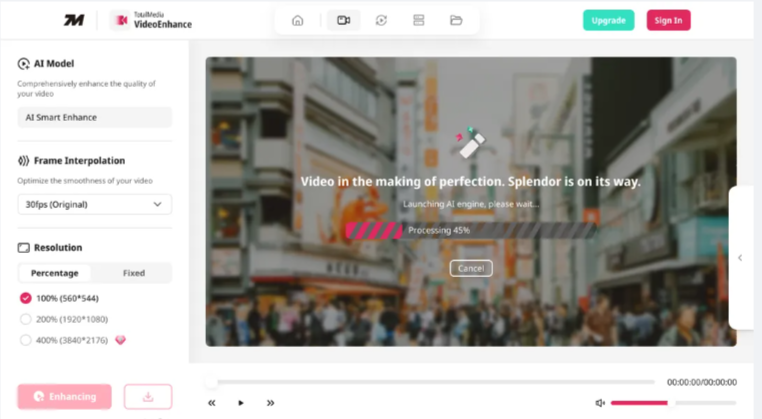
Step-by-Step: Restore Your Legacy Files with TotalMedia VideoEnhance
Before starting either process, make sure you are working from the best available copy of your original file. The quality of the source sets the ceiling for what the AI can recover.
Process A — Upscaling AVI Files to 4K
- Upload your AVI file. Open TotalMedia VideoEnhance in your browser or via the desktop app. Click Upload and select your AVI file. The software reads the codec and file properties automatically.
- Select AI Smart Enhance. In the left panel, confirm that AI Smart Enhance is selected as the active model. This is the default setting and the recommended choice for comprehensive quality improvement in a single pass.
- Set your output resolution. Under the Resolution section, choose 400% (3840×2176) for 4K output, or use Fixed mode to set an exact pixel dimension. If you’re upscaling a 640×480 AVI, a 200% pass to 1080p first can also be a useful intermediate step for heavily degraded files.
- Preview before processing. Use the split-screen preview to drag the divider across your footage and compare the original with the AI-enhanced result. Check a detail-rich area — edges, text, or faces — to confirm the enhancement is working as expected.
- Click Enhance and export. Click the Enhance button to begin processing. A live progress indicator shows completion percentage. When finished, download the output in MP4 format — the estimated file size is shown before you confirm the download.
Process B — Enhancing M2TS Camcorder Files
- Upload your M2TS file. TotalMedia VideoEnhance accepts M2TS files directly. No pre-conversion is needed. Upload from your local archive or directly from your camcorder’s backup folder.
- Enable AI Smart Enhance. This is the core enhancement step for camcorder footage. The engine addresses noise, grain, compression artifacts, and loss of contrast simultaneously, which is particularly effective for older HD camcorder recordings.
- Set Frame Interpolation if needed. If your footage looks choppy or was recorded at a low frame rate, use the Frame Interpolation dropdown to select a higher target frame rate. The AI synthesizes new intermediate frames to smooth out motion naturally.
- Choose your resolution target. Many HD camcorders recorded in 1080p — if you want to push that further, select 400% for 4K output. For footage that was recorded at lower resolutions, a 200% upscale to 1080p is often the most realistic and impactful improvement.
- Preview, enhance, and export. Use the split-screen preview to verify the result, then click Enhance. Download your finished file in MP4 when processing is complete.
Method 3: Professional Editing Suites (For Complex Projects)
Software like Adobe Premiere Pro or DaVinci Resolve can handle both AVI and M2TS formats and offers granular control over every aspect of the edit. For professional editors who need to integrate legacy clips into a larger, complex project — mixed timelines, frame-by-frame correction, advanced color work — these tools are appropriate.
For most people with an archive of old files they want to restore and watch, they’re unnecessary. The cost is significant (subscription or full purchase), the learning curve is steep, and the built-in AI upscaling is often limited. Premium AI enhancement requires additional third-party plugins on top of the base software cost.
Best for: Professional editors integrating old footage into complex projects that require full editorial control alongside the enhancement workflow.
Which Restoration Method Is Right for You?
| Feature | Generic Converters | TotalMedia VideoEnhance | Professional Suites |
| AVI to 4K Upscaling | No — resizes only | Yes — AI reconstruction | Basic — limited AI |
| M2TS Enhancement | Poor — often fails | Yes — full AI pipeline | Yes — manual, complex |
| Legacy Format Support | Partial | Excellent — native decoding | Good |
| AI Smart Enhance | No | Yes — comprehensive, one-pass | Requires plugins |
| Frame Interpolation | No | Yes | Yes — manual setup |
| Multi-File Queue | No | Yes | Yes |
| Ease of Use | Simple | Streamlined, purpose-built | Complex |
| Cost | Free | One-time / tiered / Subscription | High subscription cost |
| Best For | File verification | Most users with archives | Professional editors |
Give Your Old Footage a Future in High Definition
Your AVI and M2TS files aren’t beyond saving. They just need the right tool to bring them up to modern standards.
Generic tools lack the AI capability to do that meaningfully. Professional suites add complexity and cost that most people don’t need for this kind of task. TotalMedia VideoEnhance is built specifically for this middle ground: powerful enough to handle genuinely difficult legacy footage, straightforward enough to use without a learning curve.
If your archive also includes other formats in need of restoration, our related guide covers more ground: Recover Your Memories: Fix Noisy, Blurry & Old Videos with AI.
Give your past a future in high definition. Try TotalMedia Video Enhance today and see what your archived footage is actually capable of looking like.
Disclaimer: Enhancement results depend on the quality of the source material. Always work from the best available copy of the original file, and ensure you have the right to modify the content you are processing.
Frequently Asked Questions
In most cases, yes. TotalMedia VideoEnhance is built with native support for legacy formats including AVI, and it handles a wide range of older codecs — DivX, Xvid, and others — that commonly cause playback or import failures in modern software. Once the file is uploaded, the AI engine processes it directly without requiring you to convert it to another format first. If a file is severely corrupted rather than simply encoded in an older codec, recovery may be limited regardless of the tool used.
The improvement is most visible on footage that has strong underlying content but poor resolution — a clear recording that was simply limited by the technology of its time. In those cases, upscaling a 640×480 AVI to 1080p or 4K with AI Smart Enhance produces genuinely sharper edges, more defined textures, and a cleaner overall image rather than just a larger blurry one. The split-screen before/after preview in TotalMedia VideoEnhance lets you see the actual difference on your specific footage before committing to the full render, so you can judge whether the result meets your expectations.
Yes, and this is actually one of the most common use cases for M2TS footage. Playback compatibility and image quality are separate problems. VLC is good at decoding unusual formats, but it doesn’t enhance them. TotalMedia VideoEnhance takes the footage that VLC can read and applies the AI Smart Enhance engine to address noise, grain, compression artifacts, and softness — recovering the clarity that the original recording was capable of but that compression and age have degraded.
Both versions of TotalMedia VideoEnhance support the same core enhancement features, so the choice comes down to your workflow and file size. The desktop app is generally better suited to processing large or numerous files from a local archive, since it doesn’t depend on upload speeds or browser session limits. The web app is convenient for quick enhancements and smaller files where you want to get started immediately without any installation. For a full DVD or camcorder archive with multiple large M2TS files, the desktop app is the more practical option.