Here is a quick look at who uses these tools:
Type of AI Video Generator | Common Use Cases |
|---|---|
Text-to-Video Platforms | Marketing, content creators, filmmakers |
Image-to-Video Converters | Photographers, e-commerce, social media |
Template-Based AI Video Tools | Real estate, small business, sales |
Documentaries, YouTube, weddings | |
Character/Avatar-Based Video Creators | Training, online education, international teams |
Personal Projects | Hobbyists, families, students |
1. Google Veo
Use Case
You want a tool that works well every time you make a video. Google Veo is one of the best ai video generators for people who need steady results. Marketing teams, filmmakers, and small businesses use this platform to make good videos fast. Agencies use Veo to speed up video making, so creative teams can plan better. Even small companies like The Original Tamale Company made a viral video in only ten minutes. You can use Veo for ads, stories, or social media posts.
Features
Google Veo gives you great ai video generation. You get quick video making, strong prompt following, and clear audio. Here’s a simple look at how Veo does:
Metric | Score/Result |
|---|---|
MovieGenBench | Highest overall preference |
VBench I2V | Temporal consistency: 8.9/10 |
Anatomy accuracy: 9.1/10 | |
Prompt adherence | |
Audio quality | Professional-grade, minimal artifacts |
Lip-sync accuracy | Under 120ms latency |
Generation speed | Fast: 8s in 30-45s; Standard: 2-3min |
You can count on Veo for editing, fast making, and great video quality.
Pros & Cons
Pros:
Makes steady, high-quality videos.
Does better than other ai video generators in prompt accuracy.
Makes videos fast and lip-sync looks real.
Good for beginners and experts.
Cons:
Harder features may take time to learn.
Some plans cost a lot for small teams.
Pricing
Google Veo has different plans for different needs:
Plan Type | Price | Credits |
|---|---|---|
Customizable Plan | 8,000 credits | |
Extended Plan | $200/month | 40,000 credits |
Team Plan | Custom pricing | Custom credits |
You can choose a plan that matches your money and project size.
2. Runway
Use Case
You want your videos to look like movies. Runway helps you do this. It is great for making creative videos. You can use it for music videos or short films. It also works for social media posts. Many people use Runway when they want the best ai generator for stories. If you want your characters to look the same in every scene, Runway makes it simple. You can finish your projects fast and keep your video quality high.
Features
Runway gives you many tools for ai video generation. You get character consistency and easy editing in your video. You can use motion capture without special equipment. You can export videos in up to 4K resolution. Everything works in your browser, so you do not need to download anything. Here is what makes Runway special:
Strengths of Runway in Filmmaking and Creative Video Production | Description |
|---|---|
Industry-leading character consistency | Keeps characters looking the same in all scenes. This solves problems in AI video generation. |
Revolutionary in-video editing capabilities | Lets you change your video with text prompts. This saves you time editing by hand. |
Professional Act-Two motion capture without equipment | You can capture movement from any camera. This makes motion capture easy for everyone. |
Comprehensive creative toolset in one platform | You get many tools like text-to-video and background removal. You do not need other tools. |
You can make videos that look very sharp. This is good for big projects. | |
Rapid innovation pace with consistent updates | Runway gets new features often. The team works hard to make it better. |
Browser-based accessibility requiring no installation | You can use Runway on any device with internet. You do not have to install anything. |
Pros & Cons
Tip: Runway is good for both new users and experts. You can make videos fast and keep your work easy.
Pros:
Characters look the same in every shot.
You can edit videos with simple prompts.
You save time and money making videos.
Your videos look high-quality and cinematic.
Cons:
The free plan has watermarks and lower quality.
The unlimited plan may cost more for some users.
Pricing
Runway has different plans for all kinds of users. You can start for free or pick a plan for your needs.
Plan | Monthly Price | Annual Price | Credits | Key Features | Best For |
|---|---|---|---|---|---|
Free | $0 | $0 | 125 (one-time) | Gen-4 Turbo access, 720p max, watermarks, 5GB storage | Testing and evaluation |
Standard | $15 | $12 | 625/month | No watermarks, 1080p, unlimited projects, 100GB storage | Regular creators, small projects |
Pro | $35 | $28 | 2,250/month | Custom voices, 4K export, 500GB storage, priority generation | Professional creators, agencies |
Unlimited | $95 | $76 | 2,250 + relaxed | Relaxed unlimited generations in Explore Mode, all Pro features | Heavy users (with caution) |
Enterprise | Custom | Custom | Custom allocation | SSO, priority support, custom integrations, SLAs | Studios, large agencies, corporations |
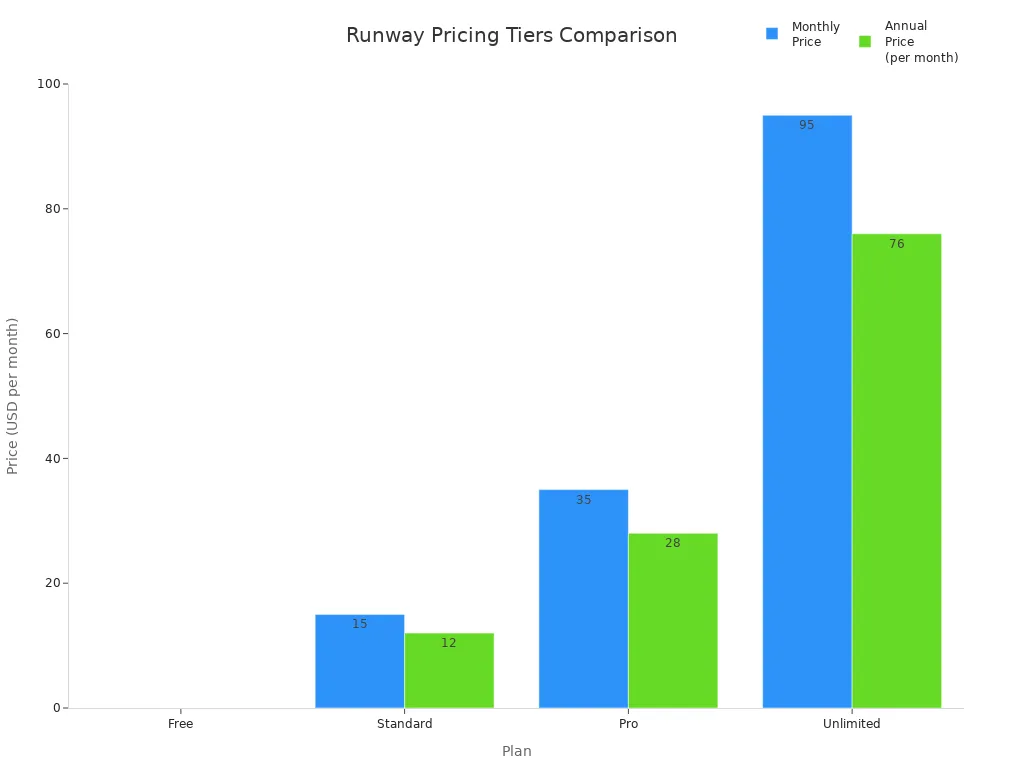
You can try Runway for free to see if you like it. Many people say it is one of the best ai video generators for creative work.
3. Sora
Use Case
You want to make your story into a cool video. Sora is the best ai generator for making story videos. You can use it for short stories, school work, or greetings. Sora helps you turn ideas into videos that people enjoy. Many students have made homework into fun movies. Some use it for science projects or birthday videos. Sora makes it easy and fun to share your story.
Features
Sora has tools to help you make special videos. You can start with text, pictures, or mix old videos with new looks. The platform has Remix, Storyboard, Blend, and Loop tools. These tools help you change your video and make it more interesting. You can make pictures move, change scenes, and mix things for a new style. Sora’s video making focuses on good quality and creativity, so your videos look different.
Example Type | Description |
|---|---|
Text-to-Video Conversion | Type a scene and Sora makes a video that matches your idea. |
Image-to-Video Conversion | Upload pictures and Sora turns them into moving videos. |
Video Remixing and Blending | Change old videos by adding new styles or things. |
Creative Tools | Use Remix, Storyboard, Blend, and Loop to change your video. |
Pros & Cons
Note: Sora is great for stories, but it has some limits.
Limitation Type | Description |
|---|---|
Duration Constraints | Sora only makes videos 10-20 seconds long, so long stories are hard. |
Character Consistency | It is hard to keep the same character in many videos, so stories may break. |
Scene Transitions | AI has trouble making smooth changes, so videos can feel jumpy. |
Editing Granularity | You cannot control each frame like with pro tools. |
Pricing
Sora uses credits and charges by how much you use it. You pay credits for each video, not for how long it is. If you use special features, you need more credits. This gives you choices, but costs can go up if you make lots of videos. Big teams can get discounts, so Sora is cheaper for studios or big projects.
Pricing Structure | Description | Accessibility Impact |
|---|---|---|
Credit-based | Good for creators, but hard to plan if you have a set budget. | |
Usage-based | Price depends on how much and what tools you use. | Costs can change, which is hard for strict budgets. |
Premium features | Special tools need more credits. | Makes it cost more for users who want extra features. |
Bulk discounts | Studios get lower prices for making lots of videos. | Makes Sora better for big teams and studios. |
4. Luma Dream Machine
Use Case
You want to come up with new video ideas. Luma Dream Machine helps you turn your thoughts into pictures fast. Many creators use it to try out different styles or test early video ideas. You can play with storyboards and try wild ideas. This helps you see what works before you spend time editing. If you want the best ai generator for creative thinking, this tool is a good choice.
People say Luma Dream Machine makes video making easy and quick. You can try different looks and stories without much setup. This is great for coming up with ideas and telling stories with pictures.
Features
Luma Dream Machine uses smart ai models to help you be creative. You get tools to make videos from text or images. The platform has two main models:
Model | Description |
|---|---|
Photon | A fast image model for quick ideas when brainstorming. |
Ray3 | A smart model that reads creative briefs and checks its own work for better quality. |
You can try different video tools, remix scenes, and loop animations. The ai helps you get good video quality even if you start with simple ideas.
Pros & Cons
You can make videos fast, which is good for brainstorming.
The platform lets you test ideas without needing to learn a lot.
Some people want longer clips and more editing control.
Luma Dream Machine is best for exploring and creating, not just fixing videos.
Pricing
Luma Dream Machine has many plans for different users:
Plan Type | Features | Commercial Use Rights |
|---|---|---|
Free | Basic features, watermarked videos | No |
Lite | Limited features, watermarked videos | No |
Plus | More features, no watermark, business rights | Yes |
Unlimited | All features, no watermark, business rights | Yes |
Enterprise | Custom features, no watermark, business rights | Yes |
The plans work for hobbyists and big companies.
Paid plans remove watermarks and let you use videos for work.
You can make videos with ai even if you are not a tech expert.
5. Seedance 2.0
Use Case
You want to be in charge of your ai video projects. Seedance 2.0 lets you control every part of your video. You can use it for movies, ads, school, or social media. If you want your videos to look just how you imagine, this tool helps you. You can make short videos for Instagram or build big scenes for a film. Seedance 2.0 lets you change each video until it is just right.
Industry | Use Case Description |
|---|---|
Try out movie scenes and test how shots look or move. | |
Marketing | Make great ads and try new ideas to get people interested. |
Education | Build videos that help students learn hard things. |
Social Media | Create short, fun videos with many shots to tell stories. |
Features
Seedance 2.0 is special because you get lots of creative control. You can use pictures, video, sound, and text to guide your ai video generation. This means you pick the style, how things move, the speed, and what happens in your story. You can even switch characters, add new ones, or take them out with editing tools.
Functionality | |
|---|---|
Image | Picks how your video looks |
Video | Shows how people move and how the camera moves |
Audio | Sets the beat and mood |
Text | Gives ideas for what happens |
You get to act like a director. Using different types of input makes creating feel easy and fast.
You can use pictures to copy how things look and how people appear.
Videos help you match camera moves and how things happen.
You can make videos longer with prompts.
Editing tools let you change who is in your video.
Pros & Cons
Pros:
You get to control every part of your ai video.
It works for many kinds of videos and jobs.
Editing is easy with advanced tools.
Cons:
There are a lot of features, which can be confusing at first.
You need time to learn how to use everything.
Pricing
Seedance 2.0 has different plans, so you can choose what works for you. You can start for free or pay for more points and faster video making.
Subscription Plan | Usage | |
|---|---|---|
Free Member | ¥0 /month | Free points every day |
Basic Member | ¥1 / 7 days (~USD$0.14) | 1,080 points/month, no watermark, faster |
Standard Member | ¥119 /month (~USD$17.21) | 4,000 points/month, no watermark, faster |
Premium Member | ¥299 /month (~USD$43.25) | 15,000 points/month, no watermark, fastest |
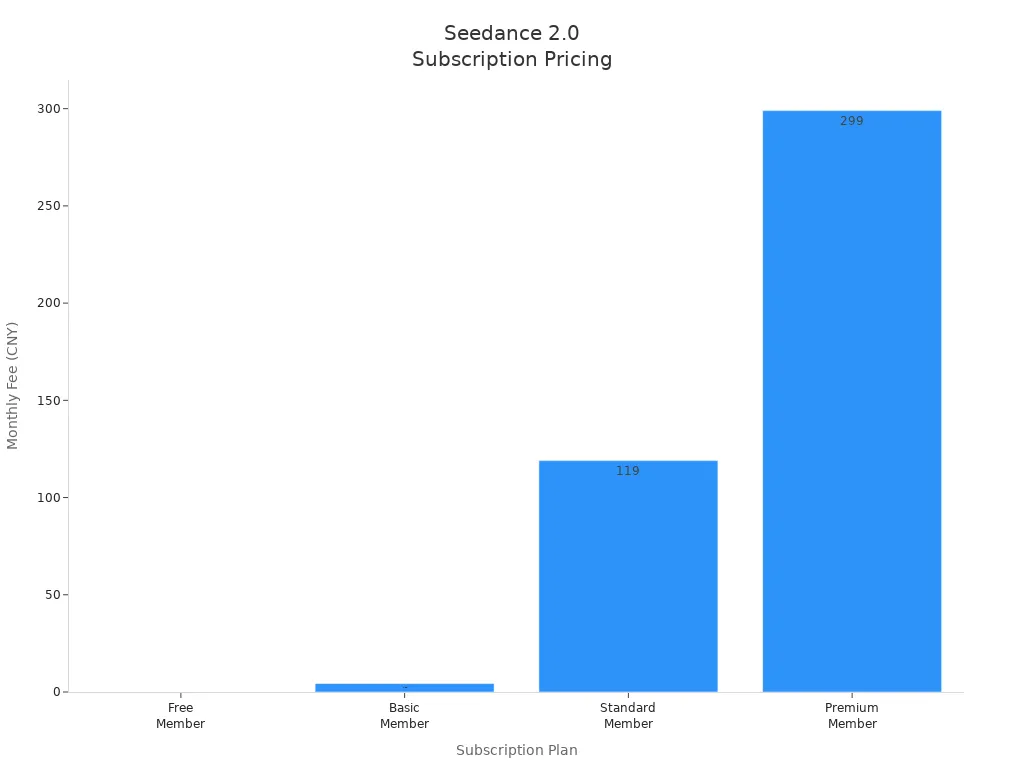
You can try Seedance 2.0 for free and see if its ai video generation tools fit your style.
6. Adobe Firefly
Use Case
You want to make videos for your business or brand. Adobe Firefly is a good choice if you need ai that keeps your work safe and legal. This tool is helpful for people in marketing, advertising, or jobs where you must protect your company’s name. Many businesses use Firefly for social media, ads, and training videos. You do not have to worry about breaking copyright rules when you use it.
Features
Adobe Firefly gives you ai video generation that puts safety first. The models only use datasets that are legal. This means your videos are ready for business use right away. You can make videos from text, images, or both together. The platform has smart editing tools, so you can fix your video without leaving the app. You also get high quality videos, which helps your brand look professional.
You do not need to worry about copyright problems. Firefly makes sure your ai videos are safe for business.
Pros & Cons
You get videos that are safe for business use.
The ai makes video generation easy for beginners.
You can trust the quality for business projects.
Some advanced editing tools may feel limited if you want full control.
The free plan lets you make only a few videos each month.
Pricing
Adobe Firefly has plans for every kind of user. You can start for free or pick a plan that fits your business. Here’s a quick look:
Plan Name | Monthly Price | Credits | Video Generation Limit |
|---|---|---|---|
Free | $0 | Limited | Limited generative credits |
Firefly Standard | $9.99 | 2,000 | Up to 20 five-second videos |
Firefly Pro | $19.99 | 4,000 | Doubles credits |
Firefly Premium | $199.99 | 50,000 | Unlimited video generation |
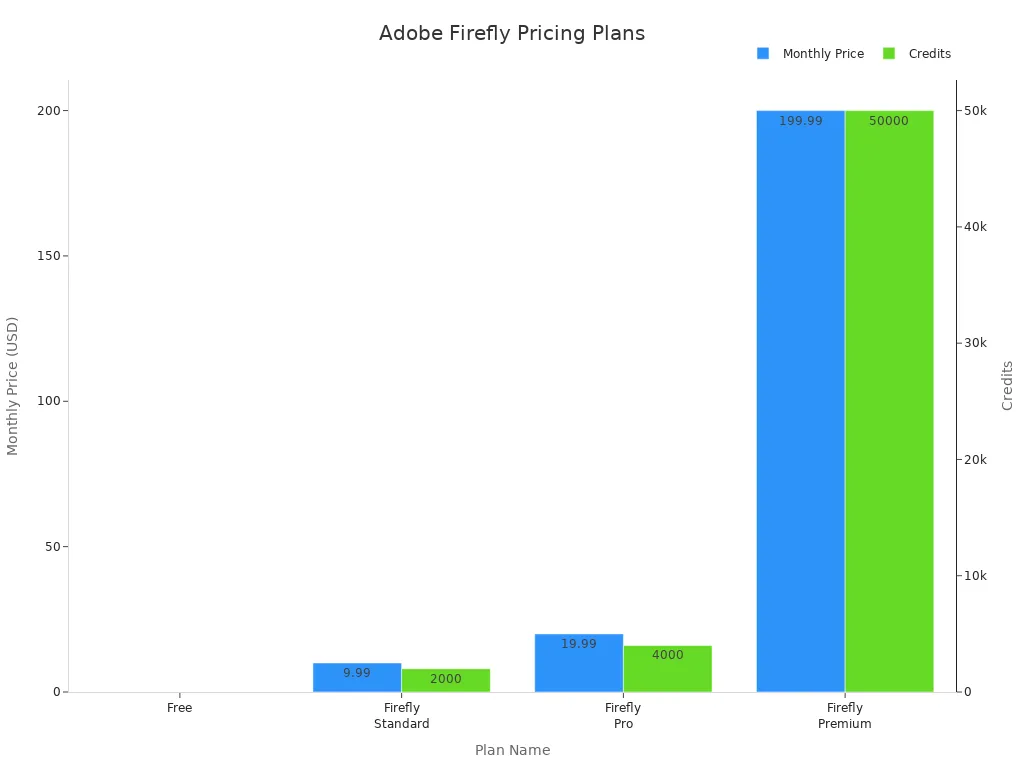
You can pick a plan that matches your video needs and budget. Firefly makes ai video generation simple for everyone.
Best AI Video Generators Comparison
Feature Overview
You want to know how these ai video generators compare. The table below shows what makes each one special. This helps you choose the right tool for your next video.
AI Video Generator | Unique Strengths | Key Features |
|---|---|---|
Google Veo | Makes videos that look good every time | Fast video making, follows prompts, pro audio, good lip-sync |
Runway | Has lots of creative tools for people who want control | Keeps characters the same, lets you edit, 4K export, works in browser |
Sora | Makes stories look real and like movies | Turns text into video, uses images, has creative tools, remixing |
Luma Dream Machine | Helps you test ideas and brainstorm fast | Uses different ai models, has storyboard tools, can loop animations |
Seedance 2.0 | Gives you lots of control for custom videos | Lets you use images, video, audio, text, and has advanced editing |
Adobe Firefly | Makes safe videos ready for business | Uses legal data, smart editing, high quality, good for work |
Tip: Check for things like audio matching, real-looking scenes, and smooth motion. These are important for making good videos.
Pricing Snapshot
Price is important when you pick a tool. The table below shows if you can use it for free and how much plans cost each month. This helps you see which ai video generator fits your budget.
AI Video Generator | Free Option | |
|---|---|---|
Google Veo | Yes | $20/month |
Runway | Yes | $15/month (Standard), $35 (Pro), $95 (Unlimited) |
Sora | Yes (with ChatGPT) | $20/month (ChatGPT Plus), $200 (Pro) |
Luma Dream Machine | Yes (8 videos) | $9.99 (Lite), $29.99 (Plus), $94.99 (Unlimited) |
Seedance 2.0 | Yes | ¥119 ( |
Adobe Firefly | Yes | $9.99 (Standard), $19.99 (Pro), $199.99 (Premium) |
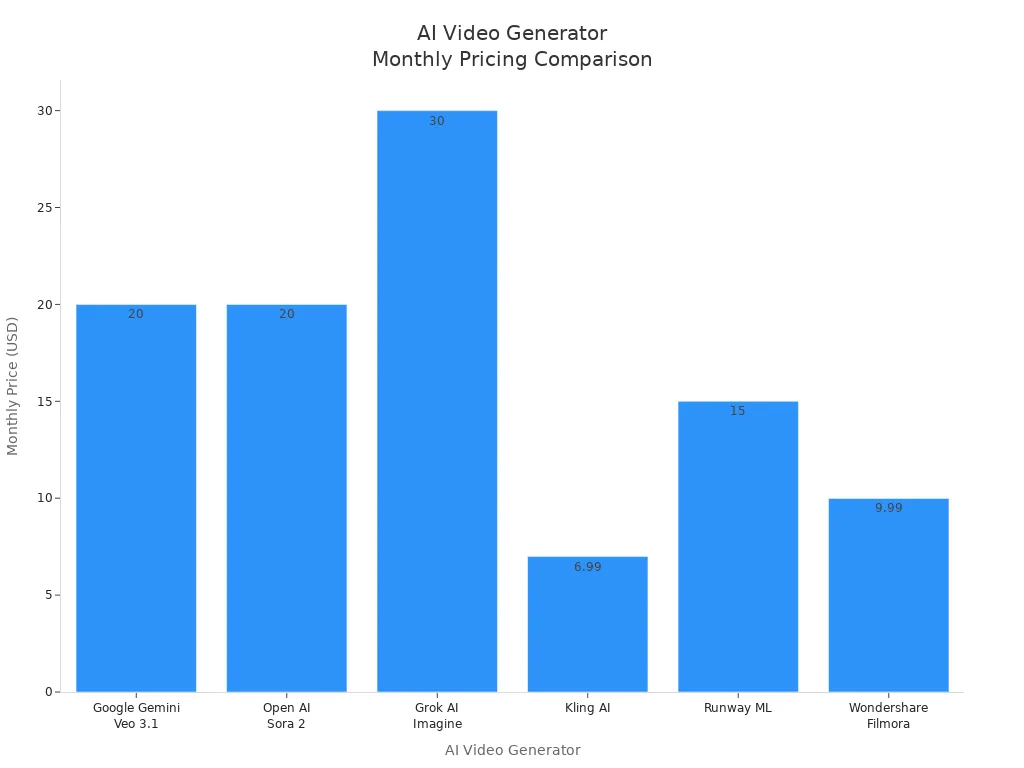
Some platforms give you more credits or better quality if you pay more. Try the free plan first to see if you like it. This way, you can find the best tool for your videos and your money.
How to Choose the Best AI Generator

Define Your Goals
Start by thinking about what you want to do with ai video tools. Do you need videos for business, filmmaking, or just for fun? If you want to boost your brand, look for a platform with a big template library and branding options. For creative projects, check if the ai offers advanced editing like background removal or cool transitions. If you care about how your videos look, pick a tool that gives you HD or 4K quality. Want to see how your videos perform? Some platforms have built-in analytics to track your results.
Budget Considerations
Money matters when you pick the best ai generator. Early-stage startups often spend $50-100 each month on ai video tools. If your company is growing, you might set aside $200-500 monthly for more features. Always check if the plan matches your needs. Free plans help you test before you pay. Focus on the value you get, not just how many videos you can make.
Skill Level
Think about how much you know about ai and video editing. Some tools are easy for beginners. Others have advanced features for pros. If you want to learn, start with simple platforms. If you already know filmmaking, try tools with more control and editing options.
Support & Community
Good support makes your ai journey smoother. Look for platforms with helpful guides, active forums, or live chat. If you need lots of help, choose a tool with strong customer support. A big community means you can find answers and share tips with other users.
Tip: Pick an ai video platform that fits your goals, budget, skills, and support needs. This helps you make better videos with less stress.
You have many choices for AI video generators. Check out the table below to see which tool fits your needs best.
Generator | Score | Visuals | Motion | Style |
|---|---|---|---|---|
Kling 3.0 | 8.1 | 8.4 | 8.0 | 7.8 |
Luma Ray 3.14 | 7.6 | 8.4 | 7.6 | 7.3 |
Veo 3.1 Quality | 7.2 | 7.1 | 7.4 | 7.0 |
Runway 4.5 | 6.2 | 6.5 | 6.1 | 5.6 |
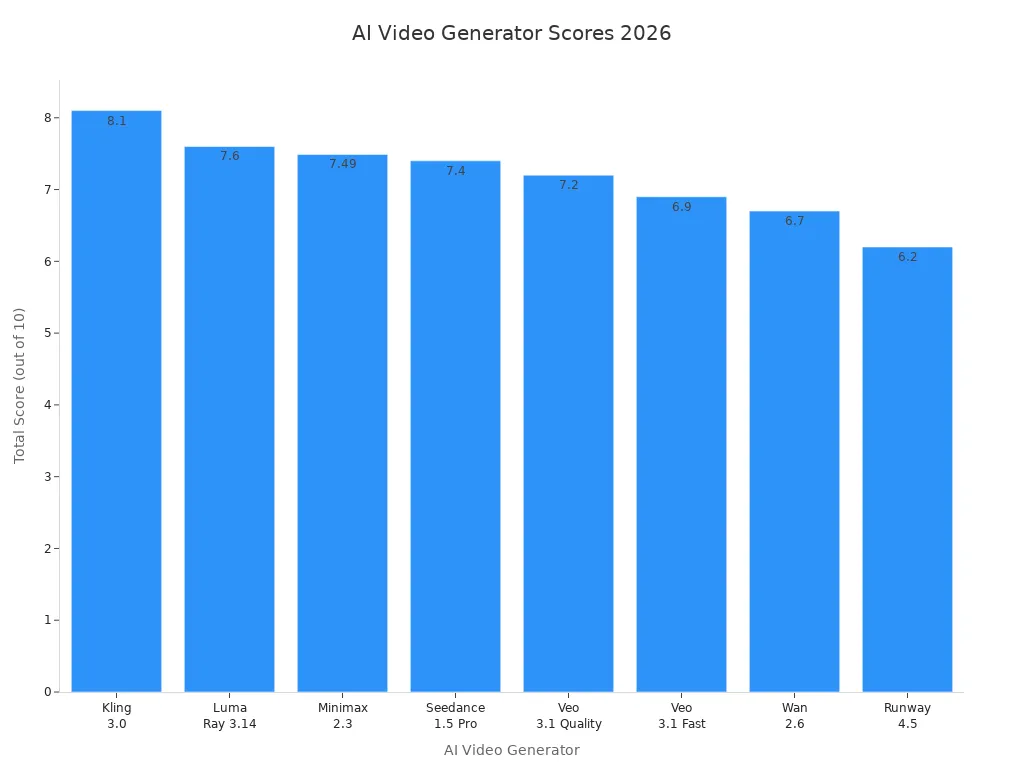
Try a free demo before you decide. Start simple, focus on your goals, and stay updated as AI video tech keeps changing.
FAQ
You use an AI video generator to turn your ideas, text, or images into videos. The tool does most of the work for you.
Yes, you can try most AI video generators for free. Free plans often have watermarks or limits on video length.
You should try Adobe Firefly or Luma Dream Machine. Both have simple tools and guides. You can start making videos right away.