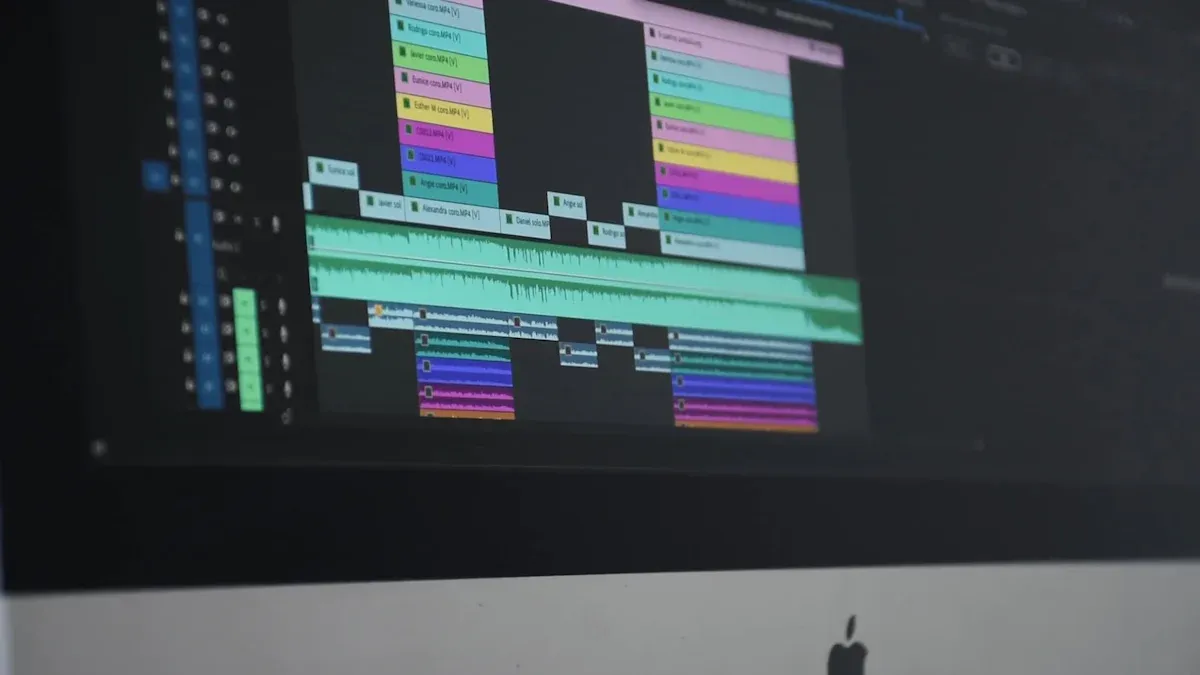
A video compressor lets you make your video files smaller with only a few clicks.
You can save between 30% and 67% of storage space with a video compressor.
The average bit-rate goes down by about 45%.
What Is a Video Compressor?

Simple Definition
A video compressor is software that makes video files smaller. You use it to save space or send videos faster. The software changes how the video is stored. This helps the video take up less space on your device. You can get video compressors for computers, phones, and tablets. Some popular tools are VideoProc Converter AI, VSDC Video Converter, and HandBrake. These tools help you shrink videos without much trouble. They work with many formats, even 4K. Both beginners and experts can use them.
When you look at video compressor software, you see some key features. Here is a table that shows what makes a good video compressor:
Criteria | Description |
|---|---|
Codec Support | Works with new codecs like H.264, HEVC, VP9, AV1 for better use. |
Performance | Uses fast engines and multi-threading for quick work. |
User Interface | Has a simple design so you can use it easily. |
Batch Processing Capability | Lets you shrink many videos at once to save time. |
Hardware Acceleration Options | Uses your computer’s GPU to make things faster. |
Automation Features | Has command-line tools or APIs for automatic jobs. |
Main Purpose
You use a video compressor to make video files smaller fast. The main goal is to help you share, upload, and store videos more easily. You do not have to worry about running out of space. You also do not have to wait long for uploads. Video compression uses different ways to make files smaller. Here are the main ways this happens:
Lossy compression takes away some video data you do not notice. The file gets much smaller but still looks good.
Lossless compression keeps all the video data. The quality stays perfect, but the file does not get much smaller.
Bitrate management lets you pick between file size and quality. It changes how much data is used for each second.
When you pick a video compressor, you want one that works fast and keeps your videos clear. You can use tools like VLC media player or FFmpeg if you want more control. Many compressors let you work on many videos at once, which saves time. You can use video compression for school, social media, or family videos. The right tool helps you finish your work quickly and easily.
Video Compression Methods
Lossy vs. Lossless Compression
You can make video files smaller in two main ways. These are called lossy and lossless compression. Each way works differently to shrink the file size. It is important to know how they work. This helps you pick the best one for your needs.
Lossy compression takes away video data you likely will not see. This makes the file much smaller. You can use lossy compression for web videos. It also helps videos load faster.
Lossless compression keeps all the video data. The file stays bigger, but the quality does not change. Use lossless compression when you edit or save videos for later.
Tip: If you want to share videos online or save space, lossy compression is best. If you need every detail for editing, use lossless compression.
Here is a table that shows how each method is used and what formats they support:
Compression Type | Typical Use Cases | File Formats |
|---|---|---|
Lossless | Professional photography, audio production | PNG, FLAC, H.265, Apple ProRes |
Lossy | Streaming services, devices with limited storage | JPEG, MP3, MPEG-4 |
Different codecs work with these methods. For example, H.265 and Apple ProRes use lossless compression. MPEG-4 and JPEG use lossy compression. When you pick a codec, you choose how much quality to keep and how much space to save. The right codec helps you get the best compression for your video.
AI Video Compression
AI video compression uses smart tools to shrink files and keep them clear. You get better results than older methods. AI looks at each scene and changes the bitrate if the video is complex. This helps you keep more quality and save more space.
AI video compression makes HEVC encoding work 20% better.
AI can change the bitrate for each scene. This keeps the video looking good.
Big companies like Facebook use machine learning for video compression. They saw a 35% jump in user engagement.
New AI video compression uses neural networks and content-aware encoding. These tools help the system pick the best bitrate for each part of the video. There was a 40% rise in people using AI video compression last year. Bitmovin and other companies cut bandwidth use by up to 30%. They keep video quality high. Streaming costs dropped by 25%. Viewer satisfaction went up by 15% because videos buffer less.
Note: AI video compression helps you get the most from your codec. You can stream videos faster and keep them sharp. If you want the best compression, try tools with AI.
You can use AI video compression for social media, streaming, or sharing with friends. The technology works with many codecs. You can pick the best one for your device and platform.
Benefits and Drawbacks
Advantages
There are many good things about using a video compressor. Your videos upload faster because the files are smaller. It is easier to share videos with friends or on social media. You can save more space on your phone or computer. This means you can keep more memories or important files. Many people use video compressors for school projects, family videos, or work presentations. You do not have to wait a long time to send them.
You can save space on your device.
You can upload videos fast, even with slow internet.
You can share files by email or messaging apps easily.
You can keep more videos for later.
Tip: Pick settings that keep your videos clear. Try to balance file size and quality when you compress.
Limitations
There are some things to think about before using a video compressor. Sometimes, the video might lose a little quality when you make it smaller. Some devices or apps may not play compressed videos well. Advanced compressors need more computer power. This can make your computer slower. Some tools cost money if you use them for business. New formats like HEVC might not work with every browser or livestream service.
Here is a table that shows common drawbacks:
Drawback | Description |
|---|---|
Complexity | Needs more processing power due to advanced computational complexity. |
Compatibility | May not work with all devices and software, leading to playback issues. |
Licensing Fees | Not free for commercial use, which can increase costs. |
Encoding Time | Slower encoding time compared to older codecs, affecting providers. |
Browser Support and Livestream | Not all browsers support live streaming of HEVC content, limiting popularity. |
You should always test your compressed video before sharing it. Make sure it works well on your device and looks good. If you use a video compressor for school or work, check if the format is right for you.
Types of Video Compressors

Software Tools
You can use software to make your videos smaller on your computer. These programs help with many jobs, like shrinking files or getting them ready to share. You put the program on your device and pick things like format, resolution, and bitrate. HandBrake is a well-known program. It works on Windows, Mac, and Linux. You can choose how your video will look, change how much it is compressed, and add subtitles if you want. Many programs let you shrink many videos at once with one click. You can keep high-definition or lossless quality. Some video editing programs have compressors built in. You can also resize, crop, or edit your video before making it smaller.
Here is a table that shows how hardware and software compressors are different:
Hardware | Software |
|---|---|
Usually costs more money | Often cheap or free |
Used for big, complex projects | Good for videos made by users |
Is a real, physical device | Runs as a program on your computer |
Very reliable and strong | Easy to use and flexible |
Has its own job for encoding | Uses your computer’s power |
Works faster and gives high quality | Takes longer to compress videos |
Online Compressors
Online compressors let you make videos smaller in your web browser. You do not have to install anything. Just drag your file, pick your settings, and start. Tools like CapCut, Online Converter, ClipChamp, VideoSmaller, and Async are easy to use. You can shrink videos up to 500MB and still keep them looking good. Some online tools work right away and do not upload your files, so your privacy is safe. You can use these tools on Windows, Mac, Linux, or ChromeOS. Online compressors help you share videos on social media or send them in emails.
Tip: Drag-and-drop online tools are fast and work on many devices. You can shrink files by up to 90% and still see no quality loss.
Platform Options
You can find video compressors for almost any device. Windows and Mac let you shrink many videos at once and work with over 1000 formats. You can keep high-definition or lossless quality. iPhone and Android apps help you make videos smaller for social media or messages. Many online tools work on all platforms, so you do not have to worry about what device you use.
Here is a table that shows what each platform can do:
Platform | Features |
|---|---|
Windows | Shrinks many videos at once, Works with 1000+ formats, Keeps high-definition and lossless quality |
Mac | Shrinks many videos at once, Works with 1000+ formats, Keeps high-definition and lossless quality |
iPhone | Lets you pick how you want to compress your video |
Android | Lets you pick how you want to compress your video |
Pick the tool that fits what you need. If you want something quick, use an online compressor. If you want more choices, use software or a video editor on your computer.
Using a Video Compressor
Quick Steps
You can shrink your video files quickly by following these steps. These steps work with popular tools like HandBrake or Wondershare Filmora.
Pick your original video file. Start with the highest quality version you have.
Open your video compressor. Choose a tool that supports the latest codecs.
Set the codec to H.265 (HEVC) or VVC/H.266 if your tool allows it.
Adjust the resolution to match where you want to use the video, such as 1080p or 4K.
Set the bitrate. Use variable bitrate (VBR) to balance size and quality.
Choose a GOP size around 30 frames to keep motion smooth.
Test your settings on a short clip. Compare the original and compressed versions.
Compress the whole video when you are happy with the results. Check the final file on different devices.
Tip: Always keep a backup of your original file before you start. This helps you avoid losing quality if you need to try again.
Tips for Best Results
You can get the best results from your video compressor by following these tips:
Keep your videos short and clear. Remove parts you do not need.
Make sure any text in your video is easy to read.
Use the right settings in your recording software. Good quality at the start means better results after compression.
Stick to standard resolutions and aspect ratios. This helps your video play well everywhere.
Use the recommended bitrate for your video type. For HD (1080p), use 8–12 Mbps. For 4K, use 25–50 Mbps.
Do not compress a video that is already compressed. Start with the original file.
Avoid changing the frame rate unless you need to. This keeps your video smooth.
Note: Test your compressed video on different devices to make sure it looks good and works well.
Troubleshooting
Quality Issues
After you compress a video, you might see some problems. Sometimes, dark parts lose detail. Text on the video can look fuzzy. The whole video might not look as clear. These things happen if you make the file too small or pick the wrong settings.
Details in shadows can disappear.
Text on the video can get blurry.
The video might not look sharp.
You can fix many of these problems. Try using DaVinci Resolve. This tool can make your video sharper. It can also help with noise and colors. HandBrake lets you change your video settings. You can pick a higher bitrate or add filters to help. Always check your video after you change something.
Tip: Use the best quality video you have. Pick gentle compression so your video stays clear.
Compatibility Problems
Sometimes, compressed videos will not play everywhere. You might get an error or just see a blank screen. This happens if your device does not work with the codec or format. You can fix this by doing a few things:
Update your media player so it works with new codecs.
Add trusted codec packs to your computer.
Use HandBrake to change your video to MP4.
Fix broken files with VLC or SFWare Video Repair.
Try your video on another device to see if it works.
Use special software if you still have codec problems.
Here is a table that shows some common problems and how to fix them:
Problem | Solution |
|---|---|
Video won’t play | Update media player |
Codec not supported | Install codec pack |
File is corrupted | Use repair tool |
Format not recognized | Re-encode with HandBrake |
Note: Always test your video on different devices before you share it. This way, you know everyone can watch your video without trouble.
You can use a video compressor to make files smaller fast. This helps you share videos with others more easily. When you compress videos for YouTube, email, or social media, you save time and space. It also works for online classes and client work. Many tools let you shrink file size but keep the video looking good. Beginners can find easy tools that work well and open quickly. If you update your software, you get better speed and new features. Try using a video compressor now for quicker uploads and smoother videos.
FAQ
You should look for easy controls, support for popular formats, and fast processing. Pick a tool that matches your device and needs. Try free versions before buying.
Most compressors shrink files by removing some data. You may notice less detail or blurry spots. Lossless compression keeps quality, but the file stays bigger.
Yes, you can use apps like Video Compressor or CapCut on your phone. These apps let you shrink videos for social media or messages. You do not need a computer.
MP4 and MOV work well for most devices. These formats balance quality and size. You can share them easily and play them on many platforms.