Are you searching for a handbrake alternative that is easier to use? You can try these five tools: TotalMedia VideoConverter, Wondershare UniConverter, VLC Media Player, CloudConvert, and Freemake Video Converter. These tools help you change videos faster and with less trouble.
Why Handbrake Can Be Difficult

Complex Interface
Handbrake looks hard to use for many people. The screen has lots of buttons and menus. If you are new, it can feel confusing. You might not know where to start. It takes time to find the right settings.
Tip: Pick a tool with easy menus and fewer steps if you want something simple.
Confusing Presets
Handbrake presets can be hard to figure out. There are sliders and settings like “Constant Quality.” You might not know what these mean. Sometimes, you get error messages. You may not know why your video compression software is not working.
Limited Downloading Features
Handbrake does not let you download videos from many places. You can only use non-protected DVDs, Blu-rays, or video files. If you want to get videos from websites or protected discs, you need other tools. Many video compression software tools let you download and convert from more sources.
Fewer Output Formats
Handbrake only works with a few formats like MP4 and MKV. Other video compression software lets you use many more formats. You have more choices with handbrake alternatives. This helps you use your videos anywhere.
No AI Compression
Handbrake uses old ways to compress videos. Sometimes, the video looks worse or the file is too big. Tools with AI compression work better with hard scenes. They keep the video clear and make files smaller. If you want smarter video processing software, try one with AI features.
Choosing a Handbrake Alternative
When you want to switch from Handbrake, you need to know what makes a tool better for you. Here are the top things you should look for:
Format Support
You want a tool that can handle many video and audio types. Some converters, like Freemake Video Converter, support over 500 formats. This means you can convert almost any file you have. If you use lots of different devices, wide format support gives you more options and ease.
Simple Interface
A user-friendly interface makes everything easier. You do not want to waste time searching for buttons. Tools with easy to use menus help you start right away. Many people choose a converter because of its ease and simple design. If you are new, look for easy operation and clear steps.
Batch Converting
Batch processing capabilities save you a lot of time. You can add many files and convert them all at once. Some tools let you convert hundreds of videos or DVDs together. This feature is great if you have a big library. Batch processing capabilities also mean less clicking and waiting.
Speed
No one likes to wait for hours. Fast tools with batch processing capabilities can finish jobs quickly. Some alternatives offer up to 120x faster conversion. Speed matters if you want to get things done fast and with ease.
Price
You should check the price before you choose. Some tools are free, while others have a one-time fee or a yearly plan.
Pick a tool that fits your budget and gives you the batch processing capabilities and ease you need.
Tip: Make a checklist of these features before you decide. This helps you find a user-friendly tool that matches your needs.
Top 5 Handbrake Alternatives for Converting
1. TotalMedia VideoConverter
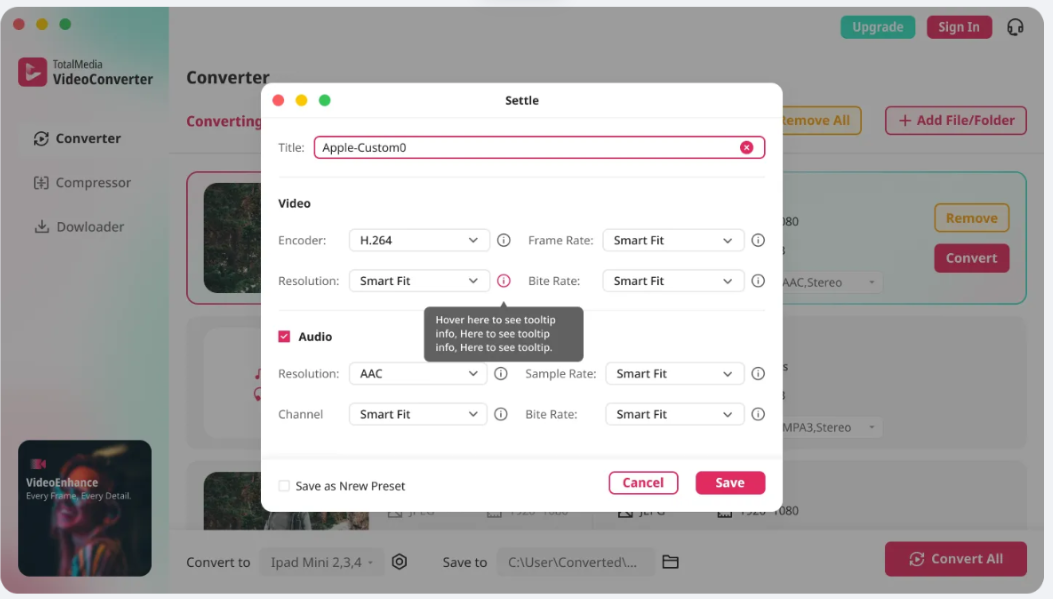
TotalMedia VideoConverter is a strong video converter. It lets you change big video files easily. You can convert blu-ray to mp4, MOV, MKV, MP3, AAC, and more. The software has device presets. You do not need to guess settings for your phone or TV. TotalMedia uses AI compression to keep quality when making files smaller. You can convert many files at once. This saves you lots of time. The dashboard shows progress and lets you pause or stop jobs.
Who is it for?
TotalMedia is good if you want a fast and easy tool. It works well for creators, families, and anyone who needs to change big video files or convert blu-ray to mp4.
Key differences vs Handbrake:
TotalMedia has a simple interface. It gives more output formats and uses AI compression. You can make files smaller without losing quality. Batch converting and device presets make it easier than Handbrake.
Pricing:
TotalMedia VideoConverter costs money. You get advanced features and ease for the price.
2. Wondershare UniConverter
Wondershare UniConverter is a top video converter. It is great for people who want lots of features and ease. You can convert, compress, and edit videos in over 1,000 formats. The software uses AI to keep quality high and make files smaller. You can batch convert many files at once. UniConverter lets you download videos from over 10,000 sites. You can record your screen and burn DVDs.
Who is it for?
UniConverter is good for people who want a tool that does everything. It is great for creators, teachers, and anyone who needs fast and easy video compression software.
Key differences vs Handbrake:
UniConverter is much faster and supports more formats. You can convert copyright-protected videos and download from many sites. You can edit videos with trimming, cropping, and subtitles. The software uses APEXTRANS technology for zero quality loss.
Here’s a quick comparison:
Feature | Wondershare UniConverter | Handbrake |
|---|---|---|
Conversion Speed | Slower than Wondershare | |
Supported Formats | 1000+ formats including MP4, MOV, AVI | Limited formats |
Copyright Protected Videos | Yes | No |
Download Feature | Yes, from 10,000+ sites | No |
Recording Feature | Yes, for online videos and screen | No |
DVD Burning Feature | Yes | No |
Video Editing Features | Trimming, cropping, merging, adding subtitles | Limited editing options |
Quality of Conversion | Zero quality loss with APEXTRANS technology | Quality may vary |
Pricing:
UniConverter has a free trial and paid plans. You get more features with the paid version.
3. VLC Media Player (Free)
VLC Media Player is a free video converter and player. It works on Windows, macOS, Linux, and Android. You can use it to convert videos, compress big files, and rip DVDs. VLC supports many codecs and formats. You can convert almost any video. The software lets you preview output during conversion. You can download video and audio streams.
Who is it for?
VLC is perfect if you want a free and simple tool. It works on any platform. It is good for students, families, and anyone who needs basic video compression software.
Key differences vs Handbrake:
VLC is easier to use and supports more codecs. You can preview your output and add features with plugins. The editing features are basic. You can convert and make files smaller quickly.
Advantages of VLC Media Player:
Works on many platforms
Free and open source
Can download video and audio streams
Supports many codecs and formats
Can preview output during conversion
Expandable through plugins
Pricing:
VLC Media Player is totally free.
4. CloudConvert (Free & Paid)
CloudConvert is an online video converter. You can convert and compress big video files in your browser. You do not need to install anything. CloudConvert supports over 200 formats. It offers GPU encoding for faster speed. You can batch convert files and make them smaller easily. The free plan gives basic converting. The paid plan gives faster processing and more features.
Who is it for?
CloudConvert is great if you want a tool that works online. It is perfect for people who do not want to install software or need to convert videos anywhere.
Key differences vs Handbrake:
CloudConvert is cloud-based. You can convert videos from anywhere. It supports more formats and offers GPU encoding for speed. You can compress videos and make files smaller without worrying about hardware.
Feature | CloudConvert | HandBrake |
|---|---|---|
Supported Formats | 200+ formats | Wide-format support |
Processing Type | Cloud-based | Local processing |
Speed | GPU encoding available | Hardware acceleration for large files |
Cost | Free with paid GPU encoding | Free |
Pricing:
CloudConvert has a free tier and paid plans for more speed and features.
5. Freemake Video Converter (Free)
Freemake Video Converter is a free tool. It makes converting and compressing videos easy. You can convert videos to over 500 formats. These include AVI, MP4, WMV, MKV, FLV, 3GP, MPEG, DVD, and Blu-ray. The software lets you download videos from over 10,000 sites. You can convert them for your devices. Freemake is user-friendly. You only need to choose the output folder. You can batch convert and make files smaller easily.
Who is it for?
Freemake is good for beginners who want a simple and free tool. It is also good for anyone who needs quick video compression software.
Key differences vs Handbrake:
Freemake is faster and easier to use. You can convert videos in seconds. You can compress many files with just a few clicks. Handbrake needs more steps and is harder to learn.
Freemake Video Converter processes 1080p MP4-to-MP3 conversion in 22.3 seconds. HandBrake takes 31.7 seconds for the same job. Freemake is more user-friendly, especially for beginners.
Pricing:
Freemake Video Converter is free. There is an optional paid plan for extra features.
You can pick any of these handbrake alternatives to make converting and compressing videos easier. Each video converter has special features, ease, and good quality. Try one today and see how much time you save with the right video compression software.
Quick Comparison of Handbrake Alternatives
Tool Overview
It is important to choose the right video converter for your files. Here is a simple chart with the top tools:
Tool | What It Does |
|---|---|
TotalMedia VideoConverter | Changes and shrinks video and audio files. It has device presets and can handle many files at once. |
Converts, edits, and shrinks videos fast. It uses AI to help with video quality. | |
VLC Media Player | Plays and changes video files. It can copy DVDs and works with lots of formats. |
CloudConvert | Changes files online. It can shrink videos and works with many formats. |
Changes and downloads videos. It can handle many files at once and is easy to use. |
Best For
TotalMedia VideoConverter: Good for families and creators who want fast changes and device presets.
Wondershare UniConverter: Best if you want speed, cool features, and high-quality video changes.
VLC Media Player: Great if you want a free tool for simple changes and watching videos.
CloudConvert: Best for people who want a free online tool and do not want to install anything.
Freemake Video Converter: Good for beginners who want easy video changes and shrinking.
Platform
Tool | Supported Platforms |
|---|---|
TotalMedia VideoConverter | Windows, macOS |
Wondershare UniConverter | Windows, macOS |
VLC Media Player | Windows, macOS, Linux, Android |
CloudConvert | Web browser (any OS) |
Freemake Video Converter | Windows |
Free Tier
Most of these tools have a free version you can try. VLC Media Player and Freemake Video Converter are always free. CloudConvert lets you change some files for free online. Wondershare UniConverter and TotalMedia VideoConverter have free trials, so you can test them before you pay.
AI Features
Tool | AI Features |
|---|---|
TotalMedia VideoConverter | Uses AI to shrink files and shows file size as you go. |
Wondershare UniConverter | Has AI to make videos look better, remove noise, and make videos clearer. |
VLC Media Player | No AI features |
CloudConvert | No AI features |
Freemake Video Converter | No AI features |
AI features help keep your videos looking good and make files smaller. You get clear videos and faster changes with smart video shrinking tools.
Which Handbrake Alternative Should You Choose?
For Beginners
Freemake Video Converter is a good pick for beginners. The design is simple and easy to use. You can change video files with just a few clicks. The menus are easy to understand. You do not have to read a big guide. Many people like this free tool because it works fast. It supports over 500 formats. You can also download videos from lots of websites. Freemake makes video converting simple for everyone.
For Web Access
Do you want to change videos without installing anything? CloudConvert is a great choice for that. This free online tool lets you upload your video. You can pick the format you want. You can use it on any device with a browser. CloudConvert supports over 200 formats. You can convert many files at once and make them smaller. This tool is great if you want to save time and space.
For Power Users
If you need more features, try Wondershare UniConverter or VideoProc Converter AI. These tools give you more control over your videos. You get hardware acceleration and batch processing. They support many output formats. Some tools have Super Resolution and AI for better video quality. You can edit, compress, and change video files in one place. Power users like these tools for their speed and flexibility.
Super Resolution and Image AI
Over 420 output formats
Hardware acceleration for fast jobs
Batch conversion for lots of files
For Occasional Converting
If you only change videos sometimes, you want something quick and free. Here is a table to help you choose:
Alternative | Key Features |
|---|---|
AnyRec Video Converter | 120x faster, lossless conversion, 1000+ formats, batch conversion |
Shutter Encoder | Open-source, supports almost all codecs, batch processing |
FFmpeg | Command-line tool, many codecs, scripting and automation |
These tools help you finish your video jobs without stress. You do not have to spend money or learn hard software.
FAQ
For technically confident users, yes. HandBrake is free, open-source, and handles most common conversion tasks well. It supports a wide range of formats and codecs, and the batch processing feature is useful for converting multiple files simultaneously. The friction is the interface. The UI is overwhelming for beginners — hundreds of settings and dropdowns make it easy to misconfigure a file without realising it. If you know what you’re doing, HandBrake delivers. If you don’t, the learning curve is steep relative to the alternatives.
It depends on what “easy” means for your workflow. For browser-based conversion with no installation, CloudConvert handles most formats through a clean drag-and-drop interface. For a desktop tool with a simpler layout than HandBrake, VLC’s built-in conversion function works for basic tasks. For a free tier with AI compression and device presets included, TotalMedia VideoConverter’s web app requires no installation and no prior technical knowledge.
Yes. Several tools handle video conversion entirely in the browser. CloudConvert supports a wide format range through a simple interface. TotalMedia VideoConverter’s web app runs in any browser and includes batch conversion, device presets, and AI compression without a desktop install. The trade-off with browser-based tools is file size limits and upload time on large files — a desktop application is faster for large batches or high-resolution source files.
No. HandBrake outputs only to MP4, MKV, and WebM containers. AVI output is no longer supported in modern HandBrake versions. On the input side, HandBrake opens most common video formats but AVCHD and AVCHD Lite playlists are not fully supported — individual files may work but playlist-based structures are unreliable. It also cannot process DRM-protected content. For format combinations HandBrake doesn’t support, a dedicated converter with broader input and output format coverage handles what HandBrake can’t.
VLC is free and already installed on many Macs — its conversion function handles basic tasks without additional software. For a more capable option, TotalMedia VideoConverter’s web app runs in Safari or any Mac browser with no installation required, and covers device presets, AI compression, and batch processing that HandBrake’s Mac version doesn’t include. For professional workflows requiring maximum format flexibility, UniConverter has a dedicated Mac application with a significantly more beginner-friendly interface than HandBrake.