AI video generators like Sora, Runway, or Pika have made video creation much easier. It takes minutes now from an idea to an actual clip. Getting from a generated clip to a platform ready content, thought, is a different problem.
This guide covers the full post-generation workflow: quality assessment, enhancement, format conversion, automation, and platform-specific delivery.
Step 1: Understand What You’re Actually Working With
Before touching the footage, know its limitations.
Base resolution on some tools sits at 720p. Paid plans on most platforms reach 1080p, with true 4K still limited to a handful of tools and tiers. Sora offers longer video generation but still shows occasional artifacts. Runway, Pika, and others offer near real-time generation for short clips but vary in physics accuracy and motion consistency.
Four things to check on every AI-generated clip before doing anything else:
Resolution. 720p needs upscaling before it goes anywhere. Even 1080p benefits from an enhancement pass before YouTube’s re-encoding gets to it.
Artifacts. Fast motion, fine detail, complex backgrounds are where AI generation struggles. Check edges, hair, foliage, and any scene with rapid movement. Generation artifacts look different from compression artifacts but both need addressing.
Audio. Models like Sora 2, Veo 3.1, and Kling 2.6 now generate synchronized audio alongside video. Older generations or lower-tier plans output video only. Know what you have before editing.
Provenance compliance. Sora 2 embeds Content Credentials via C2PA and visible watermarks at launch. Veo 3 uses SynthID to label synthetic outputs on YouTube Shorts. For Runway, Luma, and Pika, embedded provenance is inconsistently documented. Disclose synthetic content per platform rules and your local regulations.
Step 2: Quality Enhancement
AI-generated video has specific quality problems that differ from traditional camera footage. The artifacts are different. The noise profile is different. The detail loss pattern is different.
What most AI video output needs before platform delivery:
Upscaling. 720p to 1080p at minimum. 1080p to 4K for YouTube, where a higher-resolution upload gets a better codec treatment from the platform’s encoder. AI upscaling reconstructs detail rather than simply enlarging pixels.
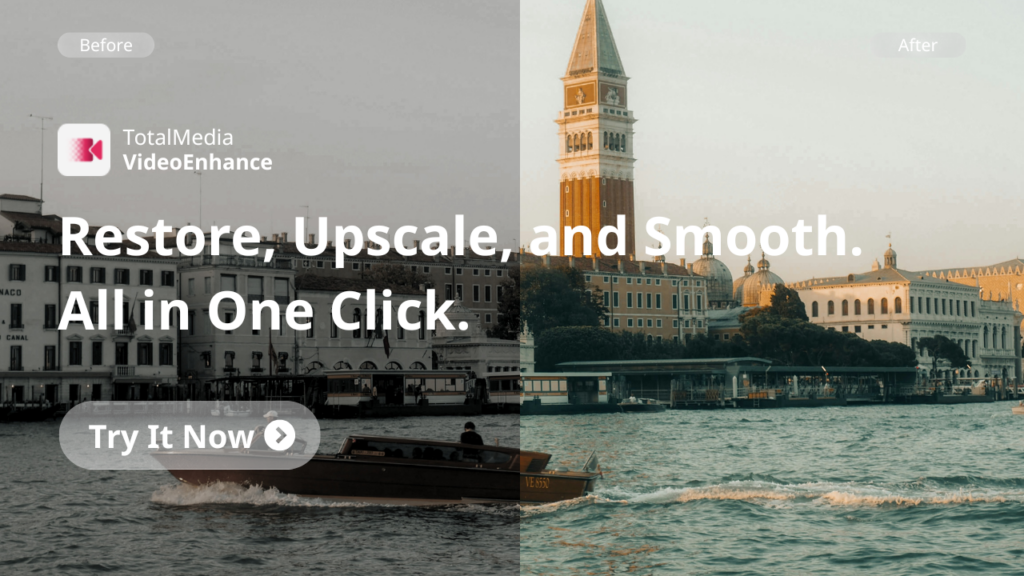
Artifact reduction. Generation artifacts respond to AI Smart Enhance processing. The compression artifacts added by the generation platform’s own encoding also get addressed in the same pass.
Color and contrast. AI generators apply their own color processing that doesn’t always match the look you want for your channel or brand. A color correction pass after enhancement normalizes this.
TotalMedia VideoEnhance handles upscaling, artifact reduction, and color restoration in a single pass via AI Smart Enhance. The split-screen preview shows the result on your actual clip before committing to the render. Available as a web app, no installation required.
Step 3: Format Conversion and Export
AI video tools output in varying formats. Not all of them are platform-ready.
Most tools export MP4. Some export MOV. Resolution, frame rate, and bitrate vary by platform and plan tier. Before upload, verify:
- Format is MP4 with H.264 codec
- Resolution matches your platform target. 1080×1920 for Shorts and Reels, 1920×1080 or 3840×2160 for YouTube landscape
- Frame rate is locked constant. Variable frame rate from AI generation tools causes audio drift on upload
- Bitrate is sufficient. 8 to 12 Mbps for 1080p, 35 to 45 Mbps for 4K
TotalMedia VideoConverter handles format conversion from any AI tool output to platform-ready MP4, with web video presets for different platforms and custom bitrate control. Batch processing converts an entire session’s worth of clips in one run.
Step 4: Automate the Repetitive Work
This is where the workflow scales. If you’re producing AI video content regularly, manual post-production becomes the bottleneck.
Two tools are worth knowing here.
n8n is a visual workflow automation platform. n8n is deterministic. Every step is visible, testable, and reproducible. For video creators, this means automating the predictable parts: moving generated files to the right folder, triggering conversion jobs, resizing for multiple platforms, scheduling uploads. Deterministic tasks become n8n workflows. Decision-making stays with the agent.
OpenClaw is an AI agent framework that works differently. OpenClaw is a free, open-source AI agent framework that exploded past 220,000 GitHub stars in early 2026, making it one of the fastest-growing open-source projects in history. OpenClaw automates outcomes, not steps. It adapts its actions based on context, memory, and reasoning. For content workflows, this means handling tasks that require judgment. Deciding which clips need enhancement passes, flagging generation artifacts for review, drafting captions and descriptions from the video content.
The combination is where the real efficiency gains are. OpenClaw and n8n are not competitors. They are complementary layers. OpenClaw handles intent and context. n8n executes the heavy lifting like complex data processing, API interactions, and multi-step business logic.
Step 5: Platform-Specific Delivery
Each platform has different requirements and treats uploaded content differently.
YouTube MP4, H.264, AAC audio at 48kHz. Upload at the highest resolution your enhanced output supports. 4K gets a better codec treatment from YouTube’s encoder than 1080p. Lock frame rate constant before export. Veo 3’s YouTube Shorts integration uses SynthID to automatically label synthetic outputs. That disclosure happens automatically. Other tools require manual disclosure in your title or description per YouTube’s synthetic content policy.
Instagram Reels and TikTok 1080×1920 vertical, MP4, H.264, 5 to 8 Mbps. Both platforms apply aggressive compression. Keep important visual elements away from the top and bottom edges where UI overlays appear.
LinkedIn and Facebook MP4, 1920×1080, H.264. Facebook’s compression is heavy. LinkedIn favors shorter clips with captions, as most professional viewers watch without sound.
Client Deliverables MOV or high-bitrate MP4. Include both a web-optimized version and a master file. Never deliver AI-generated content to a client without clear disclosure and written confirmation of their acceptance of synthetic content in the deliverable.
Platform-Ready Checklist
Run through this before every upload:
- Generation artifacts checked and addressed in enhancement pass
- Resolution upscaled to platform minimum — 1080p at least, 4K for YouTube
- Format: MP4, H.264, AAC audio
- Frame rate constant and matched to platform preference
- Bitrate in the correct range for resolution and platform
- Synthetic content disclosure in place per platform policy
- Watermarks removed from generation tool output
- Audio present and synchronized — or music/voiceover added if tool output was video-only
Frequently Asked Questions
Yes. OpenAI expects creators to add value through editing, branding, or combining with other content — and treats AI video like stock footage that needs context and integration. YouTube requires disclosure of synthetic content in the video details. Instagram has similar requirements. Specific requirements vary by platform and are updated regularly — check each platform’s creator policy directly before publishing.
Two reasons. First, generation tools apply their own compression to the output file — so what you download already has encoding artifacts before you upload anywhere. Second, platforms re-encode on upload. A low-quality input gets compressed twice. Enhancement and proper export settings before upload address both.
Yes. n8n connects to YouTube, Instagram, TikTok, and most major platforms via API. You can build workflows that move enhanced video files to upload queues, add scheduled publish times, attach metadata, and notify you when each post goes live. The setup requires API credentials for each platform and some familiarity with n8n’s workflow builder. The n8n community has pre-built templates for most common social media posting workflows.
Match the frame rate your generation tool used — most tools output at 24fps for cinematic content or 30fps for general content. Lock it constant before upload. Variable frame rate output from some AI tools causes audio drift after platform re-encoding. Check your export settings and confirm the frame rate is fixed before delivery.