
YouTube lets you upload videos in many resolutions. The most popular choices are 2160p (4K), 1440p (2K), and 1080p (HD). See the table below for common options:
Resolution | Dimensions |
|---|---|
4320p (8K) | 7680×4320 |
2160p (4K) | 3840×2160 |
1440p (2K) | 2560×1440 |
1080p (HD) | 1920×1080 |
720p (HD) | 1280×720 |
Choosing the right youtube video resolution helps your content look sharp and keeps viewers engaged. High-quality videos boost satisfaction and can lead to better reach. You can master these rules easily and make your channel stand out.
YouTube video resolution guidelines

Supported resolutions and aspect ratios
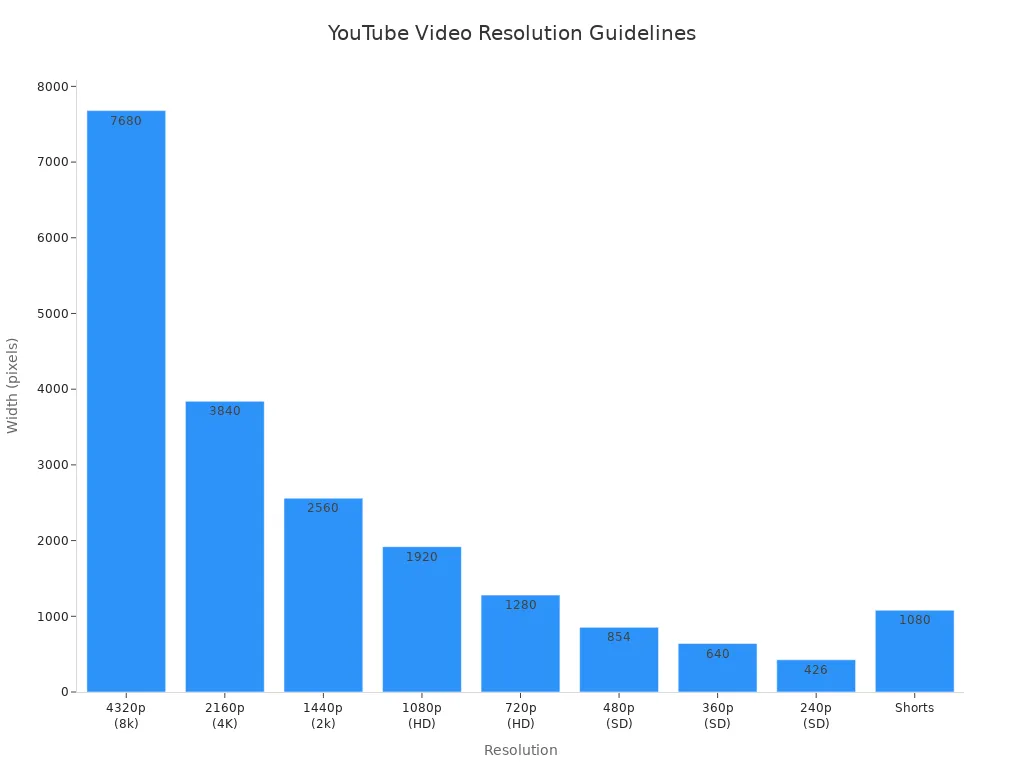
YouTube lets you pick from many video resolutions and aspect ratios. You can use 1080p for clear videos or try 8K for the sharpest image. The most used aspect ratio is 16:9. This shape works well for tutorials, vlogs, and livestreams. If you make YouTube Shorts, use the vertical 9:16 aspect ratio. This style fits phones and helps your Shorts stand out.
Here is a table with the main supported resolutions and their aspect ratios:
Resolution | Dimensions | Aspect Ratio |
|---|---|---|
4320p (8K) | 7680×4320 | 16:9 |
2160p (4K) | 3840×2160 | 16:9 |
1440p (2K) | 2560×1440 | 16:9 |
1080p (HD) | 1920×1080 | 16:9 |
720p (HD) | 1280×720 | 16:9 |
480p (SD) | 854×480 | 16:9 |
360p (SD) | 640×360 | 16:9 |
240p (SD) | 426×240 | 16:9 |
Shorts | 1080×1920 | 9:16 |
Tip: If your video does not fit the right aspect ratio, YouTube might add black bars to the sides or top and bottom. This can make your video look less nice.
Minimum and maximum upload requirements
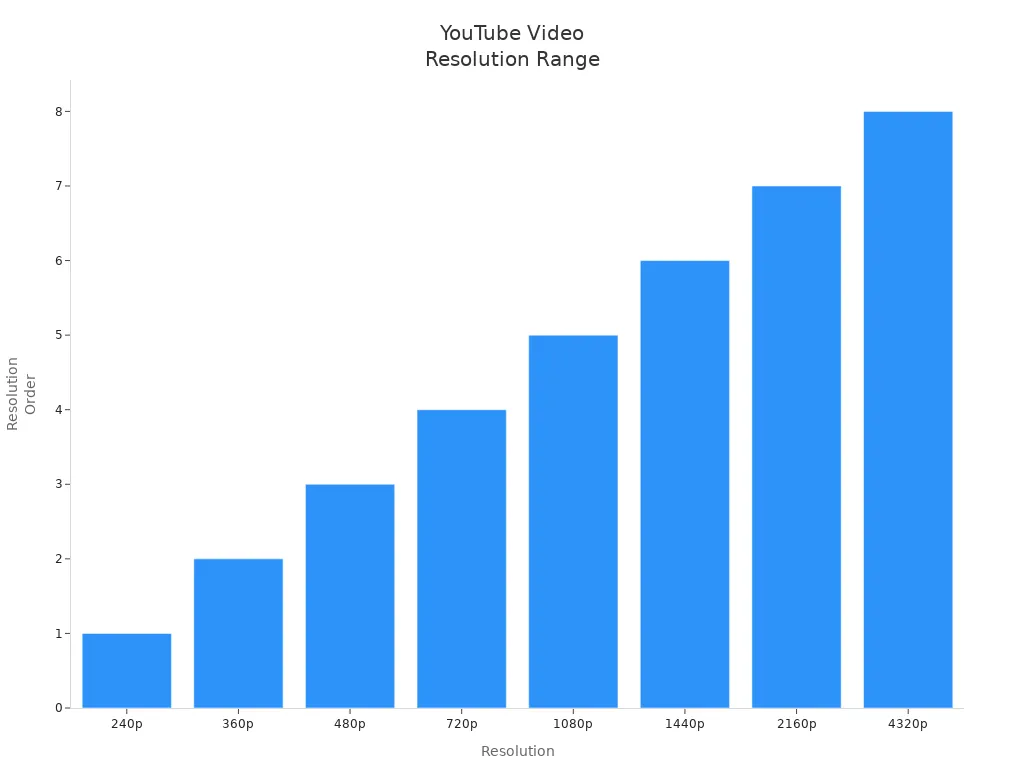
YouTube lets you upload videos in many resolutions, but there are limits. The lowest quality allowed is 240p. This looks blurry on most screens. For better results, upload at least 720p. This is the lowest for high-definition playback. If you want your videos to look sharp and new, try 1080p or higher.
Here is a table that shows the accepted resolutions:
Resolution | Description |
|---|---|
240p | Lowest accepted quality for YouTube uploads. |
360p | Basic resolution for video viewing on smartphones. |
480p | Standard definition for cellular data streaming. |
720p | Minimum resolution for high definition playback. |
1080p | Full HD resolution for high-quality uploads. |
1440p | 2K resolution for detailed viewing experience. |
2160p | Ultra HD (4K) for sharp images on large screens. |
4320p | Full Ultra HD (8K) resolution for advanced playback devices. |
YouTube lets you upload up to 8K (4320p) in some cases. Most people use 1080p or 4K for good quality and smaller file size. Higher resolutions make your videos look clear on big screens and bring more viewers.
Uploading videos in higher resolutions can help your channel do better. People watch longer when your videos look clear and sharp. This means more likes, shares, and better search results. But low-quality videos can upset viewers and make them leave sooner.
If you want to make old or blurry videos look better, you can use tools like TotalMedia VideoEnhance. This AI tool can make your videos higher resolution, remove noise, and fix colors. You can make your videos look professional, even if you started with a lower youtube video resolution.
Note: Good technical quality helps people find your videos. High-resolution uploads help YouTube show your content to more viewers.
Choosing your resolution
Matching content type and audience
Think about who will watch your videos. Also, consider what kind of video you make. Gaming and tech reviews look better in 4K. This shows more detail and attracts people who want high quality. Vlogs and tutorials usually look good in 1080p. Daily videos also work well in 1080p. For YouTube Shorts, use vertical 1080×1920 resolution. This fits phones best.
Tip: Ask yourself where your viewers watch videos. If most use phones, 720p or 1080p is a good choice. For TV or desktop viewers, 4K can help your videos stand out.
Device compatibility and internet speed
Not everyone uses the same device or has fast internet. Some people watch on phones with small screens. Others use big TVs. Slow internet can make high-resolution videos load slowly. You want your videos to play smoothly for everyone.
Here is a table to help you pick the right resolution:
Factors | Recommended Resolution |
|---|---|
Device Size | 720p to 1080p for small screens, 4K for large screens |
Internet Speed | 480p to 1080p for slower connections, 4K for fast |
Storage Space | 1080p for balance, 4K if you have more space |
Content Type | 1080p for most, 4K for pro or gaming |
Device Compatibility | 720p to 1080p for most, 4K for new devices |
Viewing Distance | 720p for close, 4K for far |
Balancing quality and file size
Higher youtube video resolution means more pixels and better quality. For example, 1080p looks much clearer than 360p. But higher resolutions make bigger files. Large files take longer to upload and need more storage. YouTube compresses all uploads, so use the highest quality you can.
240p: Smallest file, lowest quality, good for slow internet.
720p: Minimum for HD, works well for most viewers.
1080p: Full HD, best for sharp images and detail.
If your footage is old or blurry, you can use tools like TotalMedia VideoEnhance. This tool uses AI to make videos higher resolution, fix colors, and remove noise. Your videos will look more professional.
Remember, clear videos keep viewers watching longer and help your channel grow.
Uploading for best quality
Export settings and file formats
You want your videos to look clear and play well on YouTube. Start by picking the right export settings. Most creators use MP4 format because it works best with YouTube. Set your video codec to H.264. Set your audio codec to AAC-LC. Keep your frame rate at the original setting, like 24, 30, or 60 fps. YouTube accepts many file types, like MOV, AVI, WMV, FLV, WebM, and HEVC. MP4 gives the best mix of quality and compatibility.
Tip: Make sure your video resolution matches YouTube’s recommended sizes. Full HD (1920 x 1080 pixels) and 4K (3840 x 2160 pixels) are popular choices. Keep the aspect ratio at 16:9 for most videos.
Here are the best ways to export:
Maximum file size is 128GB
Maximum video length is 12 hours
Bitrate recommendations
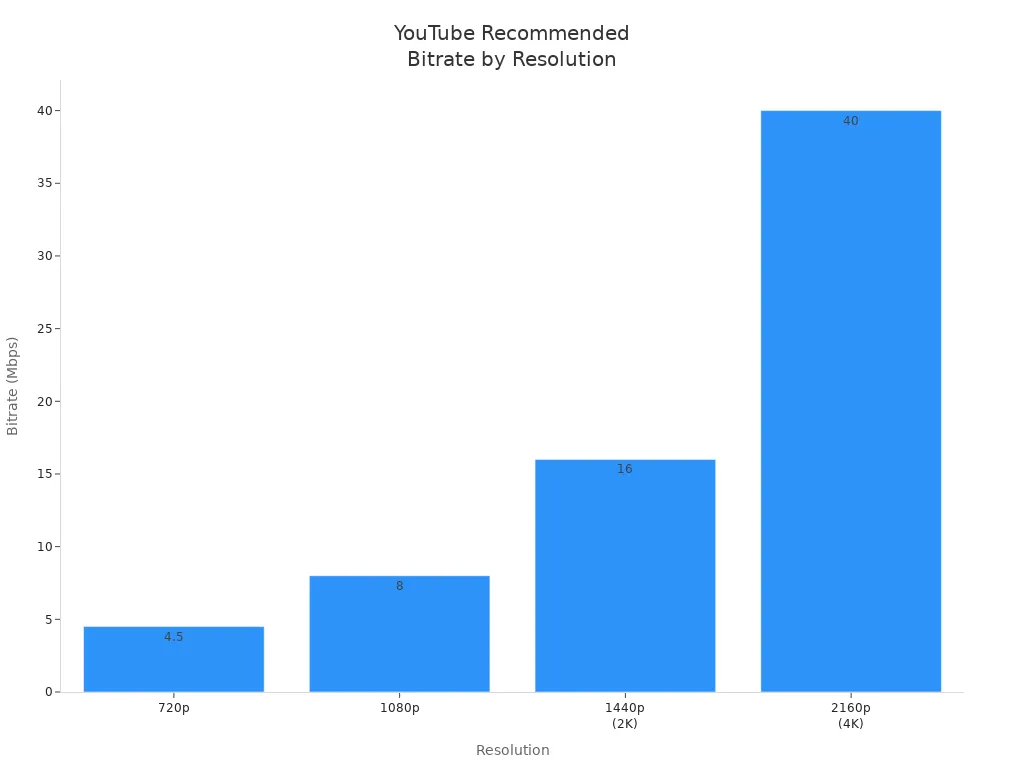
Bitrate decides how much data your video uses each second. Higher bitrates mean better quality, but bigger files. For 1080p videos, aim for about 8 Mbps. For 4K videos, use 35-45 Mbps. If you upload with these settings, your videos will look clear and sharp.
Resolution | Recommended Bitrate |
|---|---|
1080p | 8 Mbps |
4K | 35-45 Mbps |
Keep your bitrate high enough so your video does not look blurry or pixelated. YouTube compresses all uploads, so starting with a high-quality file helps.
Avoiding compression loss
YouTube processes every video you upload. This can cause some loss of quality. You can avoid this by following a few steps:
Upload the best source video you have.
Use YouTube’s encoding recommendations for bitrate and resolution.
Compress your video with trusted software like Handbrake or ShutterEncoder before uploading.
Export your videos in 1080p or higher to keep quality. If your footage is old or blurry, use AI-powered tools like TotalMedia VideoEnhance. This tool can make your video higher resolution, restore detail, reduce noise, and even reach resolutions up to 8K. Your videos will look more professional and attract more viewers.
AI tools help you fix damaged footage and make videos clearer without advanced editing skills. You can turn old, blurry videos into high-resolution assets with great sharpness.
Common mistakes to avoid
Wrong aspect ratio or resolution
Sometimes, you might pick the wrong aspect ratio or resolution. This can put black bars on your video’s sides or top and bottom. Some important parts of your video might get cut off. Viewers could see your video in a way that feels weird or unfinished. If your video does not fit well on phones, it can look odd and make people stop watching. Using the right aspect ratio, like 16:9 for normal videos or 9:16 for Shorts, makes your video look better and keeps people interested.
Picking the wrong aspect ratio can add black bars or cut off parts.
Videos that do not fit phones well are harder to watch.
If you use the wrong resolution, your video might look blurry.
Tip: Always check your video’s aspect ratio before you upload it. If your video looks blurry or has the wrong shape, try using a tool like TotalMedia VideoEnhance. This tool can make your video clearer, fix details, and get rid of noise.
Over-compression issues
If you compress your video too much, it can look choppy or grainy. YouTube already compresses videos, so doing it too much before uploading can make things worse. People might stop watching if your video looks bad. Good quality videos keep people watching and help your channel do well.
Videos that look choppy or grainy make people leave.
Bad quality makes people less happy and they watch less.
Good streaming quality helps people stay and watch more.
Note: Export your video at the best quality you can. Do not compress your video too much before you upload it. If your video is not clear, use TotalMedia VideoEnhance to make it better before you export.
Ignoring YouTube processing steps
YouTube changes every video you upload. If you do not follow YouTube’s rules, your video might lose quality. You should use the right settings for resolution, bitrate, codec, and frame rate.
Resolution | Recommended Bitrate | Codec | Frame Rate | Audio Settings |
|---|---|---|---|---|
720p | 3-6 Mbps | H.264 | 24, 25, 30, 60 fps | AAC, 128 kbps |
1080p | 8 Mbps | H.264 | 24, 25, 30, 60 fps | AAC, 128 kbps |
1440p | 16 Mbps | H.264 | 24, 25, 30, 60 fps | AAC, 192 kbps |
2160p | 35-45 Mbps | H.264 | 24, 25, 30, 60 fps | AAC, 192 kbps |
Reminder: Do not forget about enhancement tools. TotalMedia VideoEnhance can help fix low-quality videos before you upload them. You can make your video clearer, remove noise, and get higher resolution. This makes your videos look better and keeps people watching.
Quick reference table
Recommended resolutions, aspect ratios, and bitrates
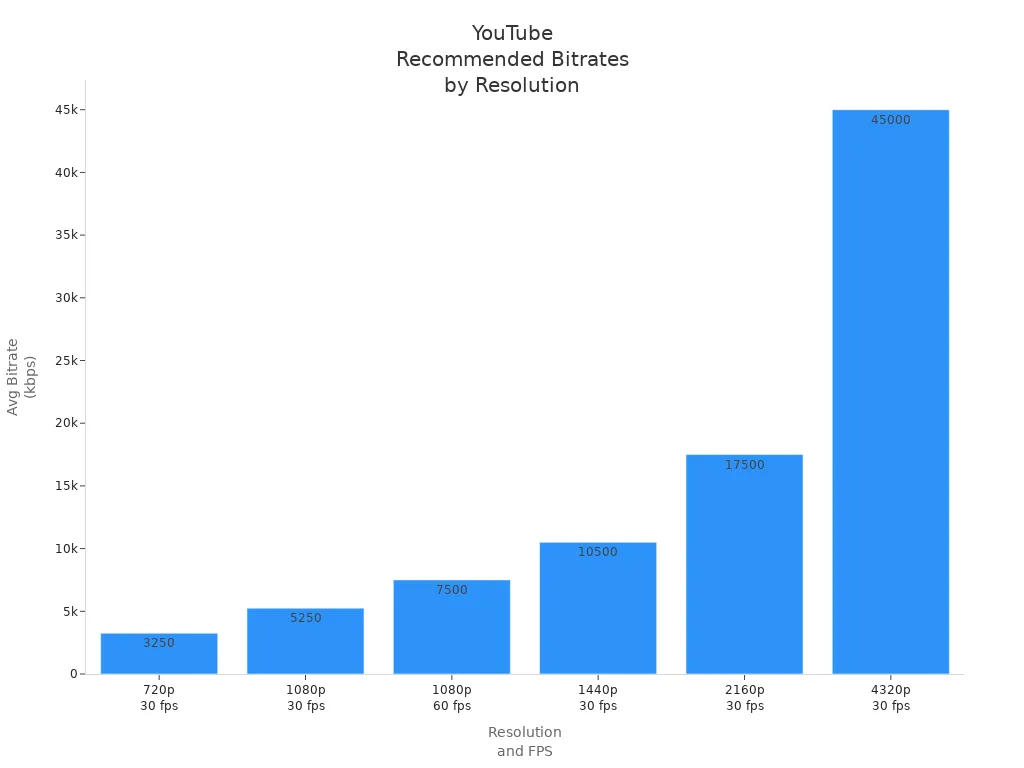
You want your videos to look clear and play well on YouTube. Picking the right settings helps you get more viewers and keeps them watching longer. Use this quick reference table to find the best resolution, aspect ratio, and bitrate for your videos.
Content Type | Aspect Ratio | Resolution | FPS | Recommended Bitrate (CBR) | Best for |
|---|---|---|---|---|---|
Long-form tutorials or vlogs | 16:9 | 1080p (1920×1080) | 30 fps | 4,500 – 6,000 kbps | Most YouTube videos, online courses |
Gaming, sports, fast motion | 16:9 | 1080p (1920×1080) | 60 fps | 6,000 – 9,000 kbps | Gaming streams, sports highlights |
Professional streaming, tech reviews | 16:9 | 1440p (2560×1440) | 30 fps | 9,000 – 12,000 kbps | High-quality YouTube & Twitch streaming |
High-end film, cinematic projects | 16:9/21:9 | 2160p (3840×2160) | 30 fps | 15,000 – 20,000 kbps | 4K film, Netflix, cinematic content |
Shorts and quick clips | 9:16 | 1080×1920 | 30 fps | 4,500 – 6,000 kbps | YouTube Shorts, mobile-first content |
IMAX, cinematic productions | 16:9/21:9 | 4320p (7680×4320) | 30 fps | 40,000 – 50,000 kbps | 8K, large screens, advanced projects |
Tip: Most creators should use 1080p at 30 fps. A bitrate of 4,500–6,000 kbps gives good quality and keeps file size small.
YouTube suggests using the H.264 codec and MP4 container. These settings work well with YouTube and help your videos upload faster.
Aspect | Recommended Settings | YouTube’s Guidelines |
|---|---|---|
Codec | H.264 | H.264 |
Container | MP4 | MP4 |
Compatibility | High | High |
Quality Balance | Good | Good |
If your videos are old or blurry, try TotalMedia VideoEnhance. This tool can make your footage sharper, fix colors, and remove noise. Your uploads will look professional.
Note: Always check your aspect ratio. Use 16:9 for normal videos, 9:16 for Shorts, and 21:9 for movies. This helps your video fit every screen.
You learned that picking the right resolution and aspect ratio helps your videos look sharp and fit every screen. Check the table below for quick reference:
Resolution | Quality | Aspect Ratio |
|---|---|---|
4320p | 8K UHD | 16:9 / 9:16 |
2160p | 4K UHD | 16:9 / 9:16 |
1440p | 2K FHD | 16:9 / 9:16 |
1080p | FHD | 16:9 / 9:16 |
720p | HD | 16:9 / 9:16 |
Proper settings boost video quality and viewer satisfaction. You can take small steps to stand out:
Design eye-catching thumbnails.
Respond to comments.
Use YouTube SEO.
Enhance old footage with TotalMedia VideoEnhance.
Mastering these basics sets your channel apart and helps you grow.
FAQ
You should upload in 1080p (Full HD) or higher. 4K (2160p) gives the sharpest image. These resolutions look clear on most screens and help your videos stand out.
Try using an AI tool like TotalMedia VideoEnhance. This tool can sharpen your video, remove noise, and boost the resolution. Your video will look much more professional.
Yes, YouTube compresses every video. You should always upload the highest quality version you have. This helps keep your video looking clear after processing.
You should use a 9:16 aspect ratio for Shorts. This vertical format fits phone screens and makes your content easy to watch on mobile devices.
You should use a 9:16 aspect ratio for Shorts. This vertical format fits phone screens and makes your content easy to watch on mobile devices.
Yes! You can use TotalMedia VideoEnhance to restore old footage. The AI can fix colors, remove grain, and upscale your video to HD or even 4K.