Frame rate conversion is one of those tasks that looks straightforward until you try it. Drop a 24fps clip into a 60fps timeline, export, and play it back. The motion looks wrong. Choppy, stuttered, or smeared in a way that’s hard to describe but immediately obvious to watch.
The problem isn’t the software. It’s the method. Converting frame rates properly requires generating frames that don’t exist yet. How those frames get created determines everything.
What Each Frame Rate Actually Does
Frame rate isn’t just a technical specification. Each standard produces a distinct visual quality that viewers recognize — often without knowing why.
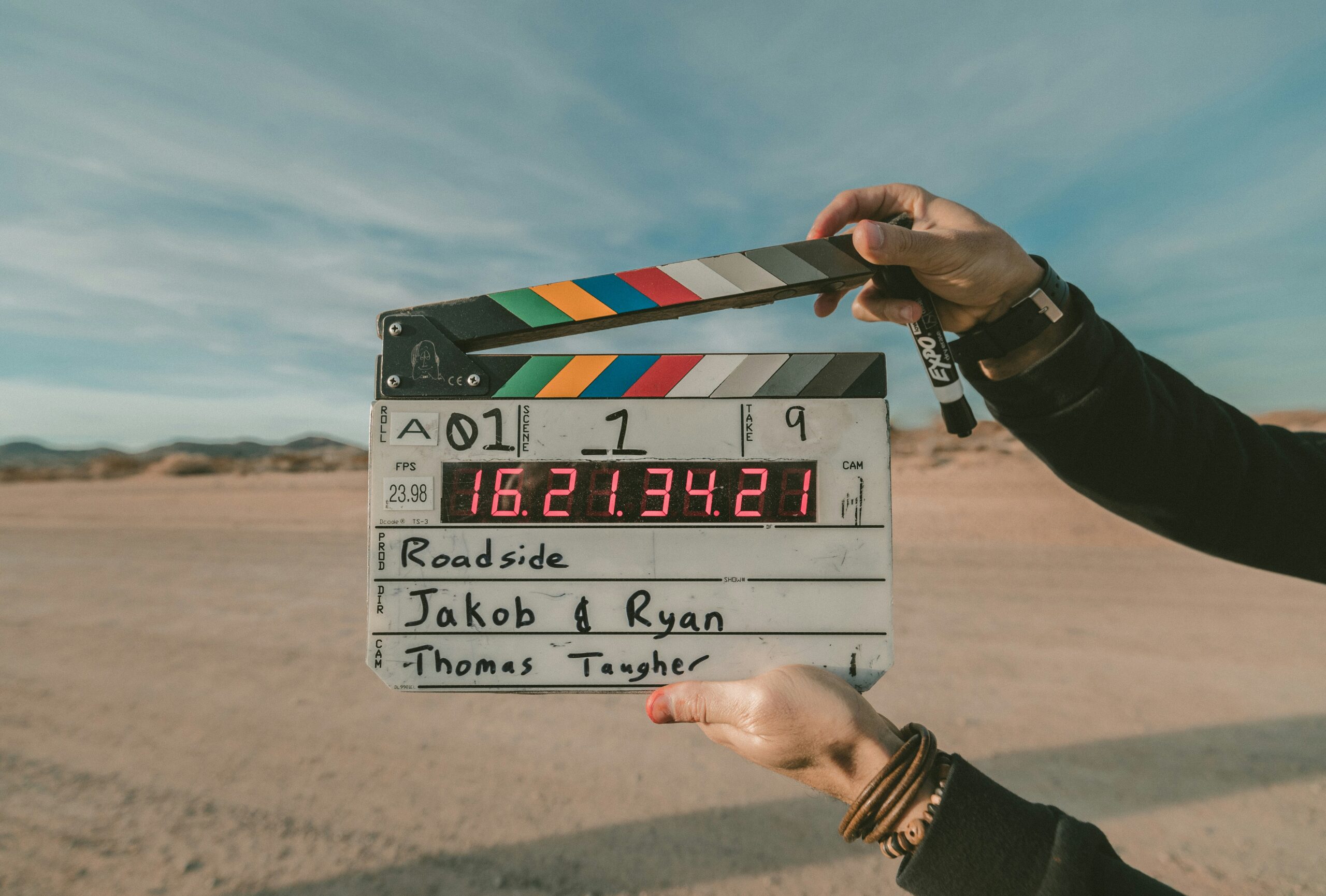
24fps is the cinematic standard. Hollywood films have used it for decades. The slight motion blur it produces at this rate is what audiences associate with narrative film. It looks intentional. Artistic. Converting non-24fps footage to 24fps poorly makes action look stuttered rather than cinematic.
30fps is the broadcast and online workhorse. Common for TV, vlogs, and general online video. It’s a reasonable middle ground between smoothness and file size. YouTube supports up to 60fps, which works best for gaming, sports, and fast-motion content. Instagram and TikTok typically use 30fps, though 60fps is growing in popularity for smoother mobile viewing.
60fps is where motion becomes noticeably fluid. Live sports, gaming footage, action content — 60fps reduces motion blur significantly and makes fast movement easier to track. The trade-off is a “hyper-real” look that some viewers find jarring in narrative contexts.
120fps and above is primarily a slow-motion capture format. Footage shot at 120fps is designed to be played back at 24 or 30fps, creating smooth slow-motion sequences. Integrating 120fps clips into a 60fps timeline requires careful re-timing.
Knowing which frame rate serves your output is the first decision. The second is how to convert cleanly when your source doesn’t match.
Why Basic Frame Rate Conversion Fails
Most editing software includes frame rate conversion. Most of it produces poor results on anything but the simplest footage.
The reason is mechanical. Basic conversion either duplicates existing frames to fill the gaps, blends adjacent frames together, or uses a simple vector calculation to guess at motion. None of these approaches understand what’s actually in the frame.
Duplicate frame conversion produces visible stutter. The motion advances in uneven jumps. Frame blending creates ghosting. Translucent double images that appear around moving subjects. Vector-based optical flow handles slow, simple motion adequately but falls apart on fast action, complex backgrounds, or subjects with fine detail like hair or foliage.
Traditional interpolation methods often struggle with occlusions, rapid motion, or scene changes, which can lead to artifacts such as ghosting, warping, or temporal inconsistencies.
The result is footage that looks technically processed but visually wrong. Viewers notice it even when they can’t name it.
How AI Frame Interpolation Works Differently
AI frame interpolation uses deep learning models trained on thousands of hours of video footage to better understand spatial and temporal relationships, accurately reconstruct fine details, handle complex motion patterns, and minimize artifacts.
The practical difference: instead of guessing where a pixel is going based on simple direction vectors, the AI analyzes the actual content of consecutive frames. It understands edges, object boundaries, and motion trajectories. The intermediate frames it generates are synthesized from that understanding rather than mechanical interpolation.
The RIFE neural network, one of the most widely used approaches, is 4 to 27 times faster than older DAIN methods while producing cleaner results. The quality gap between AI interpolation and basic optical flow is visible on fast-moving content, fine detail, and the particularly difficult case of non-integer frame rate conversion, like 24fps to 60fps, which requires generating 2.5 new frames for every original frame.
Frame Rate Conversion Options
Several tools handle AI frame interpolation. Each has different trade-offs.
Topaz Video AI is the most established dedicated tool for this purpose. It uses the RIFE frame interpolation algorithm with convolutional neural networks, offering four modes — Chronos, Chronos Fast, Apollo, and Apollo Fast — optimized for different conversion scenarios. The trade-off: Topaz switched to subscription-only pricing in October 2025 at $299 per year for Standard and $699 per year for Pro, and requires a powerful desktop GPU.
DaVinci Resolve includes optical flow interpolation built into the timeline. Adequate for simple, slow-moving scenes. Produces artifacts on complex motion. Free for the standard version.
SVP (SmoothVideo Project) uses the same frame interpolation technique available in high-end TVs and projectors and supports GPU acceleration with NVIDIA Optical Flow. Real-time playback focused rather than export focused.
TotalMedia VideoEnhance includes Frame Interpolation as part of its enhancement workflow — synthesizing new intermediate frames for smoother motion output. Available as a web app with no installation required. The free tier covers standard upscaling; Frame Interpolation is available on paid plans. Useful when frame rate conversion is part of a broader enhancement workflow rather than a standalone task.
The right choice depends on whether frame interpolation is your primary need or one step in a larger process. Dedicated tools like Topaz offer more granular control. Integrated tools like VideoEnhance suit workflows where quality improvement and frame rate conversion happen together.
Common Conversion Scenarios
24fps to 60fps
The most requested conversion. Cinematic footage being repurposed for high-motion content or platform delivery that favors 60fps. This is a 2.5x increase — the most demanding non-integer conversion. Basic optical flow handles it poorly. AI interpolation handles it well.
30fps to 60fps
A clean 2x increase. Easier for all methods than 24-to-60. AI interpolation still produces cleaner results than frame blending, particularly on moving subjects with fine detail.
PAL 25fps to NTSC 29.97fps
A common broadcast standardization problem. The 1.2x increase is small but the non-integer ratio causes periodic stutter with basic methods. AI interpolation handles the fractional frame generation cleanly.
Creating Slow Motion from Standard Footage
Frame interpolation can be used to restore old movies, increase video FPS, smooth anime, and create slow-motion videos. Converting 30fps footage to 120fps for 4x slow-motion playback produces usable results with AI interpolation. The quality ceiling is the original footage — slow motion from 30fps source will always have less temporal resolution than footage actually captured at 120fps. AI interpolation improves it; it doesn’t match native high-frame-rate capture.
Step-by-Step: Converting 24fps to 60fps in TotalMedia VideoEnhance

- Upload your 24fps source clip to TotalMedia VideoEnhance
- In the left panel, locate the Frame Interpolation setting
- Select your target frame rate — keep original rate or select a higher output rate
- Use the split-screen preview to check a section with fast motion — this is where artifacts appear first if settings are off
- Confirm the preview looks clean on the high-motion section
- Click Enhance and let the AI process the clip
- Export as MP4, H.264, at a bitrate that preserves the additional frame data — 20 to 30 Mbps for 1080p60
Frequently Asked Questions
Basic conversion duplicates or blends frames rather than generating new ones. The motion advances in uneven steps that look choppy regardless of the output frame rate. AI interpolation generates genuinely new frames based on motion analysis, which produces smooth playback instead.
The “soap opera effect” comes from high frame rates on footage with cinematic motion blur. AI interpolation generates smooth intermediate frames but retains the motion characteristics of the original. The result is smoother than the source without necessarily looking hyper-real. Preview before committing — the split-screen preview shows the actual output on your footage.
For simple scenes with slow, predictable motion, DaVinci Resolve’s optical flow is adequate and free. For fast action, complex backgrounds, or non-integer conversions like 24-to-60fps, AI interpolation produces cleaner results with fewer artifacts. The quality difference is most visible on content with significant motion.