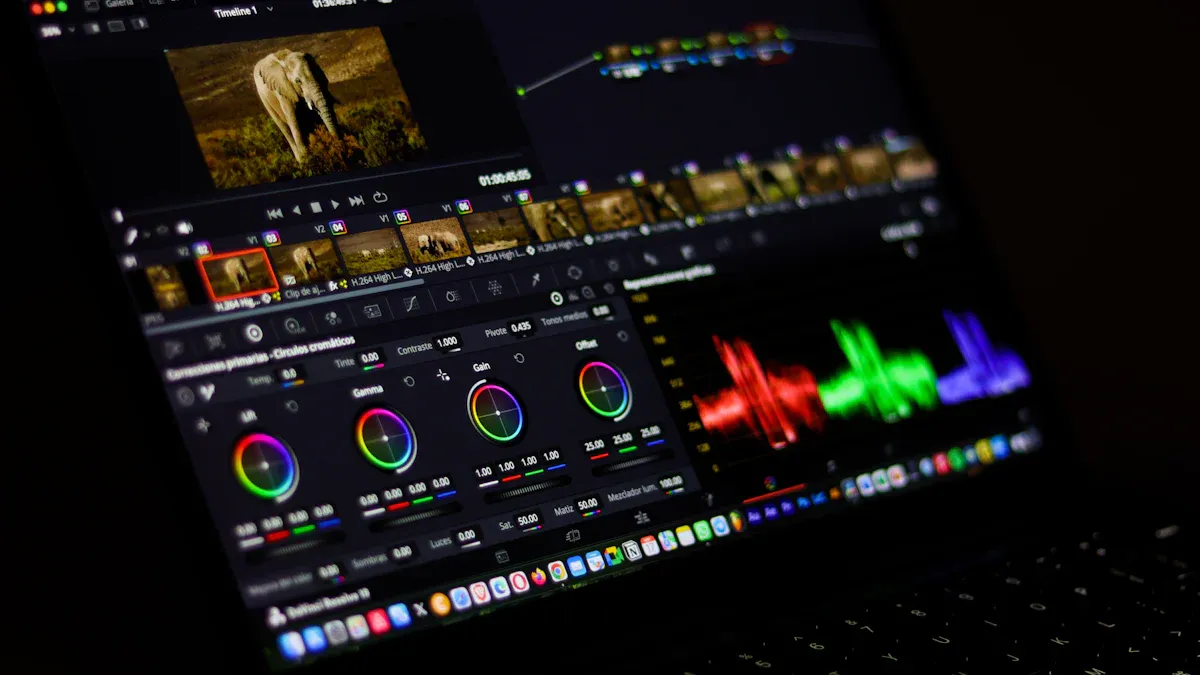
You want the best free AI video upscaler to enhance your videos from 1080p to 4K Ultra HD. Here are the top five upscalers: TotalMedia VideoEnhance, HitPaw VikPea, Vmake, VEED, and Overchat AI. These AI video upscaling tools provide excellent quality, are easy to use online, and do not watermark your videos. If you’re looking for a topaz alternative, these options are worth considering.
1. TotalMedia VideoEnhance
Features Overview
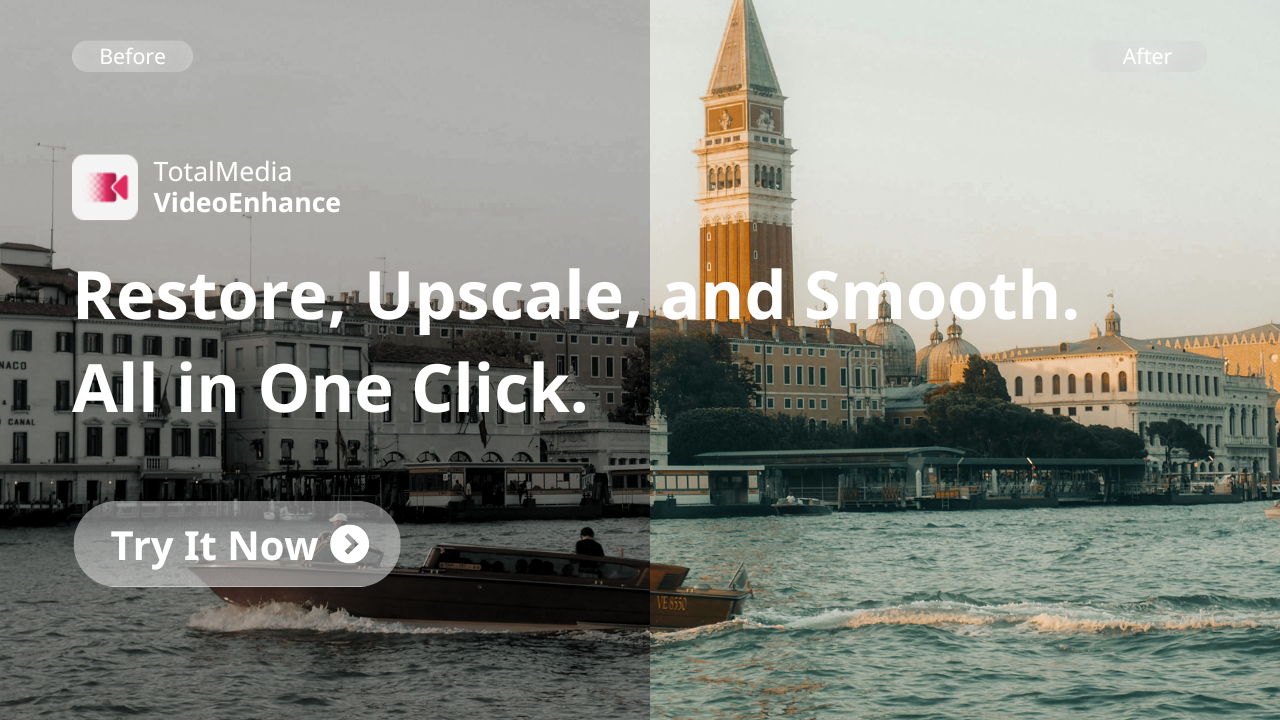
TotalMedia VideoEnhance can either runs entirely in your browser or locally. Upload a video, and the AI Smart Enhance engine gets to work: reducing noise and grain, restoring color balance, sharpening lost detail, and reconstructing edges that compression has degraded. All in a single automated pass.
4K upscaling is available on the free tier, with no watermark on the output. Frame interpolation generates new intermediate frames for smoother motion. The interactive split-screen preview lets you see the enhancement at full output resolution before committing to the render. For larger projects, the multi-file queue lets you process multiple videos in the same session without returning to the home screen between clips.
For users who need 8K output or higher file size limits, the Pro plan is available at $7.99 per week, $19.99 per month, or $69.99 per year, currently discounted as launch pricing for a new product.
Pros and Cons
Pros
4K upscaling is free, with no watermark on exported video
AI Smart Enhance addresses noise, color, detail, and artifacts in one pass
Frame interpolation included — smoother motion without extra steps
Multi-file queue for batch processing
Real-time split-screen preview before rendering
Browser-based — works on any device, no installation required
Cons
8K output requires a Pro plan upgrade
File size limits apply on the free tier
Supported Formats
MP4, MOV, AVI, and other common video formats are supported on both the free and Pro tiers.
Watermark Policy
None. Free tier exports are clean — no watermark, no branding overlaid on your video. What you see in the preview is what you get in the download.
Ease of Use
Open Video Enhance, upload your file, select your settings, click Enhance. That’s the entire workflow. There’s no model selection to navigate, no technical parameters to configure. AI Smart Enhance handles the analysis automatically. For users who have never touched video enhancement software before, the learning curve is effectively zero.
4K Upscaling Quality
TotalMedia VideoEnhance doesn’t simply resize footage to a larger frame. The AI synthesizes new pixel detail based on what it understands about the content — edges, textures, faces, backgrounds — producing a 4K output that looks genuinely sharper rather than just bigger. Noise is removed, compression artifacts are cleaned up, and color accuracy is restored as part of the same process. The result holds up on large screens in a way that standard upscaling doesn’t.
2. HitPaw VikPea AI Video Upscaler
Key Features
If you want a free ai video upscaling tool, try HitPaw VikPea. It uses smart ai models to make your videos look better and less noisy. You can use frame interpolation for smoother movement. The face refinement engine helps faces look clear. You can process videos on the cloud or your own device. This gives you more ways to use the app. Here are some features:
Feature | Description |
|---|---|
AI models for upscaling and denoising | Makes videos clearer by fixing resolution and noise. |
Frame interpolation | Adds extra frames for smoother video. |
Face refinement engine | Makes faces in videos look sharper. |
Cloud and device co-processing | Lets you pick where to process your videos. |
Pros & Cons
Note: HitPaw VikPea is free and can upscale to 4k. You can also process many videos at once.
Pros | Cons |
|---|---|
The interface is easy for beginners. You can control it easily and work with many videos. | Processing can take a long time, especially for 4k videos. Sometimes it takes much longer than the video itself. |
The ai models help make videos sharper and smoother. They reduce noise and improve faces. | There is no auto-save. If your computer crashes, you might lose your work. The free trial limits how many exports you get. |
You can colorize, fix dark videos, remove watermarks, and use it on Windows or Mac. | You need a strong computer. Some ai models may cause weird colors or mistakes in the video. |
Format Support
You can upload MP4, AVI, MOV, MKV, or M4V videos. This makes it easy to upscale almost any video you have.
Supported Formats |
|---|
MP4 |
AVI |
MOV |
MKV |
M4V |
Watermark Details
You can export videos for free, but there will be a watermark. If you want no watermark, you need to pay. Most free ai video upscaling tools add watermarks.
Feature | HitPaw VikPea AI Video Upscaler | Other Free Upscalers |
|---|---|---|
Yes | Yes | |
Free Trial Availability | Yes | Varies |
Export Quality | Limited | Limited |
Upgrade Options | Available | Available |
User Experience
The app is simple to use. You can upscale many videos at once. People say the ai upscaling looks great. You can fix shaky videos and bring back color. Both new users and experts like the app. Cloud editing makes 4k upscaling fast.
Families say old videos look new after using ai upscaling.
Outdoor photographers get smooth and clear videos.
Travel vloggers upload fast and get great quality.
Film restorers like how colors and textures come back.
Upscaling to 8K
You can use HitPaw VikPea to upscale videos to 8K. The ai models work well if your video is good to start with. Upscaling from 1080p to 4k or 8K makes videos sharp and bright. You can try the app for free and see the quality change right away.
3. Vmake Free AI Video Upscaler
Main Features
You can use Vmake in your browser. You do not need to install anything. This keeps your videos private. The design is simple and easy to use. The ai engine makes your videos look better. You can upscale from 1080p to 4k or higher. Vmake uses generative scene reconstruction. This helps your videos look sharp and natural. You can work on three videos at the same time. The tool is fast, so you do not wait long.
Web-based tool keeps your videos private
Easy interface for ai video upscaling
High-definition output improves video quality
Pros & Cons
Vmake is good because you can use it right away. You get real-time previews. You do not need to sign up to start.
Pros | Cons |
|---|---|
Easy to use design | Some users say ai quality is mixed |
Real-time preview | High-resolution videos may take longer |
Instant access | File size limits |
No offline use | |
Few advanced controls |
Vmake has a Trustpilot score of 4.1 out of 5. People like how easy it is to use. They also like the customer support. Some users report glitches and problems with subscriptions.
Supported Formats
You can upscale MP4, MOV, and AVI videos. Vmake lets you boost videos to 4k quality. You can process three videos at once. The tool works fast, so you finish quickly.
Feature/Limitations | Description |
|---|---|
Supported Formats | MP4, MOV, AVI |
Batch Processing | Enhance up to 3 videos at once |
4k Upscaling | Boosts video quality to 4k |
Processing Speed | Fast for ai video upscaling |
Watermark Policy
You can remove watermarks for free. Vmake uses ai to fix missing pixels. Your video stays clear and sharp. The watermark removal does not blur your video. The ai finds the watermark and rebuilds the background.
AI finds the watermark
Tracks the watermark in each frame
Deep learning fixes missing pixels
Ease of Use
You can start upscaling with Vmake in seconds. The interface is simple. You get previews before you export your 4k video. Vmake is easier than other free tools. It gives you good quality upscaling.
Tool name | Free availability | Ease of use | Strength (Quality of Upscaling) |
|---|---|---|---|
Vmake | Free option + previews | Simple interface | Good upscaling, 5-s previews |
4K+ Quality Output
Vmake gives you free 4k upscaling with ai. Generative scene reconstruction makes your video sharp and clear. You can upscale to 4k or higher. The ai engine brings back lost details and boosts quality. You get professional results for free.
4. VEED Video Upscaler Online
Features
You can use VEED Video Upscaler Online to make your video better with ai. The platform gives you free basic editing tools. You can make your video twice as big. This makes it look sharper and brighter. VEED has templates for social media and training videos. You get auto-subtitles and translation with one click. This helps people all over the world watch your videos. The free plan lets you try upscaling and editing without paying.
Key Feature | Benefit |
|---|---|
Global Content Accessibility | Auto-subtitle and translation for viewers everywhere |
Corporate Training & Onboarding | Screen recording and clear audio for training videos |
Branded Social Media Videos | Templates and brand kits for good quality |
Collaboration Features | Team tools for business work |
Pros & Cons
VEED is good for quick edits and free upscaling, but it is not best for big video projects.
Pros:
Easy to use for free ai upscaling
Templates help you make videos fast
Good for marketing and training
Strong subtitling and audio tools
Cons:
Not good for heavy editing
Upscaling only goes to 2x, not full 4k
Free plan adds a watermark
Format Compatibility
You can upload most video formats for free upscaling. VEED supports MP4, MOV, AVI, and more. You can make your video better and export in popular formats.
Watermark Policy
Plan Type | Watermark | Impact on Video Output |
|---|---|---|
Free | Yes | Makes the final video look less professional |
If you use the free plan, your upscaled video will have a watermark. This can make your video look less good for work.
User Interface
VEED gives you a simple interface. You can find all ai upscaling tools easily. Users rate the platform 9 out of 10 for ease of use. The tools are easy to understand and support is helpful.
Rating | Feedback |
|---|---|
9/10 | Easy to use |
N/A | Simple interface |
N/A | Helpful support |
N/A | Easy tools |
4K Export Quality
VEED lets you upscale your video for free, but it only goes to 2x. You cannot export in full 4k unless you upgrade. The ai engine makes your video look better, but you may not get the same sharpness as other free 4k upscaling tools.
5. Overchat AI Free Video Upscaler
Features
You can use Overchat AI Free Video Upscaler to make your video look amazing. This tool lets you upscale your video up to 4x, so you get sharp 4K results. You do not need to pay or sign up. The platform works online, so you can start right away. You get fast processing and a simple interface. Overchat AI uses smart technology to fix blurry spots and boost details. You can upload your video and see the changes in seconds.
4x upscaling for clear 4K video
Free access with no sign-up
Online platform for easy use
AI fixes blurry and low-quality spots
Pros & Cons
Overchat AI gives you free 4K upscaling. You do not need to worry about hidden fees.
Pros:
Free 4K upscaling
No watermark on your video
Fast and easy workflow
Works online
Cons:
Limited advanced editing tools
File size limits for free users
Supported Formats
You can upload MP4, MOV, and AVI files. The free tool supports most common video formats. You do not need to convert your video before upscaling.
Format | Supported |
|---|---|
MP4 | Yes |
MOV | Yes |
AVI | Yes |
Watermark Policy
You get a free video with no watermark. Overchat AI does not add marks or logos to your video. Your video stays clean and professional.
User Experience
You will find Overchat AI easy to use. The interface is simple. You can upload your video, choose free upscaling, and get results fast. You do not need to learn complicated steps. The tool works well for beginners and experts.
4K Output Quality
Overchat AI gives you free 4K output. The AI engine makes your video sharp and bright. You will see better colors and details. Your video will look professional, even if you started with low quality.
Comparison of Topaz Alternatives and Free AI Video Upscalers
Feature Comparison Chart
You want to see how each free AI video upscaler stacks up. Check out this table. It shows the main features for each tool. You can spot which free option fits your needs.
Tool | 4K Upscaling | Batch Processing | Real-Time Preview | 8K Support | Browser-Based | Generative AI |
|---|---|---|---|---|---|---|
TotalMedia | Yes | Yes | Yes | No | Yes | Yes |
HitPaw VikPea | Yes | Yes | No | Yes | No | Yes |
Vmake | Yes | Yes (3 files) | Yes | No | Yes | Yes |
VEED | No (2x only) | No | Yes | No | Yes | No |
Overchat AI | Yes | No | Yes | No | Yes | Yes |
Watermark & Format Support
You want your free video to look clean. Watermarks can ruin your project. Here is a quick list:
TotalMedia: No watermark, supports MP4, MOV, AVI
HitPaw VikPea: Watermark on free exports, supports MP4, AVI, MOV, MKV, M4V
Vmake: No watermark, supports MP4, MOV, AVI
VEED: Watermark on free plan, supports MP4, MOV, AVI
Overchat AI: No watermark, supports MP4, MOV, AVI
Ease of Use & Output Quality
You want a free tool that is easy to use and gives you sharp video results. Here are some tips:
Try TotalMedia or Vmake if you want a simple interface and no watermark. Overchat AI is also easy for beginners. HitPaw VikPea gives you 8K upscaling, but you get a watermark on free exports. VEED is good for quick edits, but you cannot get full 4K for free.
You can pick the best free AI video upscaler for your project. Each tool helps you make your video look better without paying.
How to Choose the Best Free AI Video Upscaler

Factors to Consider
Picking the best free ai video upscaler can feel tricky. You want your video to look sharp and clear, but you also want a tool that’s easy to use. Here are some things you should check before you start:
Supported resolutions and formats: Make sure the ai video upscaler lets you boost your video to 4K or higher. Look for tools that work with MP4, MOV, or AVI files.
Processing speed: You don’t want to wait forever for your free video to finish. Some ai video upscaler tools work faster than others.
Watermark policies: Some free ai video upscaler options add a big logo to your video. Others keep your video clean.
Ease of use: You want a free ai video upscaler that’s simple. Upload your video, click a button, and get your results.
Here’s a quick table to help you compare:
Criteria | Description |
|---|---|
Supported resolutions and formats | Check the maximum resolution allowed and the formats supported. |
Processing speed | See how quickly the tool processes your video. |
Watermark policies | Find out if the tool adds a watermark to your free video. |
Ease of use | Look for simple steps to upload and export your video. |
Best Upscaler for Different Needs
You might want a free ai video upscaler for different reasons. Here’s a quick guide:
If you want no watermark, try TotalMedia, Vmake, or Overchat AI.
If you need 8K, HitPaw VikPea is your best bet.
For batch processing, TotalMedia and HitPaw VikPea work well.
If you want a simple interface, Vmake and Overchat AI are easy to use.
Think about what matters most for your video. The right free ai video upscaler can make your project shine. If you need a topaz alternative, these tools give you great results without paying.
You can pick the best free video upscaler for your needs.
TotalMedia gives you free video upscaling with no watermark.
HitPaw VikPea lets you try free 8K video upscaling.
Vmake and Overchat AI offer free video tools that are easy to use.
Try each free video tool and share your feedback.
Check for new free video upscalers as they appear.
FAQ
Yes, you can. Many tools on this list let you upscale videos to 4K without paying or adding a watermark.
Some do. You can use browser-based tools like TotalMedia, Vmake, or Overchat AI on your phone or tablet.
No, AI upscalers improve sharpness and detail. Your video should look clearer and more professional after you finish.