Understanding the Two Pillars of Video Quality
Choppy footage and degraded image quality are two of the most common problems creators face in post-production, and they’re closely related. Smoothness without clarity is just fluid blur. Clarity without smooth motion still feels jarring to watch. Solving both together is what separates genuinely polished video from footage that looks processed but still feels off.
Before looking at tools, it helps to understand what actually causes each problem andhow AI-powered solutions address them.
The Science of Smooth Motion
Choppy or stuttering video usually comes from one of three sources. Low frame rates (24fps or 30fps) create inherent motion blur that becomes obvious during fast action or quick camera pans. Dropped frames during recording or playback introduce hiccups that interrupt otherwise smooth footage. And compression during encoding or streaming can strip away the frame consistency that makes motion look natural.
Traditional fixes like speed ramping or playback interpolation in editing software don’t solve the underlying problem. They just slow the existing frames down, making the choppiness more visible rather than less. True smoothness requires generating new frames between existing ones, which is what AI frame interpolation does. It analyzes the motion of every element between two frames and synthesizes accurate intermediate frames, producing genuinely fluid motion rather than stretched or duplicated playback.
The Art of Quality Enhancement
Video quality degrades in several distinct ways, each requiring a different correction. Noise and grain appear from low-light shooting or high ISO settings. Softness and low resolution come from older cameras, digital zoom, or low-bitrate recording. Compression artifacts like blockiness, color banding, smeared edges are introduced by heavy streaming compression or repeated re-encoding.
Basic filters in standard editing software address these problems destructively: sharpening amplifies noise, denoising blurs genuine detail, and resizing makes a video bigger without adding any real information. AI enhancement works differently. Models trained on large datasets learn to distinguish between noise and actual image texture, between a soft edge and a missing edge, between a compression block and a real shadow. The result is reconstruction rather than correction — the AI adds back what was lost rather than masking what remains.
A genuinely useful enhancement tool needs to handle both pillars: smooth motion and image quality. Neither alone is enough.
Method 1: Basic Editor Tools and Manual Fixes
Every editing application, from free tools like DaVinci Resolve to paid suites like Adobe Premiere Pro includes built-in stabilization filters, denoise sliders, and speed controls. For footage that is already close to the result you want, these are a reasonable starting point.
The limitations become clear on footage with real problems. Speed controls don’t generate new frames, slowing 30fps footage just makes the existing choppiness more pronounced. Basic stabilization crops the frame and shifts it to compensate for movement, which works for mild shake but introduces distortion on more complex motion. Sharpen and denoise filters apply uniform adjustments across the entire image, so sharpening amplifies noise while denoising blurs away the detail you were trying to protect.
For footage that needs meaningful improvement rather than minor correction, these tools consistently produce a zero-sum result: fixing one problem creates another.
Best for: Minor corrective tweaks on footage that is already high quality and needs only slight adjustment.
Method 2: Dedicated AI Enhancement Software
AI-powered enhancement tools use machine learning models trained on large video datasets to reconstruct and generate visual information intelligently. This is a fundamentally different approach from applying filters. The software is analyzing content and synthesizing new data, not just adjusting what’s already there.
Two tools dominate this category: TotalMedia VideoEnhance and Topaz Video AI. Both are capable, and both are worth understanding before making a decision.
What Makes the Best AI Video Enhancer?
The best tool for a given creator depends on what they prioritize. The core capabilities to evaluate are:
Frame Interpolation — the ability to generate new frames between existing ones to increase frame rate and smooth motion. The quality of this process varies significantly between tools, and the difference is most visible in high-motion footage.
AI-powered noise and artifact removal —denoising that selectively removes grain and compression artifacts while preserving genuine image detail. A model that blurs and a model that reconstructs produce very different results on the same footage.
Resolution upscaling — adding real detail through super-resolution rather than simply resizing. The distinction between enlarging existing pixels and synthesizing new ones is visible in the output.
Workflow practicality — batch processing, a usable preview system, and an interface that doesn’t require deep technical knowledge to operate effectively.
Cost and value — whether the pricing model justifies the output quality for your typical use case.

TotalMedia VideoEnhance vs Topaz Video AI: A Direct Comparison
| Aspect | TotalMedia VideoEnhance | Topaz Video AI |
| Core philosophy | Accessible, all-in-one enhancement | Specialized AI with granular control |
| Primary strength | Workflow efficiency and versatility | Maximum output quality on challenging sources |
| AI enhancement engine | AI Smart Enhance — comprehensive single-pass improvement | Multiple specialized models (Proteus, Iris, etc.) |
| Frame interpolation | Yes — synthesizes new frames for smoother motion | Yes — highly detailed motion analysis |
| Resolution upscaling | Up to 4K / 8K on Pro plan | Up to 8K |
| Before/after preview | Interactive split-screen, full-resolution | Preview available per model |
| Multi-file processing | Yes — thumbnail queue, add files mid-session | Yes — batch queue |
| Platform | Web app and desktop application | Desktop application only |
| Access tiers | Free tier with Pro upgrade | One-time purchase per major version |
| Learning curve | Low — streamlined, task-oriented interface | Moderate to high — model selection requires technical understanding |
| Best for | Creators who need consistent, efficient results across varied footage | Specialists and archivists pursuing maximum quality on severely degraded sources |
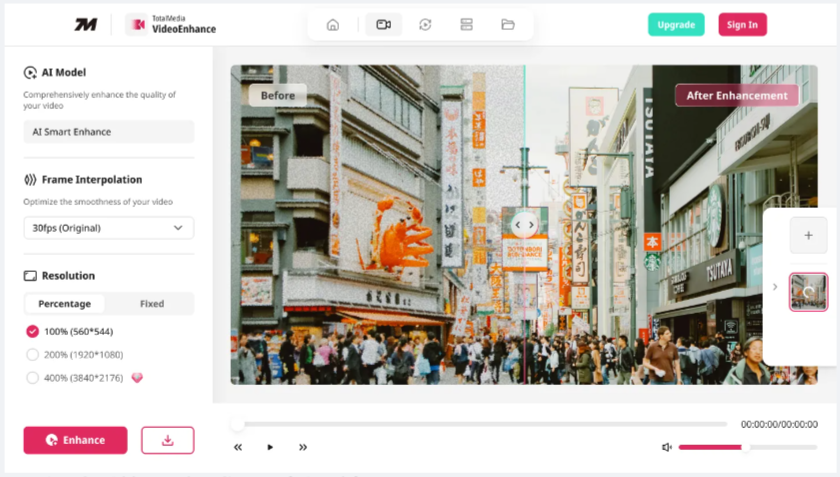
The practical difference: TotalMedia VideoEnhance is built around the AI Smart Enhance engine, which addresses noise, compression artifacts, blur, color fade, and contrast in a single automated pass. The interactive split-screen preview lets you assess the result on your actual footage at full output resolution before committing to the render. Frame interpolation and resolution upscaling are available as additional steps in the same session. It is available as both a web app and desktop application, with a free tier for standard use and a Pro upgrade for output up to 8K.
Topaz Video AI offers a wider selection of specialized AI models, each tuned for specific scenarios. This gives technically experienced users more control over the enhancement process, but requires a deeper understanding of which model to apply and how to configure it. For creators who want to fine-tune every parameter and are working with severely degraded source material where that level of control is justified, Topaz is a strong option. For creators who need reliable, high-quality results efficiently across a regular content workflow, TotalMedia VideoEnhance is the more practical choice.
Step-by-Step: Make Your Video Smoother and Sharper with TotalMedia VideoEnhance
Work from the best available copy of your source file. The quality of the original sets the ceiling for what enhancement can recover.
1. Upload your file. Open TotalMedia VideoEnhance in your browser or via the desktop app. Upload your video file. The interface displays the source resolution and frame rate automatically.
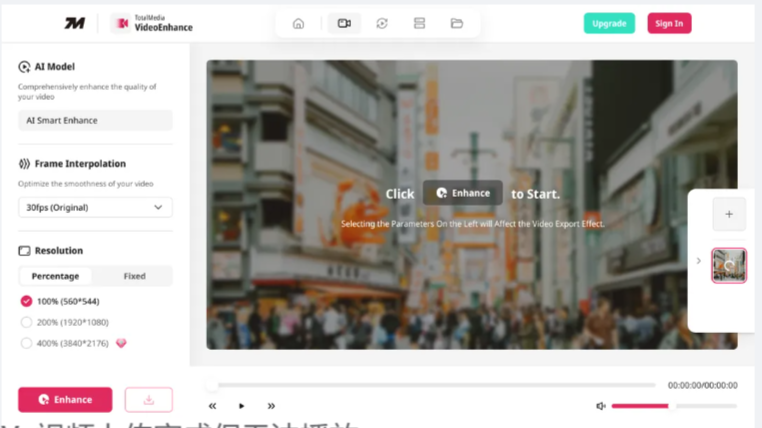
2. Select AI Smart Enhance. In the left panel, confirm AI Smart Enhance is the active model. This is the default and recommended setting. It addresses noise, grain, compression artifacts, blur, low contrast, and color fade in a single pass, covering the most common quality problems without requiring you to configure separate filters for each issue.
3. Enable Frame Interpolation if motion is choppy. Use the Frame Interpolation dropdown to select your target frame rate. For standard footage shot at 24fps or 30fps, interpolating to 60fps produces noticeably smoother motion. For slow-motion work, higher target rates are available. The AI generates genuine intermediate frames based on motion analysis rather than duplicating or stretching existing ones.
4. Set your output resolution. Under the Resolution section, choose Percentage or Fixed mode. Select 200% for a 1080p output or 400% for 4K. Pro users can access 8K output. Upscaling with AI Smart Enhance adds synthesized detail rather than just enlarging existing pixels, which produces a sharper result than standard resizing.
5. Preview your settings. Use the interactive split-screen preview to compare the original and enhanced footage side by side. Drag the divider across a section with fine detail or fast motion to assess the result at full output resolution. Adjust settings if needed before committing to the full render.
6. Click Enhance and export. Click the Enhance button to begin processing. A live progress indicator shows completion percentage. When processing is complete, download the output in MP4 format. The estimated file size is shown before the download begins.
For multiple clips, use the multi-file queue. Add additional videos via the thumbnail sidebar and process them in the same session without returning to the home screen.
Method 3: Professional Editing Suites with Plugins (For Specialists)
High-end compositing tools like DaVinci Resolve Studio with its Neural Engine, or Adobe After Effects with dedicated third-party plugins, offer frame-level control that professional post-production work sometimes requires. For archival film restoration, broadcast mastering, or VFX work where individual frames need custom attention, these are legitimate tools.
For most creators, the combination of cost, complexity, and slow render times makes them difficult to justify for standard enhancement work. The results achievable with dedicated AI enhancement tools have closed the gap significantly, and the workflow overhead of a full professional suite is rarely worth taking on for straightforward smoothing and quality improvement.
Best for: Post-production specialists working on broadcast or film projects where frame-by-frame control and integration into a larger VFX pipeline are genuine requirements.
Choosing the Right Tool for Your Workflow
| Feature | Basic Editor Tools | TotalMedia VideoEnhance | Topaz Video AI | Professional Suites |
| Frame Interpolation | No — stretches frames only | Yes — AI-generated frames | Yes — specialized models | Requires plugins |
| AI Noise Removal | No — blurs detail | Yes — AI Smart Enhance | Yes — multiple models | Requires plugins |
| Resolution Upscaling | No — resizes only | Yes — up to 4K / 8K Pro | Yes — up to 8K | Requires plugins |
| Before/After Preview | Basic | Yes — full-resolution split-screen | Yes | Varies |
| Multi-File Processing | Yes | Yes — thumbnail queue | Yes | Yes |
| Platform | Desktop | Web app and desktop | Desktop only | Desktop only |
| Learning Curve | Low | Low | Moderate to high | High |
| Cost | Free (included) | Free tier + Pro upgrade | One-time per version | High subscription |
| Best For | Minor tweaks | Most creators and editors | Specialists and archivists | VFX professionals |
Conclusion: Choosing Your Path to Better Video
AI enhancement has made professional-quality results accessible to creators at every level. What really effects the decision is about which AI tool fits the way you work.
If you need granular control over the enhancement process and are working with severely degraded source material where every parameter matters, Topaz Video AI is a powerful option worth the learning investment.
If you need consistent, high-quality results across a regular content workflow without a steep learning curve or desktop-only limitation, TotalMedia VideoEnhance is built for exactly that. Its AI Smart Enhance engine handles the complexity automatically, and the combination of frame interpolation, upscaling, and a real-time split-screen preview gives you meaningful control without requiring deep technical knowledge.
If you’re also working with footage from specific cameras or formats that need enhancement before editing, see our related guide: How to Smooth Shaky Insta360 Video and Fix Low-Light Sony Camera Footage.
Ready to see the difference AI enhancement makes on your footage? Try TotalMedia VideoEnhance today in your browser or as a desktop app and find out what your videos are actually capable of looking like.
Disclaimer: Enhancement results depend on the quality of the source material. Always work from the best available original copy and ensure you have the right to modify the content you are processing.
Frequently Asked Questions
The core difference is philosophy and workflow. TotalMedia VideoEnhance uses the AI Smart Enhance engine to address noise, artifacts, blur, color, and contrast in a single automated pass.
Topaz Video AI offers multiple specialized models that give technically experienced users more granular control, but require a deeper understanding of which model to apply and how to configure it.
For most creators, VideoEnhance delivers strong results with less friction. For specialists working on severely degraded archival footage where maximum control is justified, Topaz is the stronger option.
Frame interpolation works best on footage with clear, consistent motion — a walking subject, a slow pan, a vehicle moving across the frame. It can produce ghosting or warping artifacts in scenes with very fast, overlapping motion or complex foreground and background movement. TotalMedia VideoEnhance includes a split-screen preview specifically so you can assess the interpolation result on your actual footage before committing to the full render. If artifacts appear in a particular section, you can adjust the target frame rate or apply interpolation selectively.
With AI upscaling, it genuinely looks sharper. TotalMedia VideoEnhance synthesizes new pixel detail during the upscale based on what the AI understands about edges, textures, and content in the image — rather than simply enlarging existing pixels. The result is a 4K output with recovered detail that wasn’t visible in the 1080p source. The degree of improvement depends on the quality of the original: clean, well-exposed 1080p footage upscales better than heavily compressed or noisy source material.
Yes. TotalMedia VideoEnhance is available as both a web application and a desktop app. The web version runs directly in your browser with no installation required and supports the same core enhancement features. The desktop app is better suited for processing large files or multiple clips from a local archive. For quick enhancements on smaller files, the web app is the faster starting point.