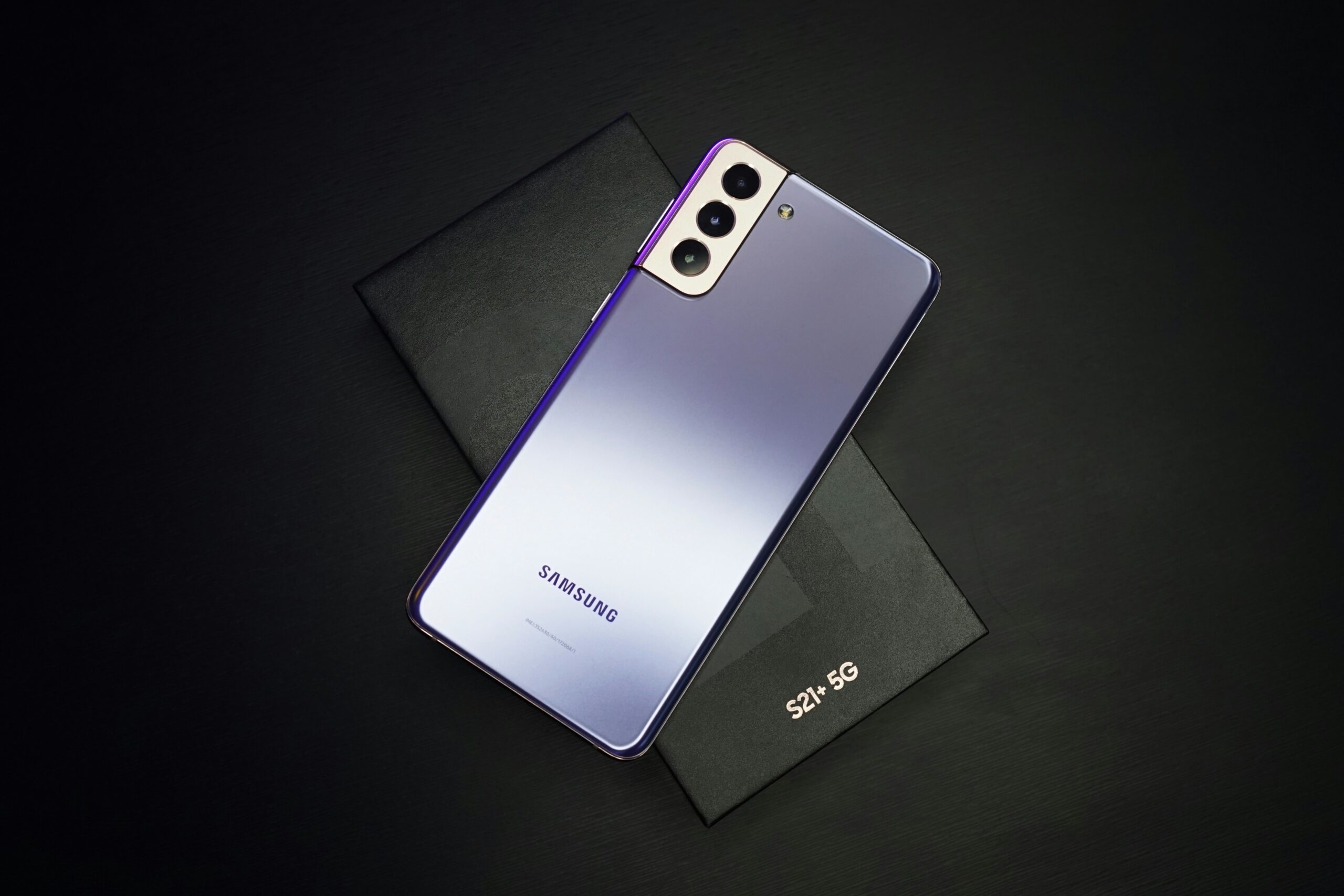
Samsung’s zoom range is genuinely impressive on paper. The S25 Ultra’s 10x optical zoom is crystal clear that no other phone comes close in a zoom test. However, at certain zoom level, the video quality can degrade dramastically. At 30x and 100x, details start to look more like an image interpreted by an abstract painter than a photograph.
The gap between what Space Zoom promises and what it delivers in video is where this guide lives.
What’s Actually Happening at Each Zoom Level
Not all zoom is created equal. The problems you’ll encounter at 10x are fundamentally different from those at 100x.
3x — Optical. Clean. Reliable.
The 3x zoom is sharp enough for portraits and general use. This is optical zoom, meaning the lens hardware is doing the work, not software interpolation. Video at 3x looks clean, holds detail well, and handles motion without significant degradation. Most creators can use 3x footage straight out of the camera with minimal post-production intervention.
10x — Still Optical. The Sweet Spot for Video.
The 10x periscope lens captures shots of buildings or wildlife that few phones can match. Up until 10x, Samsung uses a combination of AI and OIS to form a hybrid zoom that allows you to zoom without losing detail. In video, this translates to footage that’s genuinely usable, detailed, reasonably stable, and workable in post without heroic effort.
If you’re shooting video specifically, 10x is the practical ceiling before quality trade-offs become significant.

30x — Digital Begins. Quality Drops Noticeably.
Past 10x, optical zoom ends. Samsung’s 30x Space Zoom uses digital cropping and computational processing. The Snapdragon chip is constantly working to interpret what you’re looking at and fill in detail.
Clarity remains quite good through 30x for static subjects. In video, the story is different. Motion introduces instability that the computational processing struggles to handle cleanly. Fine detail starts showing the characteristic softness and smearing of digital zoom. The further you zoom, the more slight movements of your hand can throw your subject out of frame.
30x video is salvageable. It needs work.
100x — Party Trick Territory
At 100x, images are for fun but not always sharp. The Space Zoom uses digital cropping and AI. It could introduce significant detail loss. Zoom distances past 10x may express some image deterioration. Samsung’s own documentation acknowledges this.
At 100x, Samsung’s stabilization is working so hard that the lens can feel like it has a mind of its own. In video, this produces a distinctive warping and judder that’s difficult to watch, let alone edit. Compression adds another layer. The H.264 or HEVC encoder struggles with the noisy, high-motion data from extreme digital zoom, introducing blocking and smearing on top of the existing quality issues.
100x video has a narrow use case: distant static subjects, astrophotography, situations where getting any footage is better than getting none. Treat it as a last resort, not a primary tool.
Shooting Tips by Zoom Level
The best post-production outcome starts with the best possible source. A few adjustments at capture time reduce the correction load significantly.
For 30x and above — use a tripod or brace against a surface. At long zoom ranges, every tiny hand movement is amplified. Even breathing introduces visible shake. Any physical stabilisation, use a ledge, a wall, or a tripod can dramatically improves the raw footage quality.
Shoot in good light. More light means a cleaner sensor signal before digital zoom processing is applied. Low light at 30x or 100x produces noise that compounds the existing digital zoom degradation.
Use 4K recording. The phone records 8K at 30fps and 4K at 60fps. A 4K crop has more pixel data than a 1080p crop — more for both Samsung’s in-camera processing and your post-production tools to work with.
Use Pro Video mode where available. Manually setting a lower ISO reduces noise before it enters the zoom processing pipeline. A slightly faster shutter speed reduces motion blur from any residual shake.
Post-Production: What Each Zoom Level Needs
3x and 10x Footage
Minimal intervention needed. Color correction in your editor of choice, light noise reduction if shooting in low light, export at high bitrate. TotalMedia VideoEnhance’s AI Smart Enhance can address any compression artifacts or color fade from H.264 encoding. But most 3x and 10x footage doesn’t need extensive enhancement before it’s usable.
30x Footage
This is where a dedicated enhancement step earns its place. The issues are specific: compression artifacts from the encoder struggling with noisy data, soft detail from digital zoom processing, color that looks slightly muted or off, and motion that can feel uneven.
Stabilisation first — in a dedicated editor. Before enhancement, address motion. DaVinci Resolve’s stabilisation tool in the Inspector panel handles the residual shake from 30x zoom well at medium smoothness settings. Adobe Premiere’s Warp Stabiliser is more powerful for complex motion. Samsung’s own OIS and EIS system does significant work at these zoom levels. What remains after in-camera stabilisation is typically residual micro-jitter that desktop tools handle effectively.
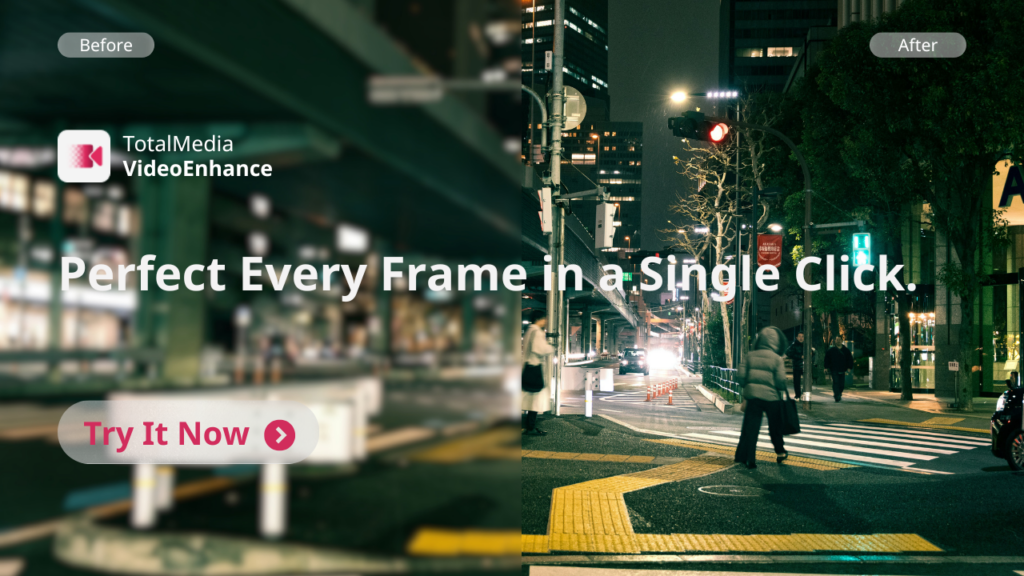
Enhancement after stabilisation — TotalMedia VideoEnhance. Once stabilised, AI Smart Enhance addresses the quality layer: removing compression artifacts and noise, reconstructing the edge detail and texture that digital zoom processing softens, and restoring the color accuracy and contrast that heavy computational processing flattens. The split-screen preview shows the improvement at full output resolution before you commit to the render.
Frame Interpolation smooths any remaining motion cadence issues from the digital zoom processing — useful when the footage has an uneven, slightly stuttering quality even after stabilisation.
Upscaling from 1080p to 4K adds AI-synthesized detail rather than simply enlarging existing pixels. For 30x footage that was captured at lower resolution to enable higher frame rates, this closes the gap between what the camera produced and what the output needs to look like.
100x Footage
Manage expectations first. AI enhancement can produce meaningful improvement, but it cannot create true optical zoom detail from nothing. What was never captured cannot be reconstructed.
That said, for static or slow-moving subjects at 100x, the improvement from AI enhancement is visible and worth doing. The process is the same as 30x: stabilise first in DaVinci Resolve or Premiere, then run AI Smart Enhance to clean up artifacts, recover what detail exists, and restore color. The ceiling is lower than with 30x footage, but the output is consistently better than the raw clip.
For fast-moving subjects at 100x — performers on a stage, wildlife, anything with significant motion — accept the result for what it is. Enhancement improves it. It doesn’t transform it.
The Complete Workflow
| Zoom Level | Raw Quality | Stabilisation Needed | Enhancement Priority |
| 3x optical | Clean | Low | Low |
| 10x optical | Good | Low to medium | Low to medium |
| 30x digital | Degraded | High | High |
| 100x digital | Significantly degraded | Very high | High — with managed expectations |
Export Settings
After stabilisation and enhancement, export matters. A low-bitrate export reintroduces compression artifacts that undo everything that came before.
- Format: MP4 with H.264 or H.265
- Bitrate: 15 to 25 Mbps for 1080p / 30 to 50 Mbps for 4K
- Resolution: Match your enhanced output resolution
Frequently Asked Questions
30x zoom video is still usable with post-production work. At 100x, results are inconsistent — good for static subjects in good light, rarely usable for moving subjects. 10x optical is the practical ceiling for footage that requires minimal post-production intervention.
It improves it — sometimes significantly for static subjects. AI Smart Enhance removes compression artifacts, recovers available detail, and restores color balance. What it can’t do is reconstruct optical detail that was never captured. The improvement is real but the ceiling is lower than with 30x footage.
Always stabilise first. Enhancement on unstabilised footage produces inconsistent results — the AI is analysing frames that are still shifting position. Run stabilisation in DaVinci Resolve or Adobe Premiere, export the stabilised clip, then run it through TotalMedia VideoEnhance for quality improvement.
In video mode, each frame is processed in real time — the phone’s chip doesn’t have the same processing time per frame that it does for a still photo. Still photos at 30x benefit from multi-frame processing and more intensive computational enhancement. Video frames are processed on the fly, which means less correction per frame and more visible degradation, especially in motion.