
A one-minute 4K video recorded on a modern smartphone can easily exceed 400MB. WhatsApp limits video attachments to around 16MB. Most email providers cap at 20–25MB. The gap between what your phone records and what platforms accept is where the problem lives.
No app installation required for any of the methods below.
Why Videos Are So Large in the First Place
Three factors determine video file size: resolution, frame rate, and codec. Bitrate controls how much data is stored per second of video. Frame rate determines how many frames are captured each second. The codec controls how efficiently the video is stored.
When a tool compresses a video, it adjusts one or more of these parameters. That’s why compression options like “High,” “Medium,” or “Low” are really just presets for resolution, bitrate, and similar settings. Knowing this helps you make smarter trade-offs rather than just hitting compress and hoping for the best.
iPhone: Built-In Methods
Change Camera Settings Before Recording
The most effective approach. Prevent large files from being created rather than compressing them after.
Go to Settings, then Camera, then Record Video. Choose a lower resolution or frame rate. Switching from 4K 60fps to 1080p 30fps significantly reduces file size without affecting everyday viewing quality.
You can also switch from “Most Compatible” (H.264) to “High Efficiency” (HEVC) in Settings > Camera > Formats. HEVC keeps almost the same visual quality at a much smaller file size. Worth enabling if you haven’t already.
The trade-off: if your original video was already recorded in HEVC, re-exporting at a lower resolution through iMovie may actually increase file size at some resolutions before it decreases. Always test before committing.

Use the Shortcuts App
The Shortcuts app comes pre-installed on iPhone and includes a native video compression action. No download needed.
- Open Shortcuts and create a new shortcut
- Add the action “Encode Media”
- Select your video from the Photos library
- Choose a lower resolution output
- Save the result to your Files app
Quick, private, and completely on-device. The output saves to Files rather than your camera roll.
Trim the Video First
Editing your videos by trimming unnecessary footage reduces file size directly. Open the video in Photos, tap Edit, and drag the trim handles. Shorter video equals smaller file. This way has no quality trade-off at all.
Not compression in the traditional sense, but often the fastest path to getting under a size limit.
Android: Built-In Methods
Adjust Camera Settings Before Recording
Open the Camera app, switch to video mode, and tap the resolution option. Switching from 4K to 1080p can save significant storage space without compromising much on quality for most viewing purposes. Reducing frame rate from 60fps to 30fps further reduces file size.
On Samsung Galaxy phones, navigate to Camera Settings, tap Advanced Video Options, and enable High Efficiency Video. This switches recording to HEVC, producing smaller files at equivalent quality.
Samsung Gallery App (Samsung Devices Only)
Open the Gallery app, find your video, and tap the pencil icon to open the editor. Tap the three-dot menu and select Size and Format. Choose a lower resolution or switch the codec from H.264 to HEVC for a smaller file without resolution loss.
Built-in, free, no installation. Limited to Samsung hardware.
Google Photos (Storage Saver Method)
Works on any Android device with Google Photos installed.
Open Google Photos, go to Settings, enable Backup and Sync, and set Upload Quality to Storage Saver. This compresses videos during upload. Once backed up, download the compressed version from Google Photos on the web.
The main requirement is a stable internet connection for the upload and download. It also means your video goes through Google’s servers. It worth considering if the content is private.
Browser-Based Compression: Works on Both Platforms
When built-in options aren’t enough, or you need more control, browser-based tools handle compression directly in Safari or Chrome without any installation.
TotalMedia VideoConverter (Online)
Open TotalMedia VideoConverter in your mobile browser, upload your video, and use the AI Compressor module to reduce file size intelligently. Unlike basic resolution-reduction tools, the AI Smart Compression engine preserves perceptible quality while reducing size, and a real-time file size preview shows the expected output before you commit.
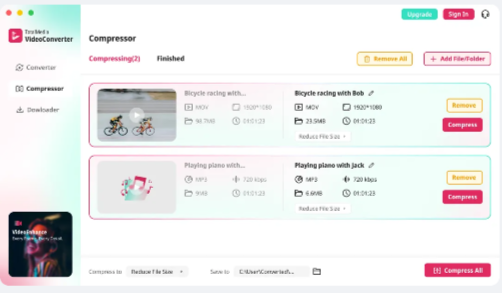
For users who need to compress regularly or want more control over the output such as resolution, bitrate, codec, output format, the custom settings panel covers all of it. Finished files download directly to your device.
Available from $2.59 per week at current launch pricing. No installation required. It runs entirely in the browser.
Other Browser-Based Options
Several free online tools handle basic compression without an account or payment. Upload your video to the website, choose your compression settings, and download the result. The compression happens server-side.
The limitations: most web tools won’t save compressed videos directly to your camera roll, only to the Files app on iPhone. File size limits apply on free tiers. And your video is uploaded to a third-party server, which matters for private content.
Which Method Should You Use?
| Situation | Best Method |
| Preventing large files going forward | Change camera resolution settings |
| Quick size reduction on iPhone | Shortcuts app or trim in Photos |
| Samsung device | Galaxy Gallery app Size and Format tool |
| Any Android, occasional use | Google Photos Storage Saver |
| Need AI compression with quality control | TotalMedia VideoConverter online |
| Need specific bitrate or format output | TotalMedia VideoConverter custom settings |
The Size vs Quality Trade-Off
No compression method is free. Every approach exchanges something. It could be resolution, bitrate, or detail for a smaller file. Optimal compression settings produce no visible difference from the original. Medium introduces very slight softness you’d only notice side-by-side. Maximum compression shows more noticeable artifacts, especially in areas with fine detail.
The right trade-off depends on what the video is for. Sending a clip to a friend over WhatsApp tolerates more compression than delivering footage to a client. Match the compression level to the actual viewing context.
Frequently Asked Questions
Yes — once a video is compressed and the original deleted, the quality reduction is permanent. Always keep the original file before compressing. For most use cases, Optimal or Medium compression hits the sweet spot between space savings and quality retention.
WhatsApp automatically compresses every video you send, regardless of the source file’s size or quality. If quality matters, send the video as a document rather than a media file — tap the attachment icon, choose Document, and select your video. This bypasses WhatsApp’s automatic compression.
The Shortcuts method saves to Files by default. To move it to Photos, open Files, locate the compressed video, tap Share, and save to Photos. It’s an extra step but straightforward.
HEVC is more advanced than H.264 — it keeps almost the same quality at a much smaller file size. The trade-off is that HEVC files have compatibility limitations on older devices and some platforms. For sharing with iPhone and modern Android users, it’s fine. For wider compatibility, H.264 in MP4 is still the safer choice.
Disclaimer: Built-in features and settings vary by device manufacturer and operating system version. Always keep the original video file before applying compression.