Understanding the Two Core Challenges
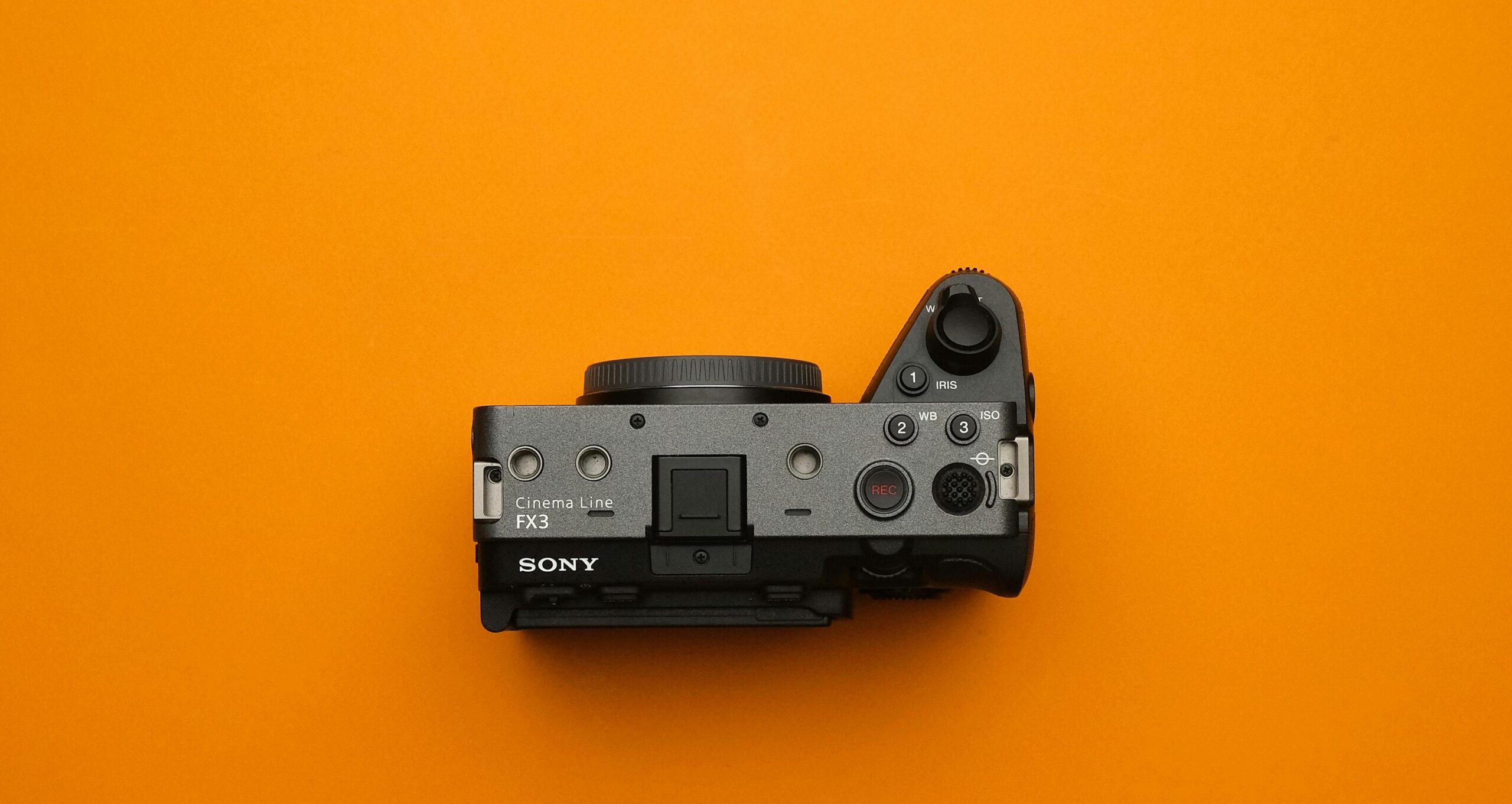
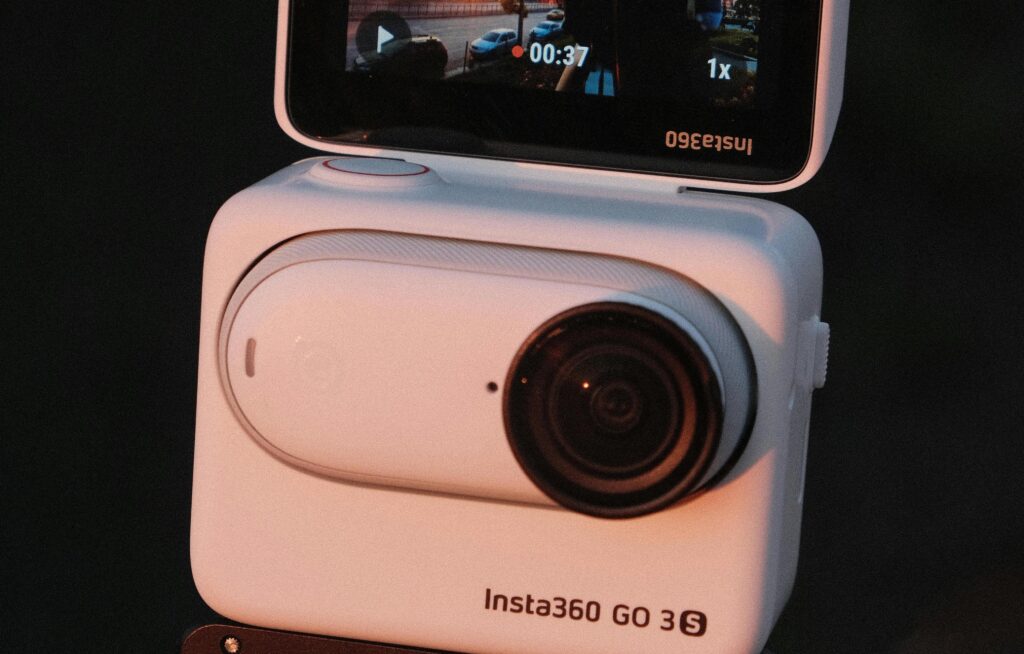
While Insta360 is known for its immersive perspective and Sony cameras excel in sensor performance, even premium gear has limits. Insta360 footage can come out choppy or artifact-heavy after the stitching and encoding process. Sony footage shot in low light or at high ISO can look grainy, noisy, and flat. It’s far from what you saw through the viewfinder.
These are two distinct technical problems, and they respond to different solutions. Understanding what’s actually causing each one is the most direct path to fixing it.
The Insta360 Motion and Quality Problem
Insta360 cameras use FlowState stabilization and 360-degree stitching to produce their signature immersive footage. When you export a flat video from that process, the encoding and stitching can introduce compression artifacts, choppy motion, and a loss of fine detail. These problems are especially common in high-motion scenarios or when footage is captured on vibrating mounts like bikes or ATVs.
The result is exported flat video that looks degraded compared to what the camera captured. Addressing it effectively means cleaning up the compression artifacts, recovering lost detail, and smoothing out choppy motion. All of these are quality problems, not just stability problems.
The Sony Low-Light Noise Problem
Sony sensors are among the best available for low-light shooting, but high ISO settings introduce digital noise regardless of sensor quality. This appears as two overlapping issues: luminance noise, which looks like film grain across the image, and chroma noise, which shows up as colored speckles in shadow areas.
The instinct to apply a blur or denoise filter is understandable, but basic filters work by softening the entire image. They remove noise and detail together, leaving footage that looks smooth but artificial. Effective low-light correction requires an AI approach that can distinguish between noise patterns and genuine image detail like skin texture, fabric, or foliage, removing one while preserving the other.

Method 1: Basic Built-In and Free Tools
The Insta360 Studio app handles reframing of 360 footage and offers limited quality adjustments for already-stitched flat video. Free editing tools like the basic version of DaVinci Resolve include denoise sliders and basic stabilization filters. For footage with minor issues, these are worth trying first.
The limitations become clear quickly on more challenging footage. Basic denoise filters blur the image rather than selectively removing noise, leaving Sony low-light footage looking soft and plasticky. Free stabilization tools apply generic correction that can introduce unwanted cropping or distortion, and neither tool addresses the specific quality characteristics of Insta360 exported video well.
Best for: Very minor touch-ups on footage that is already close to usable.
Method 2: AI Video Enhancement Software
TotalMedia VideoEnhance is available as both a web app and a desktop application, and it uses a deep learning engine, AI Smart Enhance that addresses multiple quality problems simultaneously in a single processing pass. Rather than applying static filters, it analyzes each frame individually to reconstruct detail, reduce noise, restore color and contrast, and clean up compression artifacts.
For both Insta360 and Sony footage, this approach produces results that basic filters cannot match: noise is removed without softening genuine detail, and compression artifacts are cleaned up without introducing new visual problems.
How AI Smart Enhance Addresses Insta360 Footage
When Insta360 footage is exported as a flat video, the stitching and encoding process can leave behind compression blocks, motion choppiness, reduced sharpness, and washed-out color. AI Smart Enhance addresses all of these in one pass. It reconstruct edge detail, remove compression artifacts, and restore the color accuracy and contrast that encoding can strip away.
For footage with choppy or stuttering motion, TotalMedia VideoEnhance’s Frame Interpolation feature generates new intermediate frames between existing ones using motion analysis. This smooths out the playback without simply duplicating frames, producing a more natural result on high-motion clips.
Resolution upscaling is also available for footage that needs a higher output resolution. Upscaling with AI Smart Enhance adds genuine detail rather than just enlarging existing pixels, which is particularly useful when repurposing Insta360 footage for large-screen playback or higher-resolution platforms.
How AI Smart Enhance Fixes Sony Low-Light Video
For Sony footage shot in low light or at high ISO, AI Smart Enhance identifies and removes digital noise (both luminance grain and chroma speckles), while preserving the underlying image detail. The model is trained to recognise the difference between noise texture and real detail like hair, skin, fabric, and environmental texture, which is what allows it to clean the image without softening it.
The interactive split-screen preview lets you compare the original and enhanced frames side by side on your actual footage before committing to the full render. This makes it straightforward to judge whether the result meets your expectations and adjust if needed.
After the noise reduction pass, any remaining softness caused by the original noise can often be addressed within the same AI Smart Enhance process, since the engine reconstructs detail as part of its enhancement rather than just filtering what’s already there.
Step-by-Step: Enhance Your Footage with TotalMedia VideoEnhance
Before starting either process, work from the best available copy of your original exported file. Source quality sets the ceiling for what the AI can recover.
Process A — Improving Insta360 Exported Video Quality
- Upload your file. Open TotalMedia VideoEnhance in your browser or via the desktop app. Upload your exported flat video file from Insta360. MP4 and other standard formats are supported directly.
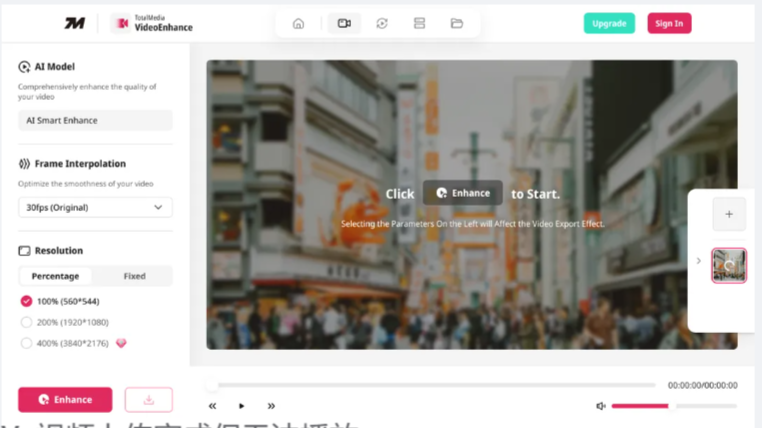
- Select AI Smart Enhance. In the left panel, confirm AI Smart Enhance is the active model. This is the default setting and handles compression artifacts, detail loss, color fade, and contrast in a single pass — which covers the most common quality issues in Insta360 exported footage.
- Enable Frame Interpolation if motion is choppy. If your clip has stuttering or uneven motion, use the Frame Interpolation dropdown to select a higher target frame rate. The AI generates new intermediate frames based on motion analysis, smoothing playback without duplicating existing frames.
- Set your output resolution. Under the Resolution section, choose your target. Select 200% for a 1080p output or 400% for 4K. If you’re preparing footage for large-screen viewing or a high-resolution platform, upscaling with AI Smart Enhance adds real detail rather than just enlarging the image.
- Preview before processing. Use the split-screen preview to drag the divider across a motion-heavy or detail-rich section of your clip. Confirm the enhancement is producing the result you want before committing to the full render.
- Click Enhance and export. Click the Enhance button to begin processing. A live progress indicator shows completion percentage. When finished, download the output in MP4 format.
Process B — Fixing Noisy Sony Low-Light Footage
- Upload your Sony file. TotalMedia VideoEnhance accepts MP4, MTS, XAVC, and other common Sony camera formats. Upload directly without pre-conversion.
- Select AI Smart Enhance. The engine addresses luminance noise, chroma noise, compression artifacts, and low contrast simultaneously. For heavily degraded low-light footage, this single-pass approach is more effective than applying separate filters sequentially.
- Use the split-screen preview to calibrate. Drag the divider over an area with fine texture. You’re looking for noise reduction without softening those details. The preview renders at the actual output resolution, so what you see reflects the final result accurately.
- Set your resolution target if upscaling is needed. If the footage was captured at a lower resolution or you want a sharper output, select 200% for 1080p or 400% for 4K. The AI adds detail during the upscale rather than just resizing.
- Click Enhance and export. Process the clip and download the enhanced output in MP4. For multiple Sony clips, use the multi-file queue — load additional videos via the thumbnail sidebar and process them in the same session without returning to the home screen.
Method 3: Professional Plugins and Suites (For Specialists)
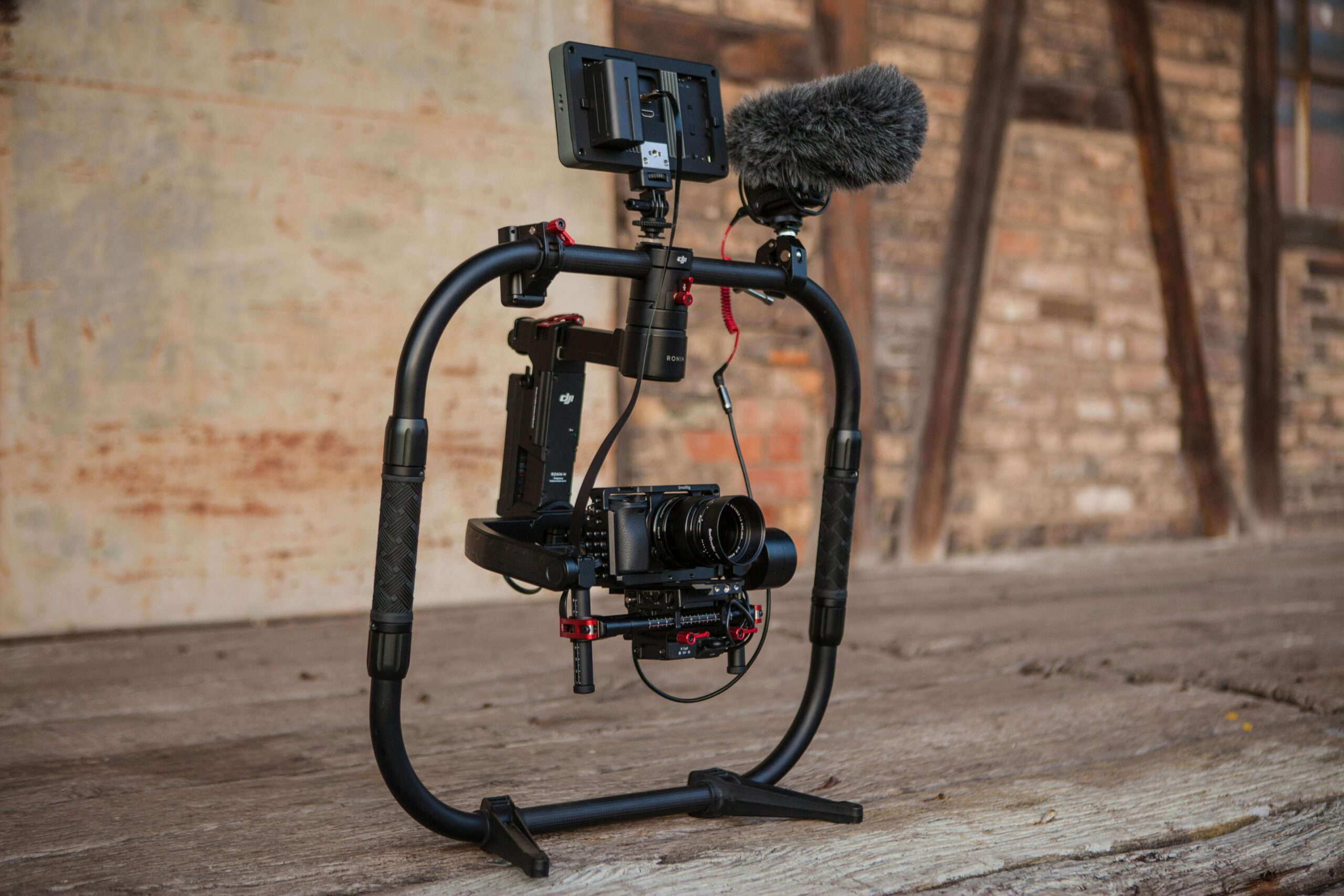
High-end tools like Adobe After Effects with Mocha Pro for stabilization, or Neat Video as a dedicated denoiser, offer granular frame-by-frame control that VFX professionals need for broadcast and film work. For that specific use case, they are the appropriate choice.
For most creators, the trade-offs are difficult to justify. Plugin costs stack up quickly on top of already expensive software subscriptions. Rendering times are significantly longer. And the level of manual control these tools offer is only valuable if you have the expertise and time to use it. For standard noise reduction and footage quality improvement, the additional complexity rarely produces results that justify the effort.
Best for: Professional post-production studios where individual frames require custom tracking, masking, or correction as part of a larger VFX workflow.
Which Approach Is Right for You?
| Feature | Basic / Free Tools | TotalMedia VideoEnhance | Professional Plugins |
| Insta360 Compression Artifact Removal | Poor | Yes — AI Smart Enhance | Yes — manual |
| Motion Smoothing | Basic — crops or distorts | Yes — Frame Interpolation | Yes — complex setup |
| Sony Low-Light Noise Removal | Poor — blurs detail | Yes — detail-preserving AI | Yes — granular control |
| Resolution Upscaling | No | Yes — up to 4K / 8K Pro | Requires plugins |
| Before/After Preview | No | Yes — interactive split-screen | Varies |
| Batch Processing | No | Yes — multi-file queue | Yes |
| Platform | Desktop only | Web app + Desktop | Desktop only |
| Processing Speed | Fast | Optimised and fast | Very slow |
| Cost | Free | Free tier + Pro upgrade | Very high |
| Best For | Minor issues | Most creators and videographers | VFX specialists |
Get the Most From Your Premium Gear
Your Insta360 and Sony camera are capable of producing excellent footage. When the encoding process or shooting conditions work against you, post-production is where you recover what was lost. The tool you use for that step matters.
Basic filters address surface-level problems and often introduce new ones. Professional suites offer precision that most creators don’t need for this type of work. TotalMedia VideoEnhance sits in the practical middle: an AI-powered engine that handles noise, compression artifacts, motion smoothing, and resolution upscaling in a streamlined workflow, available as both a web app and desktop application.
If your footage also needs format conversion or YouTube-optimised export after enhancement, see our related guide: How to Edit MOV Files on Windows and Export for YouTube.
Ready to see the difference? Try TotalMedia VideoEnhance today and recover the quality your footage was always capable of.
Disclaimer: Enhancement results depend on the quality and format of the source file. Always work from the best available original copy, and ensure you have the right to modify the content you are processing.
FAQ
It works with standard video formats including MP4, which is the most common export format from Insta360 cameras. Export your flat video from Insta360 Studio first, then upload that file to VideoEnhance for enhancement.
Yes. Unlike basic denoise filters that blur the entire image, AI Smart Enhance is trained to distinguish between noise patterns and genuine image detail. It removes grain and chroma speckles selectively, preserving texture in skin, fabric, and backgrounds rather than smoothing over everything indiscriminately.
Yes. TotalMedia VideoEnhance supports a multi-file queue through the thumbnail sidebar. Load additional clips at any point during your session and switch between them without starting over. Each clip can have its own settings before you process them.
It depends on the source frame rate and how much motion is in the clip. For footage that stutters or has uneven motion cadence, Frame Interpolation generates new intermediate frames using motion analysis — the result is noticeably smoother playback. Use the split-screen preview to judge the effect on your specific clip before committing to the full render.