
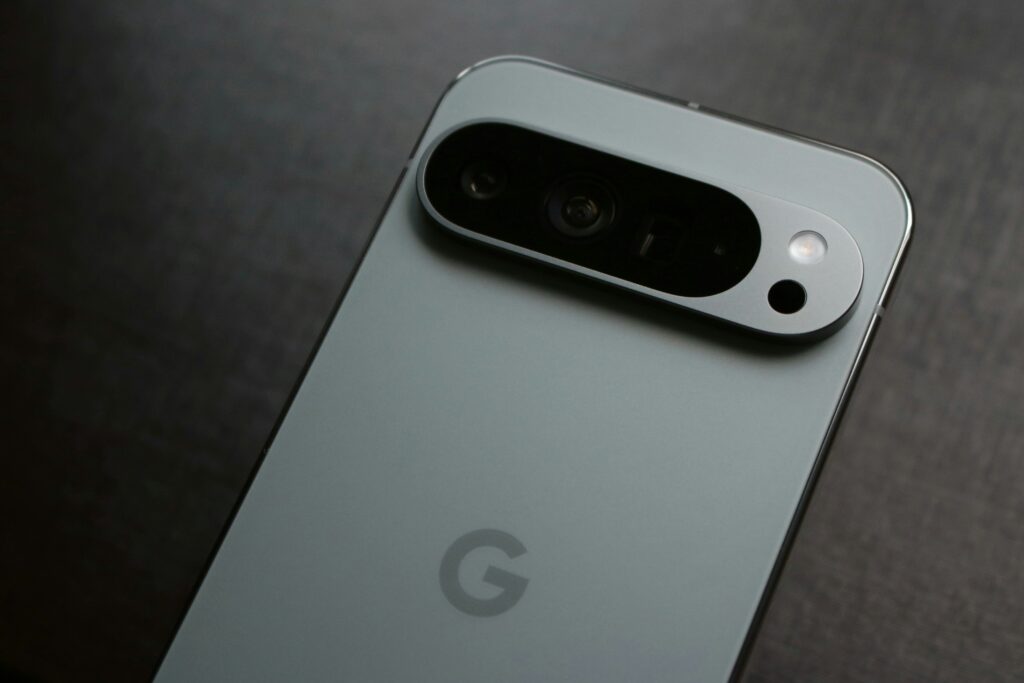
Night Sight produces genuinely impressive low-light photos. Video is a different story. The same computational photography that makes stills look clean introduces a specific set of problems when applied to moving footage, for example, shakiness, grain, soft detail, and color that doesn’t quite look right.
None of it is unfixable. But it requires understanding what’s actually causing each problem before reaching for a solution.
Why Night Sight Video Looks the Way It Does
Night Sight video works by capturing multiple frames over a slightly longer exposure and blending them computationally. This is what produces clean, bright stills in low light. In video, the same process creates sensitivity to even minor hand movement. Every micro-jitter gets amplified across the blended frames, producing the distinctive warping and jello effect that Night Sight footage is known for.
On top of that, high ISO shooting introduces grain. The computational blending process introduces compression artifacts. And the color rendering can look muted or slightly unnatural in motion.
Three separate problems. Each needs a different fix.
Part 1: Shoot Better Source Footage
Post-production can recover a lot. It can’t recover footage that was too far gone to begin with. These habits reduce the damage before the recording starts.
Use Your Body as a Stabiliser
Tuck your elbows into your sides and hold the phone with both hands. Brace against your chest if possible. Take a wide, stable stance and move slowly and deliberately. Night Sight video is unforgiving of movement. Even breathing can introduce visible shake at longer effective exposures.
Use Your Environment
Rest the phone on a ledge, table, or flat surface where possible. Lean against a wall or doorframe. Any contact point that reduces freehand movement reduces shake in the footage.
Use a Gimbal for Planned Shoots
A phone gimbal is the single most effective hardware fix for Night Sight video shake. For casual shooting it’s overkill. For anything important, it’s worth it.
Enable In-Camera Stabilisation
Check your Pixel’s camera settings for a Video Stabilization option. Not all Pixel models offer this in Night Sight mode. But if it’s available, enable it. It won’t eliminate shake entirely but reduces the correction needed in post.
Part 2: Stabilise in Post — The Right Tool for the Job
Stabilisation is a dedicated post-production task. It requires software that can analyze motion vectors across frames and reframe the video to compensate.
For stabilisation specifically, these are the reliable options:
DaVinci Resolve (free version) — includes a dedicated stabilisation tool in the Inspector panel under the Transform tab. Set the Camera Lock strength, adjust Smooth Cut settings, and preview the result before rendering. Handles Night Sight jello and warp reasonably well at medium settings.
Adobe Premiere Pro — Warp Stabiliser is the industry standard for automatic stabilisation. Apply it to the clip, let it analyse, and adjust the Smoothness and Method settings. More powerful than Resolve’s stabiliser for complex motion, though it requires a subscription.
Google Photos — offers basic stabilisation for clips already in your library directly from the Edit menu. Limited compared to desktop tools but requires no additional software and works directly on your phone.
One important note on all stabilisation: digital stabilisation works by cropping the edges of the frame to allow room for reframing. Some zoom and edge loss is unavoidable. Keep this in mind when composing. Leaving some headroom around your subject gives the stabiliser more to work with.
Part 3: Enhance Quality with TotalMedia VideoEnhance
Stabilisation corrects the motion. It doesn’t fix the grain, the compression artifacts, the soft detail, or the color issues that Night Sight footage carries. That’s a separate step. And this is where TotalMedia VideoEnhance contributes to the workflow.
Run VideoEnhance after stabilisation, on the already-stabilised output file.
Noise and Artifact Removal
Night Sight video shot at high ISO accumulates grain and compression artifacts, particularly in shadow areas where the computational blending struggles most. AI Smart Enhance analyzes each frame individually and removes noise selectively, distinguishing between grain patterns and genuine image detail like texture, edges, and color gradations. The result is a cleaner image without the softening that basic denoise filters produce.
Detail and Color Restoration
The computational blending process strips fine detail and flattens color. AI Smart Enhance reconstructs both in a single pass: recovering edge definition, restoring color accuracy, and rebuilding the contrast that low-light footage loses. The split-screen preview lets you assess the improvement on your actual footage at full output resolution before committing to the render.
Frame Interpolation for Smoother Motion
Even after stabilisation, Night Sight footage can have uneven motion cadence from the frame-blending process. Frame Interpolation generates new intermediate frames using motion analysis — smoothing playback without duplicating existing frames. On footage where residual jitter remains after stabilisation, this adds a further layer of smoothness.
Upscaling for Sharper Output
Pixel phones record Night Sight video at 1080p on most models. Upscaling to 4K with AI Smart Enhance adds synthesized detail rather than simply enlarging pixels. It’s useful for footage intended for large-screen playback or platforms where higher resolution triggers better quality processing.
The Complete Workflow
| Stage | Tool | What It Fixes |
| Shooting | Phone + gimbal + technique | Minimises shake at source |
| Stabilisation | DaVinci Resolve / Premiere / Google Photos | Motion vectors, warp, jello effect |
| Quality enhancement | TotalMedia VideoEnhance | Noise, artifacts, color, detail, motion smoothing |
| Color grading | DaVinci Resolve / Premiere | Creative grade, white balance, final look |
| Export | Video editor | Codec, resolution, bitrate for delivery |
Pro Tips
Stabilise before enhancing. Always run stabilisation first. Enhancement on unstabilised footage produces inconsistent results because the AI is analyzing frames that are still shifting position relative to each other.
Test on a short clip. Before processing a full video, run a 10-second test clip through both stabilisation and enhancement to confirm the settings produce the result you want.
Don’t over-stabilise. Maximum smoothness settings in any stabiliser produce an unnatural floating look. Medium settings — typically 50 to 70% smoothness — read as stable without looking artificially locked off.
Export at high bitrate. After stabilisation and enhancement, export at 15 to 25 Mbps for 1080p or 30 to 50 Mbps for 4K. A low-bitrate export reintroduces compression artifacts that undo the enhancement work.
Frequently Asked Questions
Google Photos offers basic in-app stabilisation from the Edit menu on your phone. For mild shake it’s adequate. For the complex warp and jello that Night Sight footage produces, desktop stabilisation tools like DaVinci Resolve or Adobe Premiere produce significantly better results.
Yes — digital stabilisation crops the edges of the frame to create room for motion compensation. Some zoom is unavoidable. Leaving compositional headroom around your subject when shooting gives the stabiliser more flexibility and minimises the visible crop.
On footage with visible grain, compression artifacts, or flat color — which describes most Night Sight video — yes, the improvement is visible. The split-screen preview in VideoEnhance shows the before and after at full output resolution before you commit to the render, so you can judge the result on your specific footage rather than taking it on faith.
Disclaimer: Google Pixel camera features and settings vary by model and software version. Stabilisation tool availability in Night Sight mode depends on your specific device. Always check your camera app settings for current options.