Filmora is a great editor, but it wasn’t built to repair noisy, blurry, or low-quality video. Here’s what the difference looks like — and when you need both tools.
Picking the wrong video software wastes time. Not because one tool is better than the other — but because they do fundamentally different things, and using an editor when you need an enhancer (or vice versa) means working around limitations that shouldn’t exist in the first place.
TotalMedia VideoEnhance is built to fix and upgrade footage quality. Wondershare Filmora is built to edit and assemble it creatively. The distinction sounds simple. In practice, it determines everything: which tool you open first, what you can and can’t do with it, and whether your end result looks the way you intended.

This comparison breaks both down honestly so you can make the right call for your specific situation.
Quick Comparison: Core Differences at a Glance
| Feature | TotalMedia VideoEnhance | Wondershare Filmora |
| Primary focus | AI video quality enhancement and repair | General-purpose video editing |
| Core strength | Fixing poor-quality footage — upscaling, denoising, color restoration | Timeline editing — cutting, transitions, titles, music |
| AI capabilities | Specialized in quality restoration — noise, blur, compression artifacts, color fade | Broadly applied to editing tasks — auto-reframe, beat sync, AI captions, noise removal |
| Ideal output | A visually superior version of your original footage | A structured, polished video with narrative flow and creative elements |
| Learning curve | Low — goal-oriented workflow with minimal configuration | Low to moderate — beginner-friendly, but mastering all tools takes time |
| Best for | Restoring archives, improving low-light or degraded clips, upscaling for modern displays | Content creators, vloggers, marketers building social media or personal projects |
| Pricing | From $7.99/week, $19.99/month, $69.99/year (launch pricing) | Subscription-based with watermark on free tier; perpetual license available |
TotalMedia VideoEnhance: The Quality Specialist
Think of TotalMedia VideoEnhance as a repair and upgrade lab for footage that isn’t good enough yet (or never was). It doesn’t cut timelines or add transitions. What it does is take video that’s noisy, soft, degraded, or low-resolution and reconstruct it into something significantly better.
The engine behind this is AI Smart Enhance. In a single processing pass, it analyzes each frame individually and addresses multiple quality issues at once: noise and grain, compression artifacts, color fade, low contrast, and loss of fine detail. There’s no model selection required and no technical parameters to configure. Upload, set your resolution target, preview, enhance.
What It Does Well
AI-powered noise and artifact removal. Rather than blurring the entire image to hide grain — which is what basic filters do — AI Smart Enhance distinguishes between noise patterns and genuine image detail. Skin texture, fabric, foliage, background architecture: these are preserved and often recovered while the noise is removed selectively.
Resolution upscaling. Footage can be upscaled to 200% (1080p), 400% (4K), or 8K on the Pro plan. This isn’t standard resizing — the AI synthesizes new pixel detail based on content analysis. The result is a sharper image, not just a larger one.
Frame interpolation. New frames are generated between existing ones using motion analysis. Choppy 24fps or 30fps footage becomes noticeably smoother. Useful for old home video, action camera clips, and any footage where playback feels uneven.
Color and contrast restoration. Faded, washed-out footage — the kind that comes from degraded tapes or heavily compressed files — gets its color balance and contrast reconstructed automatically as part of the AI Smart Enhance pass.
Multi-file processing. A sidebar queue lets you load and process multiple clips in the same session. For anyone working through an archive of old footage, this removes the friction of handling each file separately.
Platform flexibility. TotalMedia VideoEnhance runs as both a web application and a desktop app. The web version requires no installation — open a browser and start working.
Where It Has Limits
It is not a video editor. There’s no timeline, no multi-track audio, no transitions, no titles, no export presets for social platforms. If your footage is already in good shape and your primary need is creative assembly, TotalMedia VideoEnhance doesn’t serve that workflow.
Pricing
TotalMedia VideoEnhance offers a free tier that covers core enhancement features including 4K upscaling with no watermark on exports. The Pro plan unlocks 8K output and higher file size limits. It is currently available at launch pricing: $7.99 per week, $19.99 per month, or $69.99 per year.
Wondershare Filmora: The Creative Editor
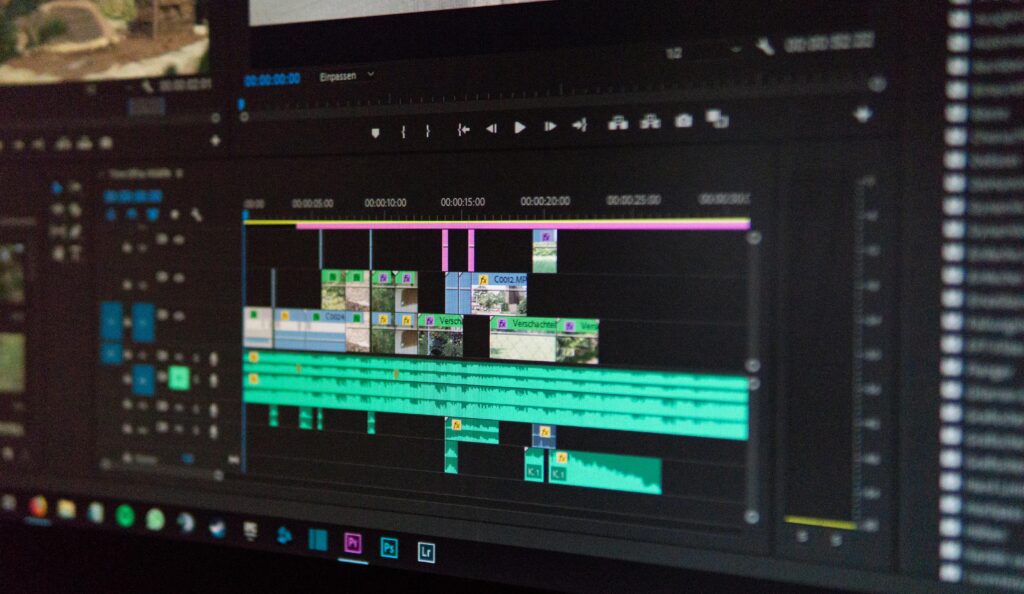
Filmora is where you take footage (ideally already in good shape) and turn it into something. A structured story. A polished vlog. A social media video with music, titles, and pacing. Its strength is creative assembly, and it does that well across a wide range of skill levels.
What It Does Well
Complete editing toolkit. Multi-track timeline, transitions, titles, effects, color grading, audio mixing — it’s all there in one application. You don’t need to move between tools to go from raw clips to a finished export.
Social media and content creation. Auto-reframe adjusts aspect ratios for different platforms automatically. Export presets for YouTube, TikTok, and Instagram are built in. Beat sync tools align cuts to music. For creators publishing regularly across multiple platforms, this workflow efficiency genuinely saves time.
AI editing assistants. Filmora integrates AI for tasks like auto-captions, background noise removal from audio, and an AI copilot that guides users through unfamiliar features. These are editing assistants — they simplify creative decisions, not quality reconstruction.
Accessible for beginners. The drag-and-drop interface and logically organized feature set mean most users can produce a decent result quickly without a steep learning curve.
Where It Has Limits
Enhancement is a feature in Filmora, not the focus. Its stabilization, noise reduction, and color tools are competent for footage in reasonable condition. For heavily degraded footage — old VHS transfers, high-ISO low-light recordings, heavily compressed files — they fall short of what a dedicated enhancement tool produces. It also places a watermark on exports until a paid plan is activated, and resource demands on the system increase significantly with 4K footage or complex timelines.
How to Choose
Choose TotalMedia VideoEnhance if:
- Your primary challenge is footage quality, not creative editing
- You’re working with old, degraded, or low-resolution archives that need restoration before anything else
- You receive shaky, noisy, or soft footage that needs cleaning up before it enters an edit
- You need to batch process a collection of clips to a consistent, higher standard
Choose Wondershare Filmora if:
- You’re a beginner or intermediate creator building vlogs, social content, presentations, or personal projects
- You need one application to handle the entire process from cutting clips to publishing
- Your source footage is already decent quality and mainly needs creative assembly and polish
- Access to a large library of templates, effects, and music tracks matters to your workflow
Can They Work Together?
Yes — and for many users, this is actually the most effective approach. Use TotalMedia VideoEnhance first to repair, upscale, and restore your raw or archival footage. Then import the enhanced clips into Filmora to edit, structure, add audio, and apply creative effects. Each tool handles the part of the workflow it was built for. The result is better than either could produce alone.
Summary
Filmora is a creative workshop. TotalMedia VideoEnhance is a quality lab. They don’t compete — they address different stages of the same process.
If your footage needs fixing before it can be edited, start with VideoEnhance. If your footage is ready and your goal is creative storytelling, Filmora is the right environment. And if you need both — which many creators do — using them in sequence gives you the full pipeline.
Frequently Asked Questions
No — and it isn’t designed to. VideoEnhance handles quality improvement: noise removal, upscaling, artifact cleanup, frame interpolation, and color restoration. It has no timeline editing, audio mixing, transitions, or creative tools. If you need to assemble footage into a finished video, you still need an editor like Filmora alongside it.
For footage in decent condition that needs minor color correction or light noise reduction, Filmora’s built-in tools are adequate. For footage with significant degradation — heavy grain, compression artifacts, low resolution, or severe color fade — a dedicated tool like TotalMedia VideoEnhance produces meaningfully better results. The AI Smart Enhance engine is built specifically for reconstruction, not general-purpose correction.
TotalMedia VideoEnhance is currently available at launch pricing: $7.99 per week, $19.99 per month, or $69.99 per year, with a free tier that includes 4K upscaling and no watermark on exports. Filmora uses a subscription model with a free tier that adds a watermark to exports, and offers a perpetual license option for users who prefer a one-time payment. For users on a tight budget who primarily need enhancement rather than editing, VideoEnhance’s free tier provides a no-cost starting point that Filmora’s free version doesn’t fully match.