
Yes. YouTube supports MOV files. You can upload directly without converting. Most of the time it works fine.
But it isn’t always. Some MOV files fail to upload entirely. Others upload but process slowly or come out looking worse than expected. Understanding why that happens and when it’s worth converting first saves a lot of frustration.

Why Some MOV Files Fail on YouTube
MOV is a container format, not a codec. It can store multiple types of video and audio encoded in various ways. YouTube doesn’t accept every codec that can live inside a MOV container.
YouTube supported formats include MOV, MP4, AVI, WMV, MPEG, and others. But the codec inside the container is what determines whether the upload succeeds. A MOV file encoded with H.264 and AAC audio uploads cleanly. A MOV file encoded with a codec YouTube doesn’t support throws an error.
The most common culprit: ProRes. Videos encoded in Apple ProRes, from professional cameras and Mac editing workflow, can fail to upload or cause extremely long processing times. ProRes files are also large, which compounds the problem on slower connections.
Three things determine whether a MOV upload succeeds:
- The codec inside the container — H.264 works reliably. ProRes and some legacy codecs don’t.
- File size — YouTube’s maximum file size is 25GB, with a 12-hour length limit for verified accounts. Unverified accounts are capped at 15 minutes.
- Internet connection stability — large MOV files are unforgiving of unstable connections mid-upload.
MOV vs MP4 for YouTube: Does It Actually Matter?
YouTube officially recommends MP4 with H.264 video and AAC audio. MOV is accepted, but YouTube may take longer to process it, especially for large files or higher resolutions.
On final quality to viewers, the difference is minimal. YouTube re-encodes every uploaded video regardless of format. Once processed, the quality difference between a MOV and MP4 upload is almost invisible. The practical differences are in upload speed, processing time, and error rate.
MP4 causes fewer errors and faster processing times on YouTube. For most creators, that’s reason enough to convert before uploading, particularly when dealing with large files or time-sensitive uploads.
How to Upload a MOV File to YouTube
If your MOV file is encoded with H.264 and AAC and is under the file size limit, uploading is straightforward:
- Sign in to YouTube and click the camera icon with a plus sign
- Select Upload Video
- Drag and drop your MOV file or click Select Files
- Fill in title, description, tags, and thumbnail
- Set visibility and click Publish
While YouTube processes your video, add tags, a thumbnail, and relevant details to improve visibility. Processing time for MOV files can be longer than for MP4.
When to Convert MOV to MP4 Before Uploading
Converting first is worth doing in these situations:
Your MOV file uses ProRes or an unsupported codec. Convert to MP4 with H.264 and AAC, which are YouTube’s most recommended format, to avoid upload errors and long processing times.
The file is very large. Compressing a large MOV file before uploading makes the process faster and reduces the risk of failure on unstable connections.
You want the fastest possible processing. MP4 uploads process faster on YouTube’s side. For time-sensitive uploads, converting first is the more reliable path.
You’re uploading from a Windows PC. MOV files occasionally cause import issues on Windows-based browsers. MP4 eliminates that variable entirely.
How to Convert MOV to MP4 for YouTube
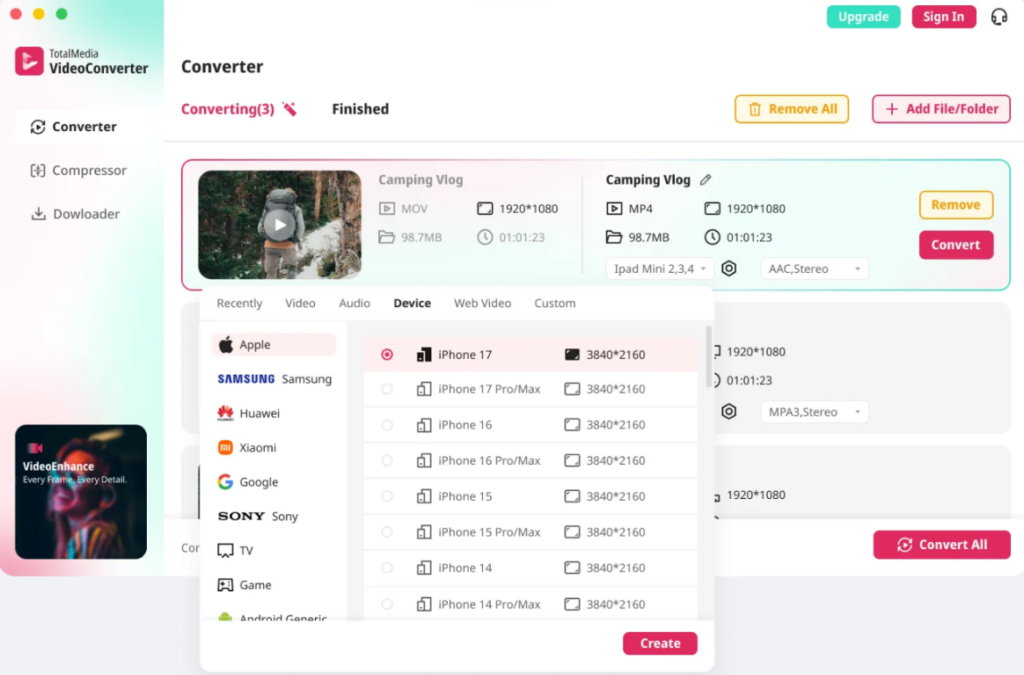
TotalMedia VideoConverter handles this directly. It’s available as both a web app and desktop application, no installation required for the browser version.
- Open TotalMedia VideoConverter and add your MOV file
- Under the Web Video tab, select the YouTube preset. This automatically sets MP4 with H.264 and AAC at the right settings
- For precise control over resolution or bitrate, open Custom Settings — target 15 to 20 Mbps for 1080p or 35 to 45 Mbps for 4K
- Set your output folder and click Convert
Batch processing handles multiple MOV files in one session. It’s useful for channels that produce regular content from Apple devices or professional camera workflows.

Online plan from $2.59 per week at current launch pricing. Perpetual desktop license at $39.59.
YouTube’s Recommended Upload Settings for MOV and MP4
| Setting | Recommended Value |
| Container | MP4 (preferred) or MOV |
| Video codec | H.264 |
| Audio codec | AAC-LC |
| Frame rate | 24, 25, 30, 48, 50, or 60fps |
| Resolution | 1080p minimum — 1440p or 4K for better transcoding |
| Aspect ratio | 16:9 |
| Max file size | 25GB |
| Max length (verified) | 12 hours |
Frequently Asked Questions
Yes. YouTube supports MOV files and you can upload them directly. Whether it succeeds depends on the codec inside the MOV container. H.264 with AAC audio uploads reliably. ProRes and some other codecs can cause errors or extremely long processing times.
MOV files — especially large ones or those encoded with ProRes — take longer for YouTube to process than MP4 files. Converting to MP4 with H.264 before uploading reduces processing time significantly.
The difference in quality between a MOV and MP4 upload is almost invisible to viewers once YouTube processes the video. YouTube re-encodes everything regardless of format. Converting to MP4 with H.264 at a high bitrate produces the same viewer-facing quality with fewer upload problems.
Check that the video codec is supported by YouTube. If the codec is incompatible, convert to MP4 with H.264 and AAC. Also verify your account is verified if the video is over 15 minutes, check your internet connection stability, and confirm the file isn’t corrupted by playing it locally first.
MP4 is better for YouTube uploads — smaller file size, faster processing, fewer errors, and broader compatibility. MOV is the better choice for editing workflows, particularly on Mac. For final delivery to YouTube, MP4 with H.264 is the recommended format.