
You want to compress video files quickly and keep video quality intact for sharing on social media, email, or streaming platforms. Here are the 9 best video compressors for 2026: TotalMedia VideoConverter, FreeConvert Video Compressor, VEED Video Compressor, Clideo Video Compressor, Media.io Video Compressor, YouCompress Video Compressor, Movavi Video Compression Software, HandBrake Video Compression Tool, and VideoSmaller Video Compressor. Industry experts recommend choosing a video compressor based on user experience, speed, compression quality, ease of use, supported formats, platform compatibility, price, and watermark policy. These online video compressors help you achieve high quality compression, faster uploads, and maintain video resolution when compressing videos. You can compress video footage using online tools and adjust compression settings to optimize video for sharing.
Key criteria for selecting the best video compressor software:
Speed and faster uploads
Maintaining video quality and compression quality
Supported formats and platform compatibility
Price and watermark policy
User experience and online video compression tools
1. TotalMedia Video Compressor
Features
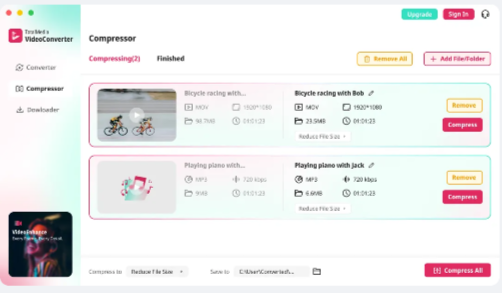
You get a powerful video compressor with TotalMedia VideoConverter. This video compressor software lets you convert, compress, and optimize video files quickly. The interface is easy to use. You can batch process multiple files at once. Device-optimized presets help you select the best settings for your phone, tablet, or TV. Real-time file size preview shows you the expected output before you start compression. You can save your custom settings as presets for future use.
Tip: Use batch compression to save time when working with large video libraries.
Supported Formats
TotalMedia VideoConverter supports a wide range of formats. You can compress MP4, MOV, MKV, AVI, MP3, AAC, and more. The video compressor software covers dozens of input and output formats. You can optimize videos for Apple, Samsung, Huawei, Sony, Google, and other devices. The platform also offers web video presets for YouTube and Vimeo.
Format | Supported |
|---|---|
MP4 | Yes |
MOV | Yes |
MKV | Yes |
AVI | Yes |
MP3 | Yes |
AAC | Yes |
AI Compression
TotalMedia VideoConverter uses AI-powered video compression. The smart compression engine reduces file size while keeping video quality high. You can choose intelligent presets like “Reduce File Size” for automatic optimization. The AI compression engine analyzes your video and selects the best settings for quality retention. You see the predicted output size before you start. This feature helps you balance compression quality and video quality for uploads.
Pros and Cons
Pros:
Fast video compression and conversion
Supports many formats and devices
AI-powered compression quality
Batch processing saves time
Custom presets for advanced users
Cons:
Desktop application required
You get one of the best free video compression software options with TotalMedia VideoConverter. This online video compressor stands out for speed, quality, and ease of use. If you need reliable video compression tools, TotalMedia VideoConverter offers high compression quality and preserves video quality for sharing and streaming.
2. FreeConvert Video Compressor
Main Features
You can rely on FreeConvert Video Compressor for fast and efficient video compression. This video compressor software stands out because you can use it directly in your browser without installation. You get quick conversions and automatic file deletion after use. FreeConvert Video Compressor lets you import files from your device, Google Drive, Dropbox, OneDrive, or even by URL. You can compress videos up to 1GB, which is ideal for most sharing needs. The platform offers advanced compression options, including granular compression, codec choice, and resolution control. You can select between H.264 and H.265 codecs for better size reduction. The table below highlights the standout features:
Feature | Description |
|---|---|
Granular Compression | Advanced options let you target specific file sizes or quality. |
Cloud Integration | Direct import from Google Drive and Dropbox saves you time. |
Codec Choice | Choose H.264 or H.265 for improved size reduction. |
Resolution Control | Downscale video resolution easily to reduce file size. |
Format Support
FreeConvert Video Compressor supports a wide range of formats. You can compress MP4, AVI, MKV, MOV, and WEBM files. This video compressor software gives you flexibility for different devices and platforms. You can use FreeConvert Video Compressor for social media uploads, email attachments, and streaming. The platform ensures you maintain video quality while reducing file size.
Customization
You have full control over video compression settings with FreeConvert Video Compressor. The software provides several customization options:
Adjust video quality (CRF) for different frames.
Set a target file size as a percentage of the original.
Choose a maximum bitrate for streaming.
Re-size video by downscaling resolution, such as from 4K to 1080p.
These options help you optimize video quality and file size for your needs. You can tailor the compression process to fit your workflow.
Pros and Cons
You benefit from easy-to-use video compression tools and fast browser-based conversions. FreeConvert Video Compressor supports many formats and deletes files automatically after use. The table below summarizes the main pros and cons:
Pros | Cons |
|---|---|
Privacy concerns with file handling | |
Quick conversions in the browser | File size limits on the free plan |
Supports a wide range of formats | Ads can be distracting |
Automatic deletion of files after use | No refund policy on paid plans |
FreeConvert Video Compressor gives you a reliable option among online video compressors. You can compress videos quickly, maintain video quality, and enjoy flexible customization. This video compression software is a strong choice for anyone who needs efficient video compression tools.
3. VEED Video Compressor
Key Features
You can rely on VEED Video Compressor for fast uploads and minimal quality loss. This video compressor software offers efficient file size reduction, making it easier to share videos even with limited bandwidth. You get a user-friendly online tool that allows you to compress videos quickly, regardless of your technical skill. Flexible compression parameters let you control file size and quality. You can convert both videos and GIFs into various formats, which enhances accessibility. The table below highlights the main features:
Key Feature | Description |
|---|---|
Efficient file size reduction | Minimizes video size for easy uploads |
Minimal quality loss | Maintains clarity and crispness after compression |
Easy-to-use online tool | Simple interface for quick compression |
Flexible compression parameters | Adjust settings for file size and quality |
Versatile video and GIF conversion | Converts videos and GIFs into multiple formats |
Note: You can optimize large video files for faster exports while maintaining clarity, which is crucial for social media and web distribution.
Format Compatibility
VEED Video Compressor supports a wide range of formats. You can compress MP4, MOV, AVI, MKV, and WEBM files. The platform allows uploads up to 1GB for free. You get English language support and a watermark on exported videos when using the free version. The table below compares format compatibility with other video compression software:
Feature | FreeConvert | VEED.io | Compress2Go | CompressVideoOnline |
|---|---|---|---|---|
File Size Limit | 1GB (Free) | Unlimited | Unlimited | |
Watermarks | No | Yes (Free) | No | No |
Languages | 15+ | English Only | English Only | 4 |
Editing Tools
You can enhance your videos using VEED Video Compressor’s built-in editing tools. The software lets you trim, crop, rotate, and merge clips effortlessly. Adding text overlays, subtitles, or watermarks is quick. You can customize transitions between scenes with smooth animations. The compressor also allows you to automatically generate subtitles, remove background noise, and trim clips with precision. These features help you optimize video quality and make your content stand out.
Trim, crop, rotate, and merge clips
Add text overlays, subtitles, and watermarks
Customize transitions with smooth animations
Automatically generate subtitles
Remove background noise
Trim clips with precision
Pros and Cons
VEED Video Compressor gives you flexible and precise compression parameters. You can enhance FPS and minimize quality loss after compression. The editing features help you resize video aspect ratio for social media and remove background noise. However, the free version adds a watermark and does not support batch processing. Some features are not available in the free trial, and compressed files cannot exceed 50MB. The table below summarizes the main advantages and disadvantages:
Advantages | Disadvantages |
|---|---|
Flexible compression parameters | No batch processing |
Many editing features | Watermark on free exports |
Minimizes quality loss | Compressed files limited to 50MB (Free) |
Resize aspect ratio for social media | Page response can be slower |
Background noise remover | Some features not in free trial |
Tip: You can customize compression settings like bitrate, resolution, and frame rate for quick uploads of high-quality videos.
4. Clideo Video Compressor
Features
You can use Clideo Video Compressor to reduce file size quickly and efficiently. This video compressor software operates fully online, so you do not need to install anything. You access a suite of quick tools for video compression, trimming, merging, and resizing. Clideo Video Compressor lets you upload files from your device, Google Drive, Dropbox, or by URL. You select compression settings and preview the output before downloading. The platform offers affordable pricing and strict limitations on the free plan. You benefit from a beginner-friendly interface that streamlines the video compression process.
Tip: Clideo Video Compressor works well for casual users who need fast results without complex editing.
Supported Formats
Clideo Video Compressor supports a wide variety of formats. You compress MP4, AVI, MOV, WMV, and more. The video compressor software adapts to different devices and platforms. You optimize videos for sharing on social media, email, or streaming. The platform ensures you maintain video quality while reducing file size. You can upload videos up to 500 MB on the free plan.
Supported formats include:
MP4
AVI
MOV
WMV
VOB
WEBM
Ease of Use
You find Clideo Video Compressor easy to use whether you are a beginner or a professional. The interface guides you through each step. You select your video, adjust compression settings, and download the result. The platform suits social media content creators, students, educators, and casual users. The table below shows how Clideo Video Compressor meets the needs of different users:
User Type | Description |
|---|---|
Beginners and Non-Tech-Savvy | Users intimidated by complex software find Clideo’s interface easy to navigate. |
Social Media Content Creators | Individuals needing quick video edits for platforms like TikTok and Instagram. |
Students and Educators | Users creating or editing videos for educational purposes without a steep learning curve. |
Casual Users | Individuals performing quick tasks like compressing videos for sharing. |
Pros and Cons
Clideo Video Compressor offers several advantages and a few drawbacks. You benefit from a beginner-friendly interface and a fully online experience. You access a wide variety of quick tools and affordable pricing. However, you may notice limited editing depth and creative customization. Rendering and uploads can be slow, and the free plan has strict limitations. The table below summarizes the main pros and cons:
Pros | Cons |
|---|---|
Beginner-friendly and easy to use | Limited editing depth |
Fully online with no software installation | Rendering and uploads can be slow |
Wide variety of quick tools | Free plan has strict limitations |
Affordable pricing | Limited creative customization |
You can rely on Clideo Video Compressor for fast, simple video compression. The video compressor software helps you reduce file size and maintain quality for sharing and streaming.
5. Media.io Video Compressor
Features
You will find Media.io Video Compressor stands out as a top choice for anyone seeking reliable video compressor software. The platform offers a user-friendly interface that lets you compress video files with just a few clicks. You can access advanced algorithms that deliver fast and efficient video compression. Customizable compression settings allow you to adjust video quality, resolution, and bitrate to achieve the perfect balance between file size and clarity. The table below summarizes the most notable features:
Feature | Description |
|---|---|
User-friendly Interface | Simple and easy-to-use interface for quick video compression. |
Wide Range of Video Formats | Supports various formats, including MP4, AVI, MOV, and more. |
Customizable Compression Settings | Adjust video quality, resolution, and bitrate for optimal results. |
Fast and Efficient Compression | Advanced algorithms ensure quick compression without sacrificing quality. |
Tip: Use the customizable settings to fine-tune your video compressor results for different platforms.
Format Support
You can compress almost any video file with Media.io Video Compressor. The software supports over 1,000 video file types, which gives you more flexibility than many competitors. You do not need to worry about watermarks on your output files. You can use this video compressor software directly in your web browser without downloading anything. Supported formats include:
MP4
AVI
MOV
WMV
FLV
MKV
Over 1,000 additional file types
This extensive format support makes Media.io Video Compressor a versatile tool for all your video compression needs.
Speed and Quality
You will appreciate the speed and quality that Media.io Video Compressor delivers. The platform uses high-speed servers to process your files quickly. Most video compression tasks finish in seconds, so you do not have to wait long. You can customize settings like resolution and file size to maintain your preferred video quality. The advanced technology ensures you get impressive results without sacrificing clarity.
Customizable output settings for maintaining video quality
Quick turnaround times for busy workflows
Pros and Cons
You should consider the main advantages and disadvantages before choosing Media.io Video Compressor as your go-to video compressor software. The table below outlines what you can expect:
Pros | Cons |
|---|---|
Web-based and suitable for beginners | It takes too long to compress large files |
A choice of editing features | The free version limits file size |
Batch file size optimization | |
Impressive output quality |
Media.io Video Compressor gives you a powerful, flexible, and easy-to-use video compression software solution. You can handle a wide range of formats, enjoy fast processing, and maintain high video quality for all your projects.
6. YouCompress Video Compressor
Features
YouCompress Video Compressor stands out for its simplicity and efficiency. You access a minimal interface that focuses on ease of use. The video compressor operates entirely online, so you do not need to download or install any software. You can compress videos without creating an account, which streamlines your workflow. The tool automatically adjusts settings to reduce file size while maintaining video quality. YouCompress Video Compressor does not add watermarks to your compressed videos, preserving the integrity of your content. The platform specializes in single-file compression, making it ideal for quick tasks.
Feature | Description |
|---|---|
Simplicity | Minimal, beginner-friendly interface. |
Browser-based functionality | Operates fully online, no installation needed. |
No registration required | Compress videos without creating an account. |
Format support | Supports MP4, MOV, AVI. |
Automatic compression | Adjusts settings for optimal file size and quality. |
No watermarks | Compressed videos retain original content. |
Single-file compression | Designed for fast, single-file tasks. |
YouCompress Video Compressor offers a straightforward solution for anyone who needs fast video compression without hassle.
Supported Formats
YouCompress Video Compressor supports popular formats like MP4, MOV, and AVI. You can compress videos for sharing on social media, email, or streaming platforms. The video compressor software ensures compatibility with most devices and platforms. You do not need to worry about format limitations when using this tool.
Simplicity
YouCompress Video Compressor focuses on simplicity. You interact with a clean interface that guides you through each step. The video compressor software eliminates unnecessary features, so you can compress videos quickly. You do not need technical expertise to use this tool. The automatic compression process saves you time and effort. YouCompress Video Compressor is ideal for users who value speed and convenience.
Tip: If you want a fast, no-frills video compression experience, YouCompress Video Compressor is a top choice.
Pros and Cons
YouCompress Video Compressor provides several advantages and a few drawbacks. You benefit from an online platform that requires no downloads. The site is secure, and your videos remain watermark-free. The video compressor software delivers lossless video compression, preserving quality. However, you do not get advanced editing tools or customization options. The process can be slow for larger files.
Pros | Cons |
|---|---|
Available online | |
No download needed | No customization available |
Secure site | Slow process |
No watermark added | |
Lossless video compression |
YouCompress Video Compressor is a reliable option for quick, single-file video compression. You can reduce file size, maintain video quality, and share your videos easily.
7. Movavi Video Compression Software
Features
You will find Movavi Video Compression Software offers a complete set of tools for reducing file size without losing clarity. The video compressor gives you a simple interface that helps you start compressing videos right away. You can drag and drop your files, select your preferred output, and let the video compressor software handle the rest. Movavi includes batch processing, so you can compress multiple videos at once. You also get access to presets for popular devices and platforms. This feature saves you time when you need to prepare videos for social media or streaming.
Tip: Use the preview function to check the result before saving your compressed video.
Format Support
Movavi Video Compression Software supports a wide range of formats. You can compress MP4, AVI, MOV, MKV, and WMV files. The video compressor software also works with less common formats, which makes it a flexible choice for different projects. You can export your videos in the format that best fits your needs. This flexibility ensures you can share your content across various platforms without compatibility issues.
Supported formats include:
MP4
AVI
MOV
MKV
WMV
Quality Retention
You can trust Movavi Video Compression Software to maintain video quality during compression. The video compressor uses advanced algorithms to reduce file size while keeping your footage clear and sharp. You can adjust the compression level to balance file size and quality. This control helps you achieve the best results for your workflow. Movavi’s technology ensures your videos look professional, even after compression.
Pros and Cons
Movavi Video Compression Software provides several advantages for users who need reliable video compression. You get a user-friendly interface, fast processing, and strong format support. The batch processing feature saves you time when working with large numbers of files. However, you may find that some advanced editing tools require a paid version.
Pros | Cons |
|---|---|
Easy-to-use interface | Some features require payment |
Fast batch processing | Free version has limitations |
Wide format support | |
Presets for devices and platforms | |
Maintains video quality after compression |
You can rely on Movavi Video Compression Software for efficient, high-quality video compression. The video compressor software stands out for its balance of speed, usability, and quality.
8. HandBrake Video Compression Tool
Features
You can use HandBrake as a powerful video compressor for all your projects. This video compressor software gives you open-source tools that work on Windows, Mac, and Linux. You get batch processing, which lets you compress many videos at once. HandBrake supports hardware acceleration, so you can speed up your video compression tasks. You can preview your changes before you start the full compression. The interface may look advanced, but you will find many guides online to help you.
Tip: Use the preview feature to check your video quality before compressing the entire file.
Supported Formats
HandBrake stands out as a flexible video compressor software. You can import and export many popular formats. The table below shows the main formats you can use:
Input Formats | Output Formats |
|---|---|
MP4 | MP4 |
MKV | MKV |
AVI | WebM |
MOV | |
WMV |
You can use this video compressor for most devices and platforms. HandBrake helps you prepare videos for social media, streaming, or archiving.
Customization
You get advanced customization with this video compressor software. You can adjust bitrate, resolution, and frame rate for each video. HandBrake lets you choose from device presets or set your own settings. You can add subtitles, change audio tracks, and crop or scale your video. This level of control helps you balance file size and video quality.
Adjust bitrate and resolution
Choose device presets
Add subtitles and audio tracks
Crop or scale your video
Pros and Cons
HandBrake gives you many benefits as a video compressor. You get open-source video compression software with no cost. You can use advanced settings for detailed control. However, the interface may feel complex if you are new to video compression. You do not get cloud storage or direct sharing features.
Pros | Cons |
|---|---|
Free and open-source | Advanced interface can be confusing |
Batch processing for many files | No built-in cloud storage |
Hardware acceleration for faster speed | No direct sharing to social media |
Advanced customization options | |
High video quality after compression |
HandBrake works well if you want a free, flexible, and powerful video compressor software. You can achieve excellent video compression and maintain high quality for all your projects.
9. VideoSmaller Video Compressor
Features
You can use VideoSmaller Video Compressor to reduce the size of your videos quickly. The platform operates entirely online, so you do not need to install any video compressor software. You upload your video file, select your compression settings, and download the compressed result. The interface is simple and easy to navigate. You can compress videos for social media, email, or streaming platforms. VideoSmaller Video Compressor does not require registration, which saves you time. The tool automatically adjusts settings to balance file size and video quality.
Note: VideoSmaller Video Compressor works best for users who need fast, straightforward video compression without advanced editing.
Format Support
VideoSmaller Video Compressor supports popular formats. You can compress MP4, AVI, MOV, and other common video files. The platform ensures compatibility with most devices and platforms. You do not need to worry about format limitations when using this video compressor software. The table below shows the main supported formats:
Format | Supported |
|---|---|
MP4 | Yes |
AVI | Yes |
MOV | Yes |
3GP | Yes |
Free Use
You can use VideoSmaller Video Compressor for free. The platform does not add watermarks to your compressed videos. You do not need to create an account or pay for basic features. The free plan allows you to compress videos up to 500 MB. You can access the video compressor from any device with a browser. The process is quick and efficient, making it ideal for casual users.
No registration required
No watermarks on output
Free compression up to 500 MB
Accessible from any browser
Pros and Cons
VideoSmaller Video Compressor offers several advantages and a few drawbacks. You benefit from a free, easy-to-use video compressor software. The platform supports popular formats and does not add watermarks. However, you do not get advanced editing tools or batch processing. The free plan limits file size, and the process can be slow for larger files.
Pros | Cons |
|---|---|
Free and easy to use | No batch processing |
No watermarks | Limited file size (500 MB) |
Supports popular formats | No advanced editing |
Quick for small files | Slow for large files |
Tip: Use VideoSmaller Video Compressor for quick, single-file video compression when you need to reduce file size and maintain quality.
Video Compressor Comparison Table

You want to choose the best video compressor for your needs. Comparing key specs helps you make an informed decision. The table below shows how each video compressor software performs in speed, video quality retention, supported platforms, price, and watermark policy. You can quickly see which video compression software fits your workflow.
Tool | Speed | Quality Retention | Supported Platforms | Price | Watermark Policy |
|---|---|---|---|---|---|
TotalMedia VideoConverter | Fast | Excellent | Windows, Mac | Paid, Free Trial | No watermark |
FreeConvert Video Compressor | Fast | High | Web, Android, iOS | Free, Paid | No watermark |
VEED Video Compressor | Moderate | Good | Web | Free, Paid | Watermark (Free) |
Clideo Video Compressor | Moderate | Good | Web | Free, Paid | Watermark (Free) |
Media.io Video Compressor | Fast | High | Web | Free, Paid | No watermark |
YouCompress Video Compressor | Moderate | Good | Web | Free | No watermark |
Movavi Video Compression Software | Fast | Excellent | Windows, Mac | Paid, Free Trial | No watermark |
HandBrake Video Compression Tool | Fast | Excellent | Windows, Mac, Linux | Free | No watermark |
VideoSmaller Video Compressor | Moderate | Good | Web | Free | No watermark |
Tip: If you need fast uploads and high quality, TotalMedia VideoConverter, Movavi, and HandBrake stand out. You can use FreeConvert or Media.io for web-based convenience and strong video compression.
You see that most tools offer free versions. Some add watermarks to compressed videos unless you upgrade. You can use desktop or web-based platforms depending on your workflow. The right video compressor helps you reduce file size and maintain quality for sharing and streaming.
How to Compress Video Online
You can compress video footage quickly and achieve faster uploads by using online tools. Follow these step-by-step guides to compress video files while maintaining video quality.
Using TotalMedia VideoConverter
TotalMedia VideoConverter stands out as a powerful video compressor software. You can compress video footage in just a few steps:
Open the video converter and compressor application.
Click “Compressor” in the sidebar.
Add your video files for AI compression or manual settings.
Choose your compression mode, such as “Reduce File Size.”
Preview the predicted output size to ensure quality.
Select your destination folder.
Click “Compress” or “Compress All” for batch processing.
Review the finished files and compare before and after sizes.
Tip: Use batch processing to compress multiple videos at once. This feature saves time and helps you optimize your workflow.
You can compress video files for social media, email, or streaming platforms. The AI-powered engine ensures you are compressing videos without sacrificing quality. Device presets help you optimize videos for specific platforms, making video compression easy and efficient.
Using FreeConvert Video Compressor
FreeConvert Video Compressor offers a simple way to compress video online. You can start compressing videos with these steps:
Visit the FreeConvert website.
Upload your video file from your device, cloud storage, or by URL.
Choose your compression settings, such as codec (H.264 or H.265) and resolution.
Set your target file size or prioritize video quality.
Click “Compress Video” to begin the process.
Download your compressed video when finished.
Note: FreeConvert allows you to compress video footage up to 1GB. You can customize settings for different platforms and maintain video quality.
You can use FreeConvert for compressing videos for social media, email, or streaming. The platform supports many formats and gives you control over video compression software settings. You can compress video files quickly and optimize them for faster uploads.
Tool | Steps to Compress Video | Customization | Batch Processing | Watermark Policy |
|---|---|---|---|---|
TotalMedia VideoConverter | 8 | Advanced | Yes | No watermark |
FreeConvert Video Compressor | 6 | Flexible | No | No watermark |
You can compress video footage efficiently using online tools. Both options help you achieve high quality and maintain video quality for sharing.
Choosing the Best Video Compressor
Factors to Consider
When you select a video compressor, you need to focus on several important factors. These help you match the right tool to your workflow and ensure you get the best results for your videos.
Device Compatibility
You should check if the video compressor software works with your device. Some tools support Android, iOS, Windows, or Mac. Others run directly in your browser. Make sure the software fits your platform.Budget
Decide if you want a free option or if you are willing to pay for extra features. Free tools often have limits on file size or editing options. Paid versions usually offer advanced settings and faster processing.Specific Features
Identify the features you need. Batch compression saves time when you work with multiple files. Editing capabilities let you adjust video quality or add subtitles. File size limits may affect your ability to compress large videos.
Tip: Always review the feature list before you choose a video compression software. This ensures you get the right balance of speed, quality, and usability.
You have many strong options for video compressor software in 2026.
Movavi, VEED, and HandBrake help you reduce file size while keeping video quality high.
Online tools like VEED and MP4Compress work well for quick tasks, though they may have limits.
Desktop video compression software gives you more control and better quality for large projects.
Choose the video compressor that matches your speed, quality, and platform needs. Keep your software updated to enjoy the latest features and the best results.
FAQ
You get the best results with TotalMedia VideoConverter, Movavi, or HandBrake. These tools preserve video quality while reducing file size. You can optimize videos for social media, streaming, or email.
You can use FreeConvert, VEED, Clideo, Media.io, YouCompress, or VideoSmaller. These platforms operate fully online. You upload your video, adjust settings, and download the compressed file.
Most compressors use advanced algorithms to minimize quality loss. You can select settings that balance file size and clarity. AI-powered tools like TotalMedia help you maintain high resolution.